⚙️ Initial Nextcloud Settings After Deploy
After installing Nextcloud via the Saveincloud marketplace, it is essential to perform some initial settings to ensure the security, organizational structure, and access control of your cloud environment.
🌐 Adjusting the config.php File and Trusted Domains
Nextcloud uses the config.php file to store the system's fundamental configurations, such as database, security, and allowed access domains.
📂 The file can be found at the following path:
/var/www/webroot/ROOT/config/config.php
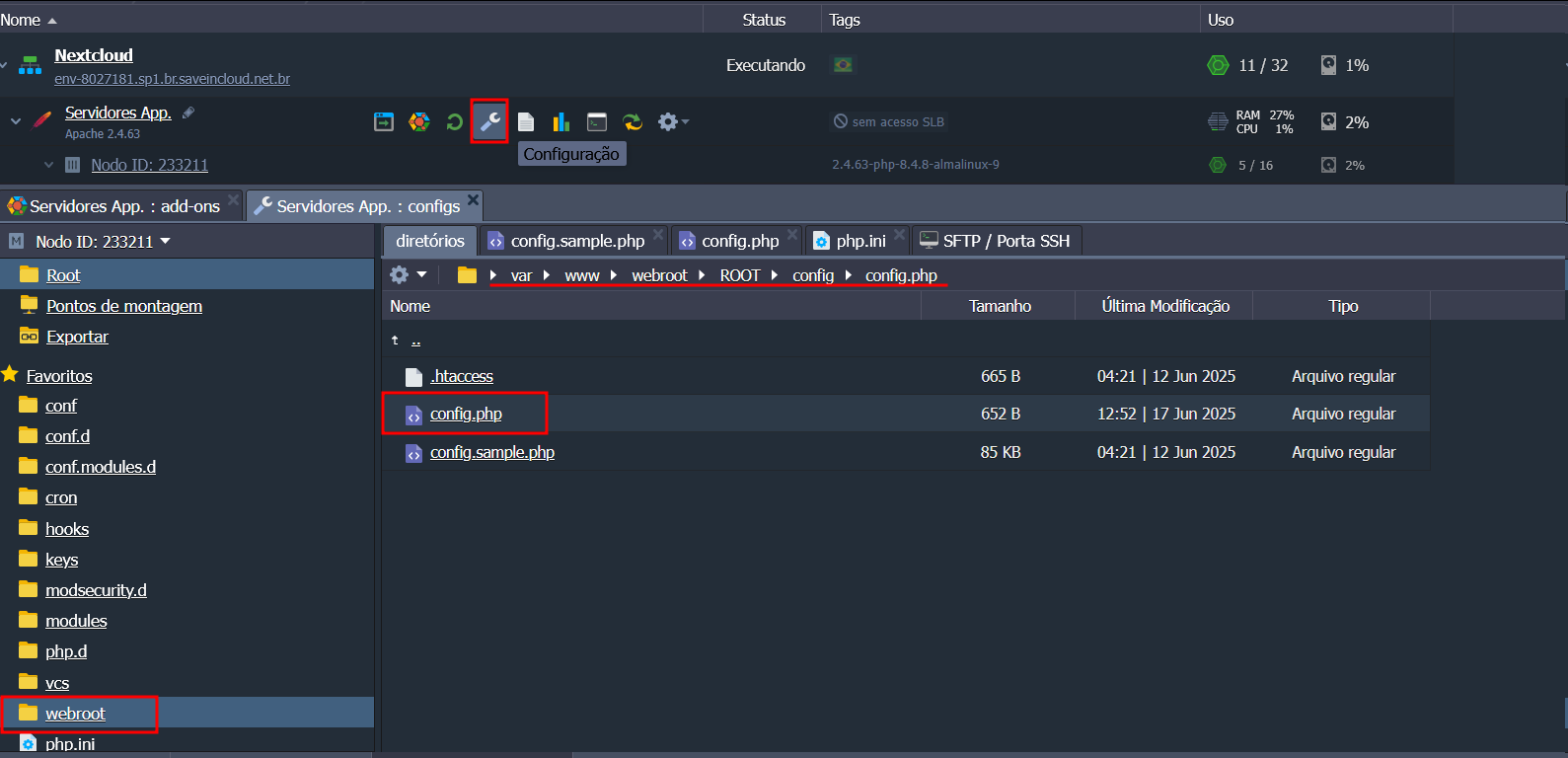
🔍 Example with explanation of each item
<?php
$CONFIG = array (
  'instanceid' => 'ocficticio1234', // ID único da instância Nextcloud (não deve ser alterado)
  'passwordsalt' => 'XyZf1ct1c1oSalt', // Salt usado para criptografar senhas (não modificar, configurado automaticamente)
  'secret' => 'f1ct1c10S3cr3tHash', // Chave secreta do sistema (não modificar, configurado automaticamente)
  'trusted_domains' =>
  array (
    0 => 'cloud.saveincloud.com.br', // Domínio padrão da plataforma (já configurado automaticamente)
    1 => 'meudominio.com.br',         // Domínios adicionais podem ser inseridos aqui
    2 => '192.168.0.10',              // IPs locais também são aceitos
  ),
  'datadirectory' => '/var/www/webroot/ROOT/data', // Diretório onde os dados dos usuários são armazenados
  'dbtype' => 'mysql',
  'version' => '31.0.6.2',
  'overwrite.cli.url' => 'https://cloud.saveincloud.com.br', // URL usada em comandos CLI
  'dbname' => 'nextcloud',
  'dbhost' => '10.19.0.10', // IP interno do container MySQL (Preenchido automaticamente pela plataforma)
  'dbport' => '',
  'dbtableprefix' => 'oc_',
  'mysql.utf8mb4' => true,
  'dbuser' => 'root', // Preenchido automaticamente pela plataforma
  'dbpassword' => 'senha-do-banco', // Preenchido automaticamente pela plataforma
  'installed' => true,
);
⚠️ Attention:
- Never edit the fields
passwordsaltandsecret. This will cause password loss and database corruption.- The field
trusted_domainsis safe to edit, allowing access via your own domains or internal IPs.- Whenever you change this file, check the accesses and restart Apache if necessary.
👥 Creating Users and Groups
Organizing users by groups with specific permissions is a good practice in the Zero Trust model, especially in collaborative cloud environments like Nextcloud.
👤 Creating a new user
- With the administrator account, go to the top right menu.
- Click on Accounts.
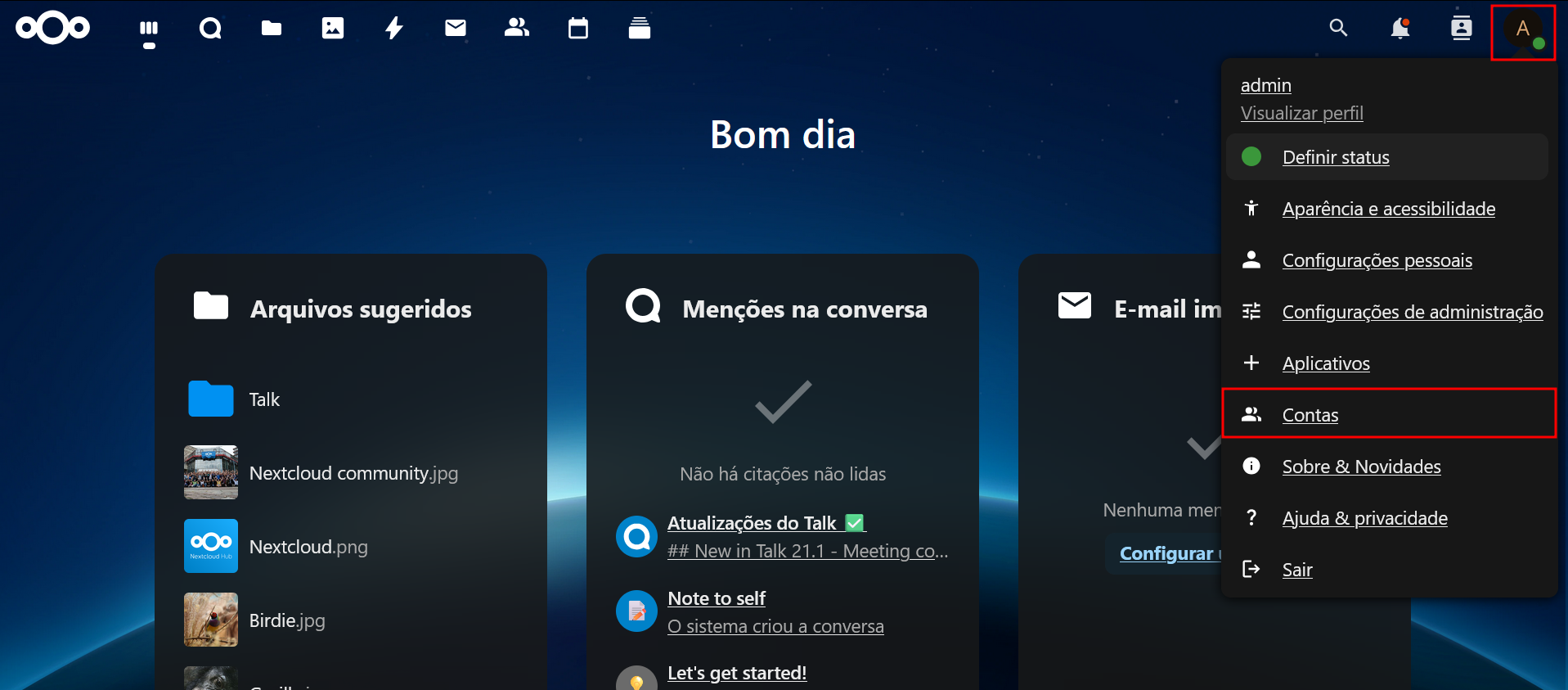
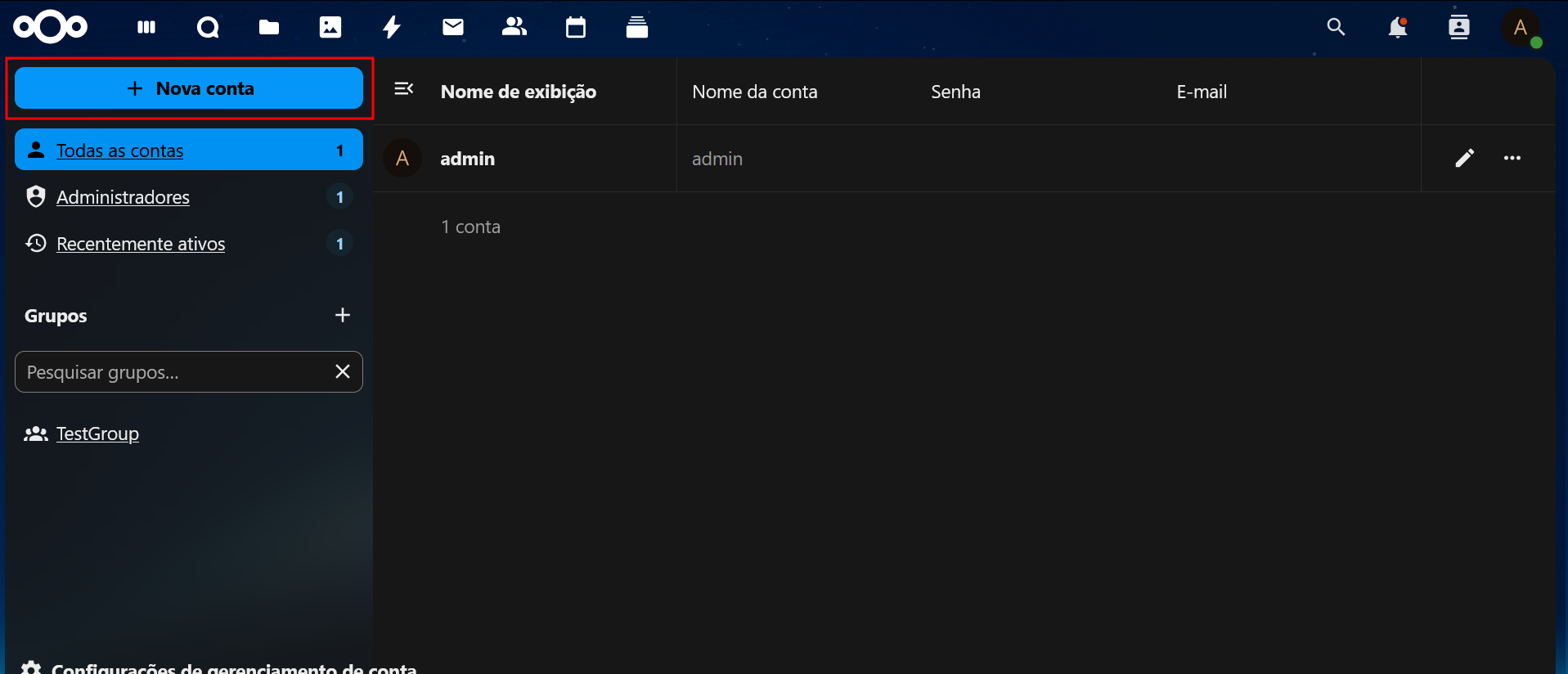
- On the new screen, click New Account.
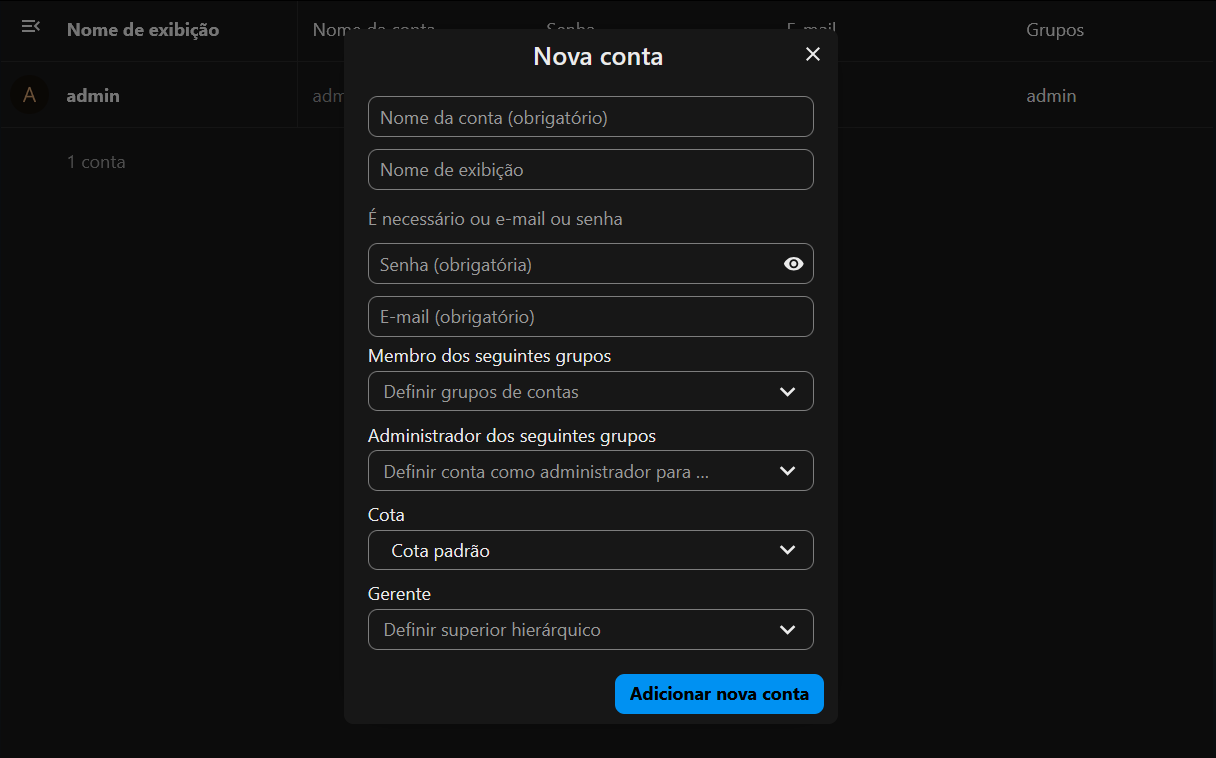
Fill in the fields as needed:
- Account Name (required)
- Display Name
- Password (or leave it for the system to generate one)
- Group the user will belong to
- Group administrator (optional)
- Disk Quota
- Account Manager
🧱 Creating a new group
It is recommended to create groups before adding users.
- On the accounts screen, click the “+” symbol next to Groups.
- Enter the desired group name and click Create.
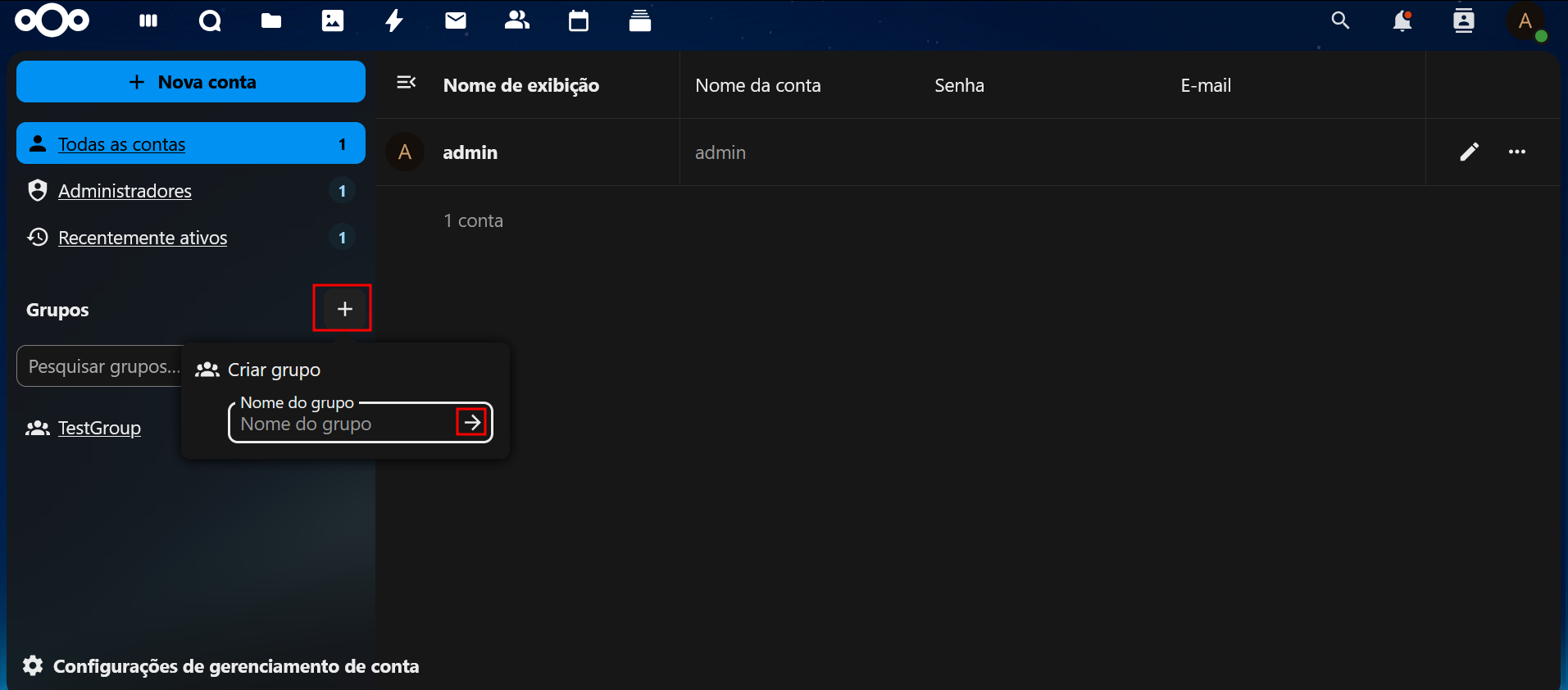
📌 Groups can be used to control folder permissions, apps, and administrative functions.
🔒 Enabling Two-Factor Authentication (2FA)
Adding 2FA via TOTP is one of the best ways to protect Nextcloud accounts.
🚀 How to enable the TOTP app
- Access your administrative account.
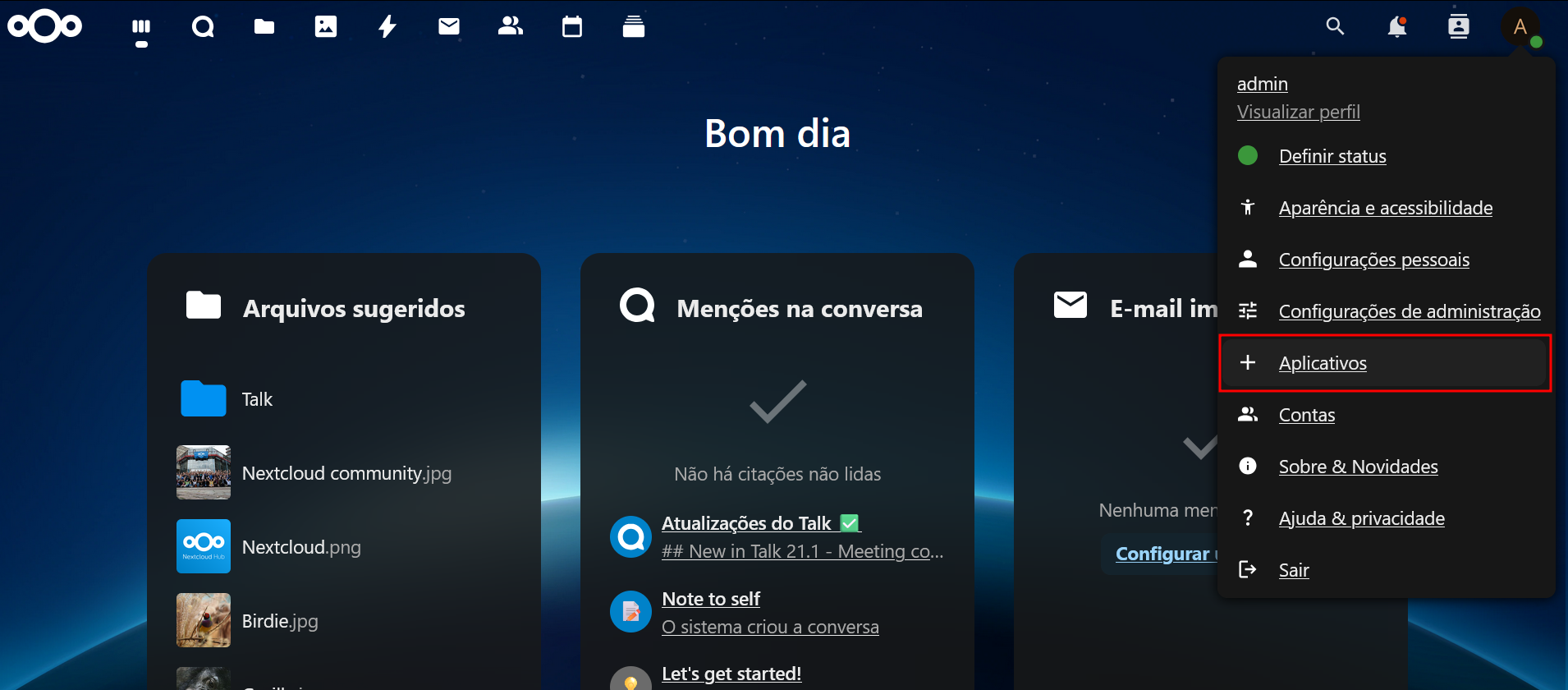
- In the top right corner, open the user menu and click Apps.
- Go to the Disabled Apps section.
- Find the Two-Factor TOTP Provider app.
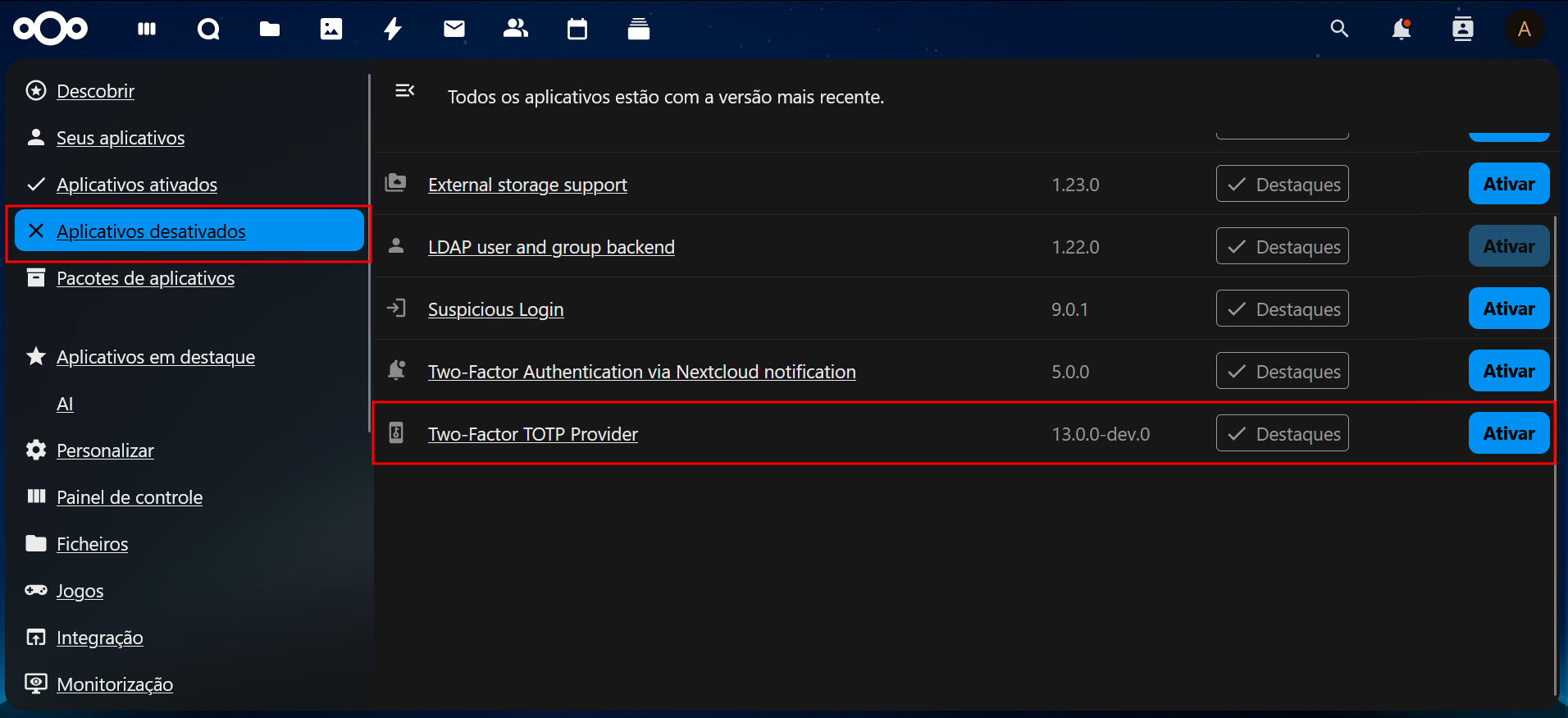
- Click Enable and enter your administrator password to confirm.
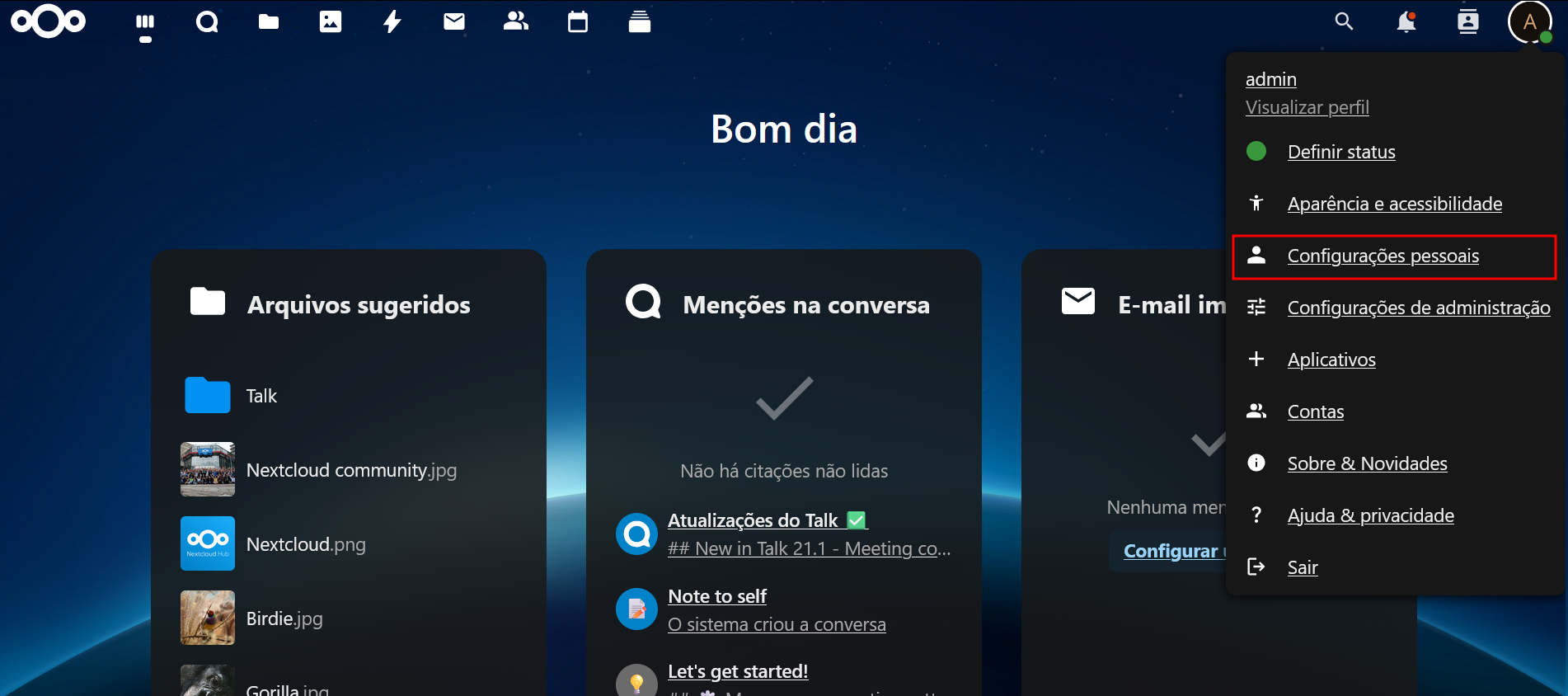
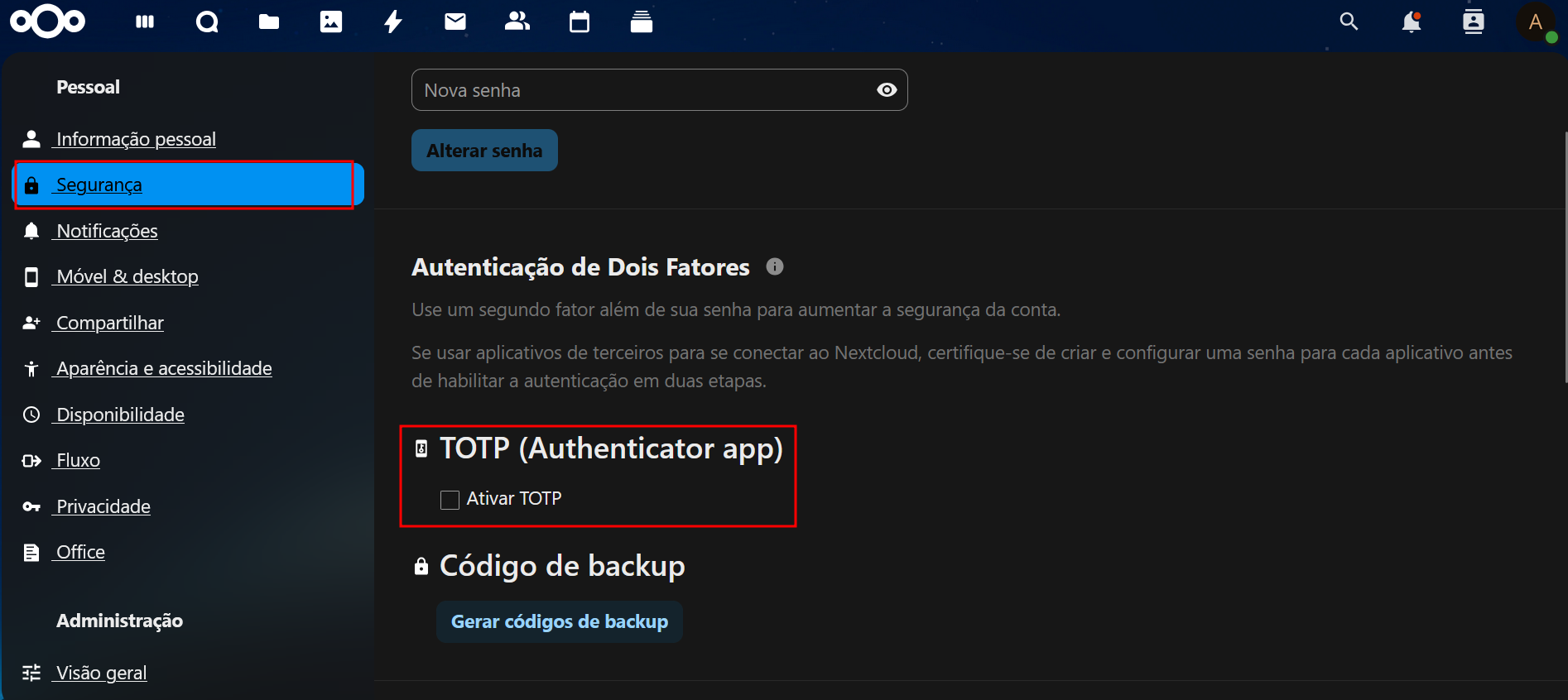
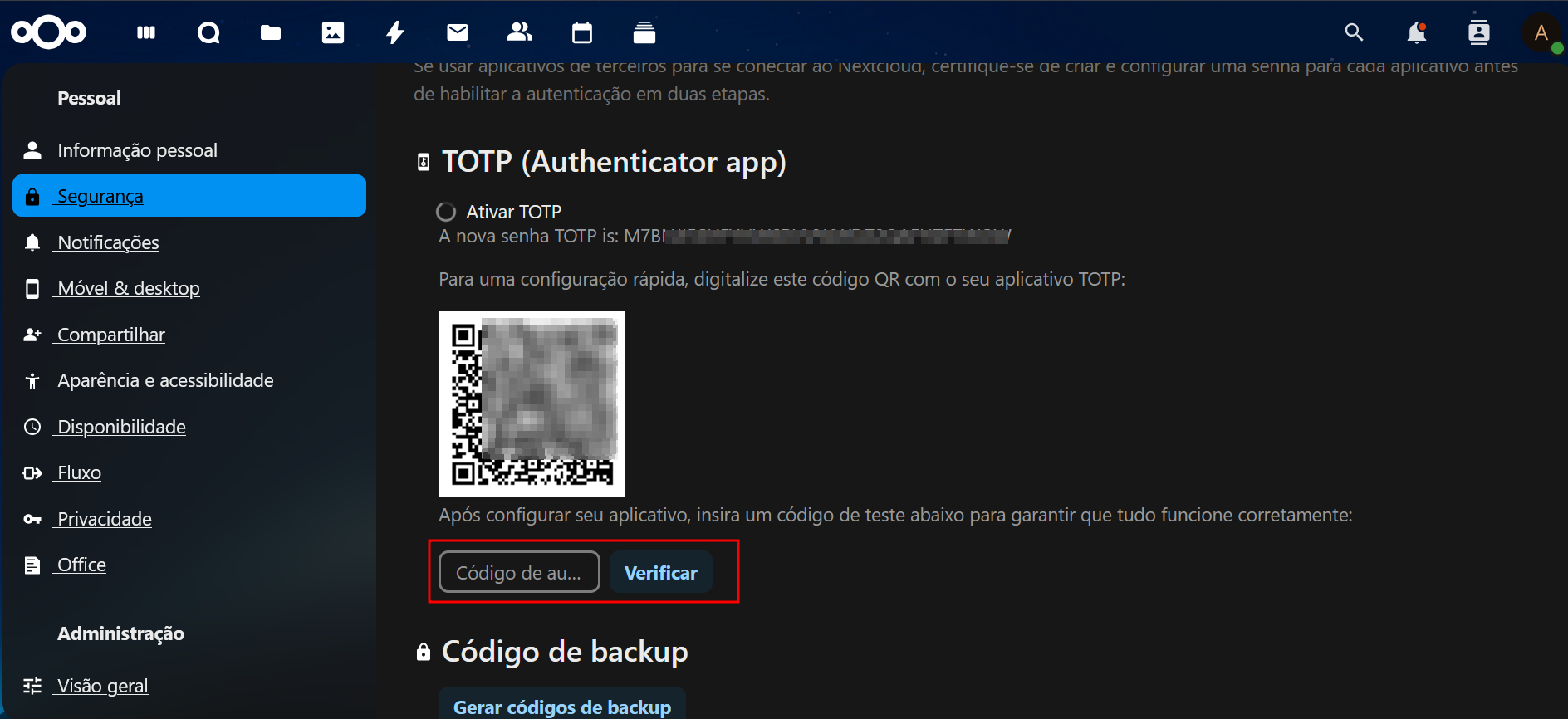
Once enabled, each user can activate 2FA at:
Menu do usuário → Configurações pessoais → Segurança
🔧 Forcing 2FA and configuring policies
-
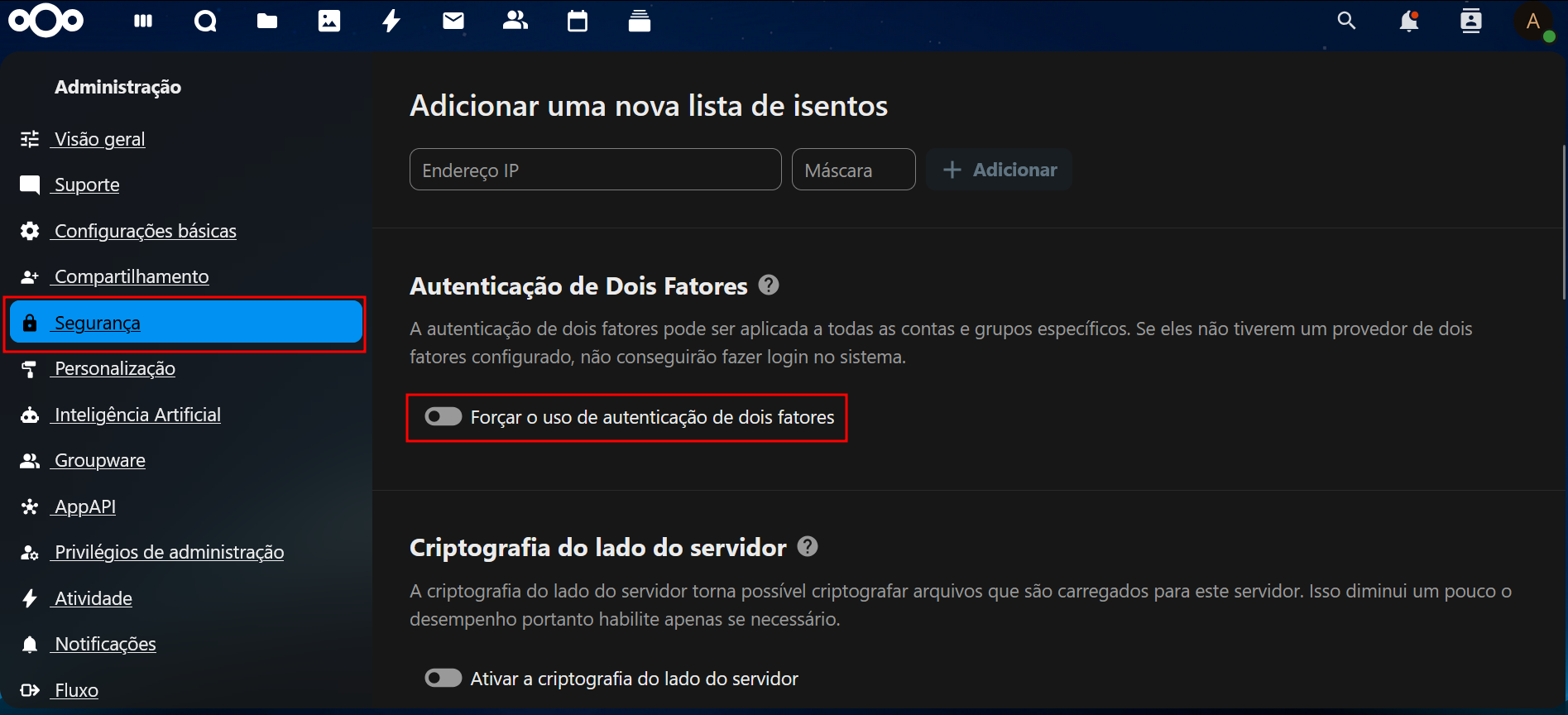
Go to Administrative Settings → Security.
-
Enable the option to force two-factor authentication for all users.
-
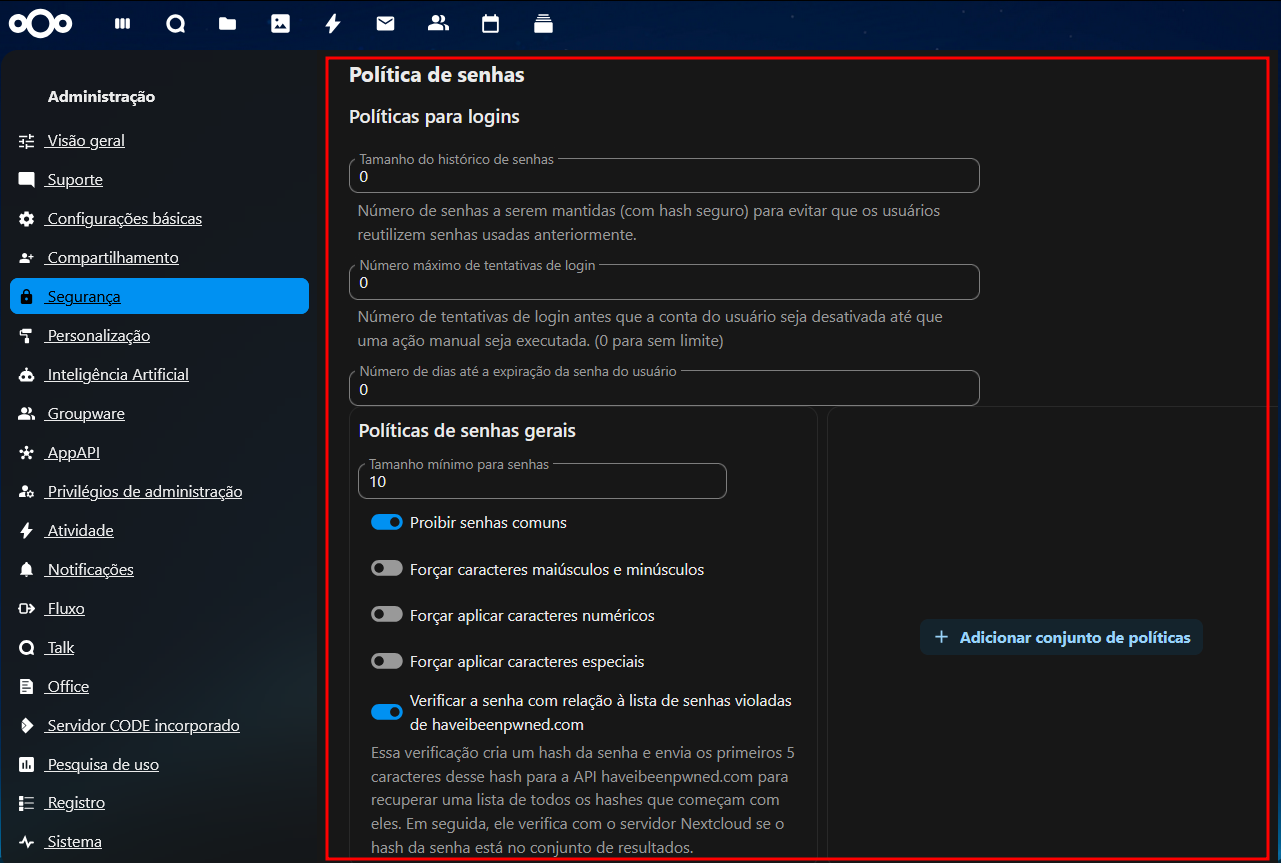
In the same menu, define password policies, such as:
- Minimum length
- Use of special characters
- Password expiration or rotation
🌍 Changing Nextcloud Language
📌 By default, Nextcloud may be set to English after installation. Changing the language to Brazilian Portuguese helps usability and understanding of all platform features.
📝 Steps to change the language:
-
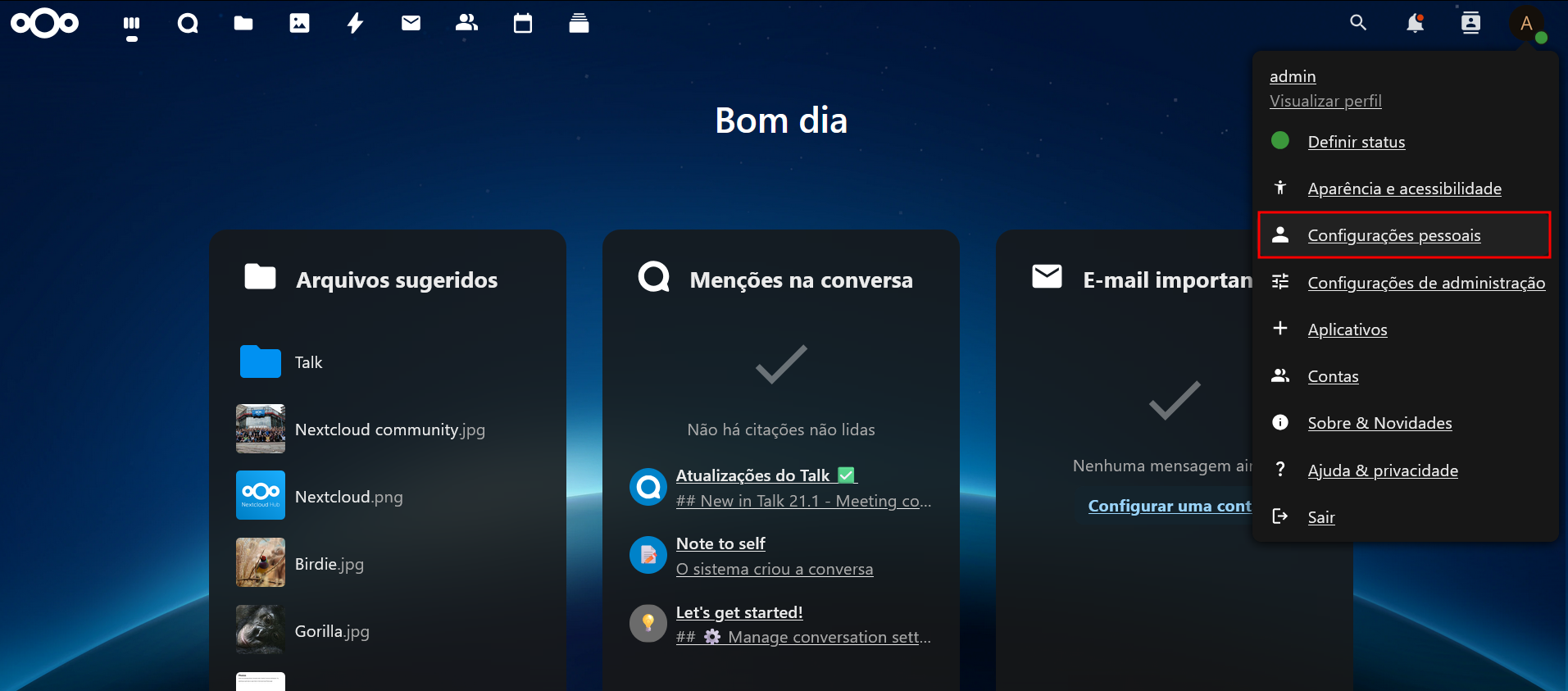
In the top right corner of the screen, click the user menu (icon or name).
-
Go to Personal Settings.
-
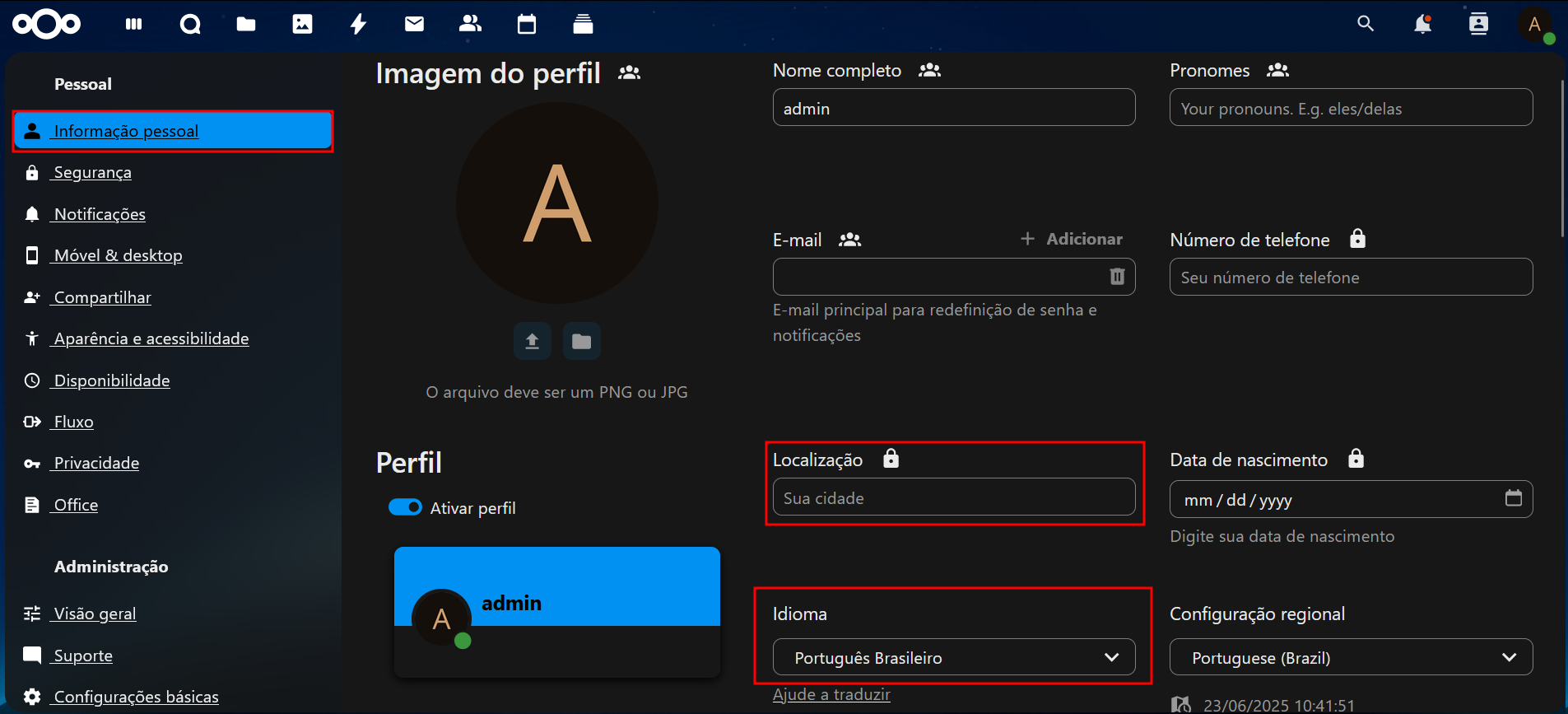
In the Personal Information section, locate the Language field.
-
Select Brazilian Portuguese from the list of available languages.
🌎 You can also adjust the region/locale according to your preference.
📸 [Add here image showing the path to the language setting]
✅ The change is applied immediately and will be maintained in the user's future sessions.
✅ Finalizing
With these initial settings, your Nextcloud environment will be:
- More secure
- Better structured
- Ready to scale as your team grows