🛠️ Control Web Panel (CWP) Deployment on SaveInCloud Marketplace
The Control Web Panel (CWP) is a free and robust hosting control panel that allows you to manage Linux servers easily through an intuitive web interface.
It simplifies the administration of domains, email accounts, databases, FTP, firewall, and much more.
🚀 Deployment Step by Step
- Access the SaveInCloud Marketplace.

- Search for Control Web Panel (CWP).
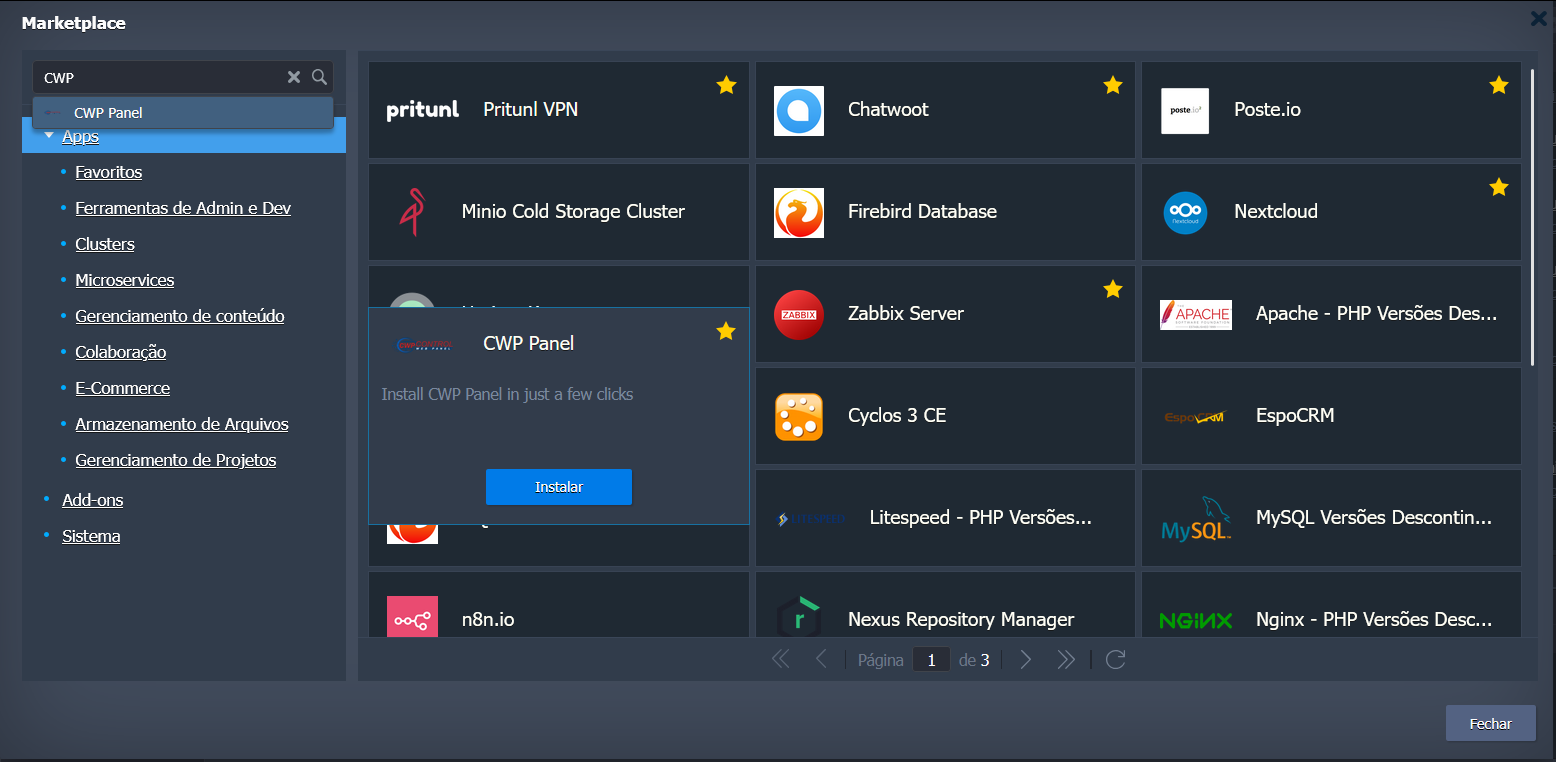
- Click Install.
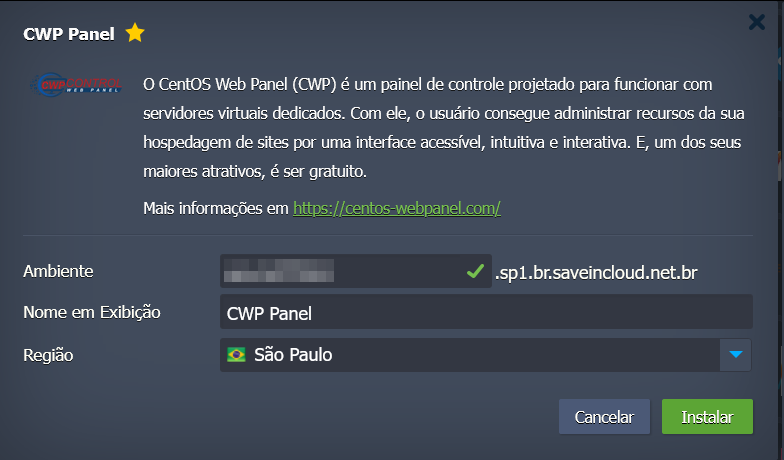
- Configure the environment name and the region where you want to provision the panel.
⚙️ Main Features of CWP
- 📂 Full management of files and domains.
- 📧 Administration of email accounts and mail services.
- 🗄️ Management of MySQL/MariaDB databases.
- 🔐 Configuration of firewall and security.
- 🌐 Support for multiple sites and shared hosting.
- 📊 Usage statistics and server monitoring.
🔑 Initial Access
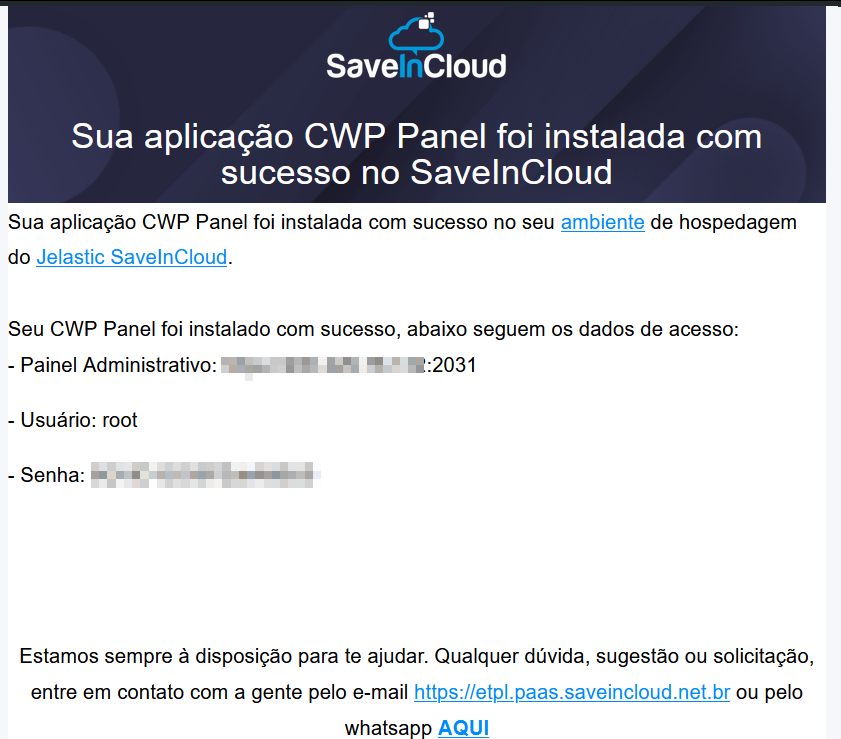
After deployment, you will have access to the CWP panel:
-
Admin Panel (root):
http://SEU_DOMINIO:2031 -
User Panel (clients):
http://SEU_DOMINIO:2083
Initial credentials will be sent via the email registered on the SaveInCloud platform right after installation.
✅ Best Practices
- Configure and enable SSL certificates on the panel for secure connections.
- Keep CWP updated to ensure stability and security.
- Set automatic backup policies for hosted sites and databases.
🛠️ Troubleshooting
- If you cannot access the panel at
:2031or:2083, verify that the ports are open in the firewall. - In case of login issues, check the initial credentials in the SaveInCloud panel.
- For service failures (e.g., Apache, MySQL, Postfix), use the Service Manager inside CWP to restart the modules.