📚 Deploying Moodle on the SaveInCloud Marketplace
Moodle is one of the most widely used distance learning (EAD) platforms in the world, offering robust features for creating online courses, managing students, and integrating with external tools.
On the SaveInCloud Marketplace, you can provision Moodle in just a few clicks, with a ready-to-use environment.
🚀 Deployment Step-by-Step
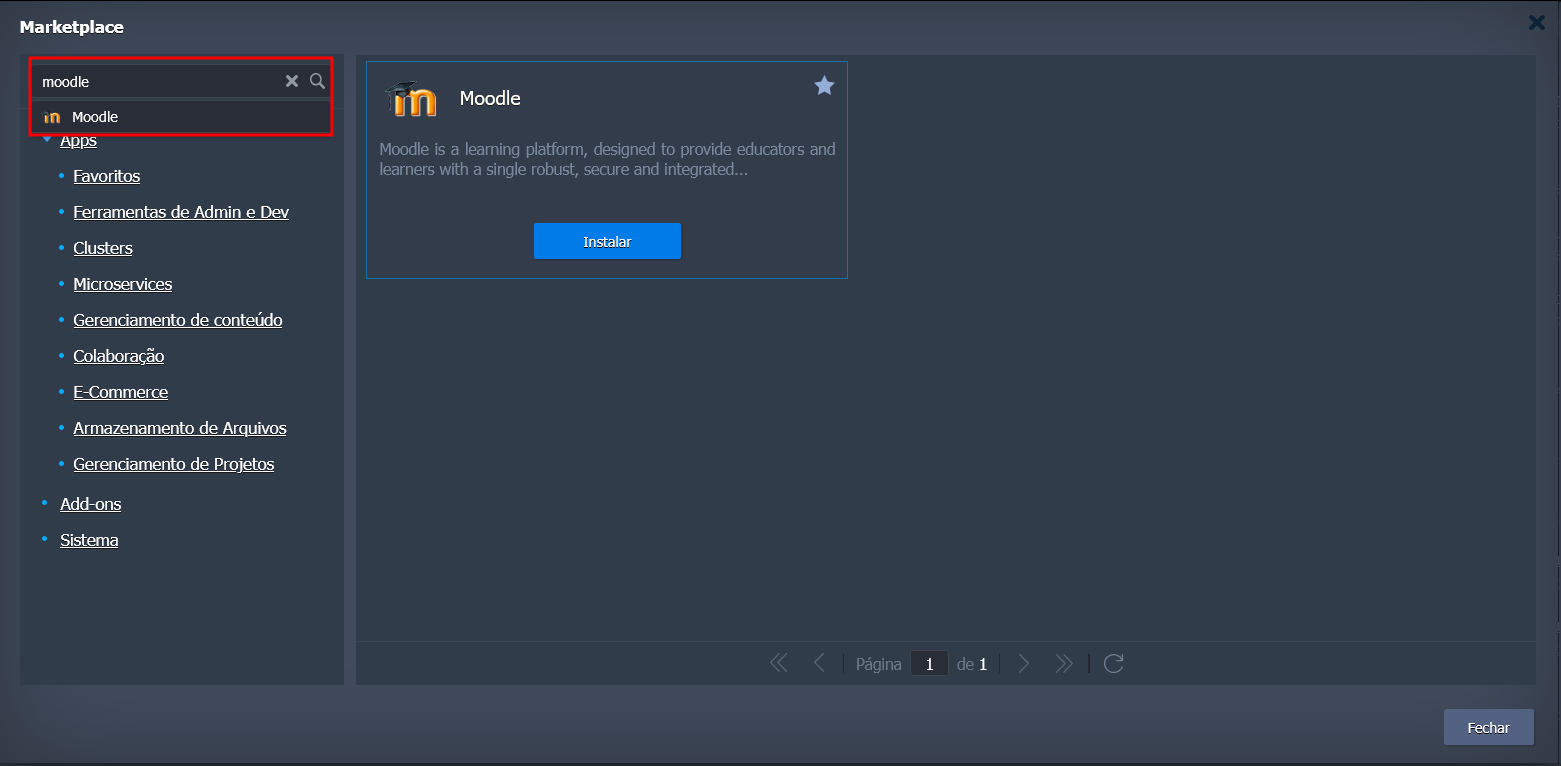
- Access the SaveInCloud Marketplace.

- Search for Moodle.
- Click Install.
- Configure the options before provisioning:
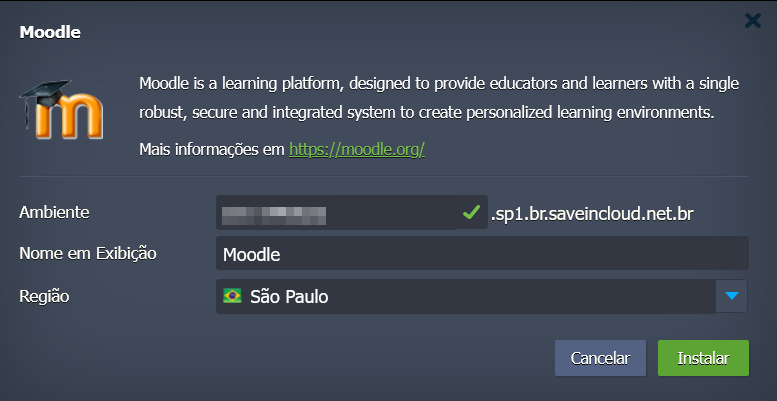
- Environment Name → Identify your Moodle instance.
- Datacenter Region → Choose from:
- 🇧🇷 São Paulo
- 🇧🇷 Fortaleza
- 🇧🇷 Brasília
- Click Install to start the deployment.
⏳ The environment will be available in a few minutes.
🔑 Initial Access
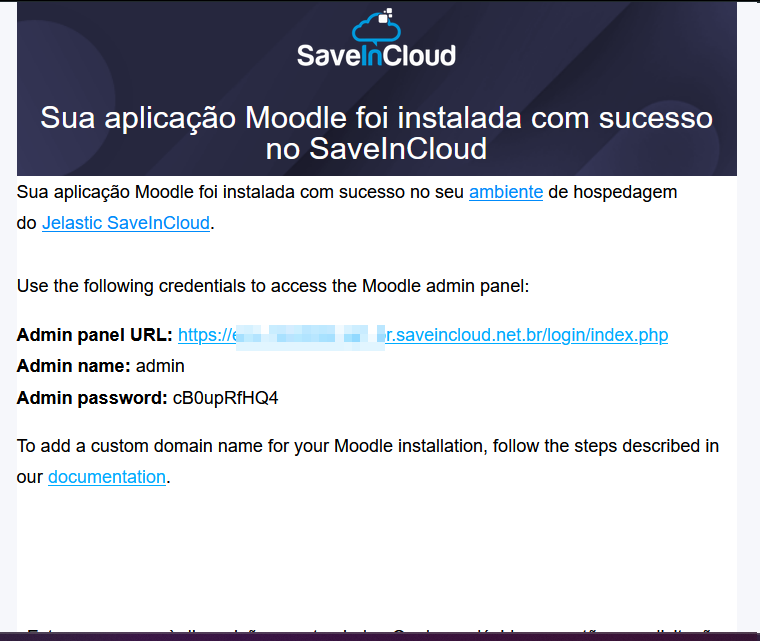
- At the end of the installation, a SaveInCloud URL will be created to access Moodle.
- The administrative credentials will be automatically sent to the email registered on the platform.
⚙️ Provisioned Stack
The Moodle environment on SaveInCloud includes:
- 🌐 Apache Web Server
- 🐘 PHP configured to run Moodle
- 🐬 Integrated MySQL database
- 📦 Pre-installed Moodle ready for initial setup
⚠️ By default, the deployment does not include an SSL certificate.
To enable HTTPS, use the Let's Encrypt add-on available on the provisioned Apache instance.
✅ Best Practices
- Configure a custom domain for production use.
- Enable the Let's Encrypt SSL Add-on to secure connections.
- Define backup policies for the database and courses.
- Monitor resource usage (CPU, memory, and disk) as the number of students grows.
🛠️ Troubleshooting
- Did not receive the email with credentials? → Check your spam folder or resend it from the panel.
- SSL error → Install the Let's Encrypt add-on on the Apache instance.
- Database unavailable → Check MySQL/MariaDB logs and restart the service from the panel.
- Performance issues → Adjust PHP limits and consider increasing the instance resources.