Zabbix Server: Monitoring and Configuration
Overview
This guide shows how to add a host in the Zabbix Server provisioned via SaveinCloud, using the Marketplace template.
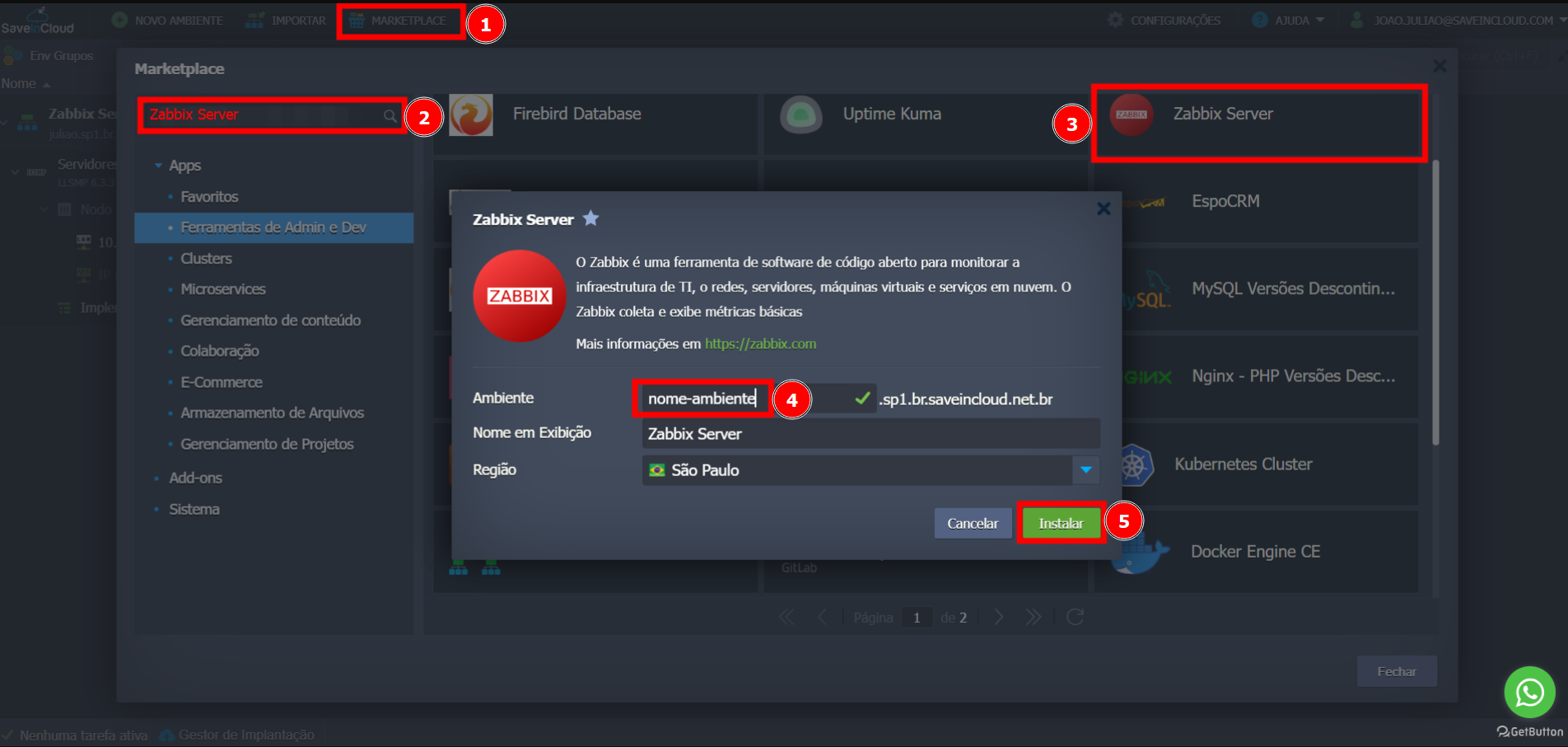
Initial Access to Zabbix
After creating the environment via Marketplace, access the web interface installer:
🔗 https://<SEU_DOMÍNIO>/setup.php
1. Getting Started
-
Select the desired language.
-
Check the installation prerequisites.
-
In the Database step, fill in the information provided by email when creating the environment:
-
Type: MySQL
-
Database host
-
Database name
-
User
-
Password
-
Uncheck the “Database TLS encryption” option and click "Next Step".
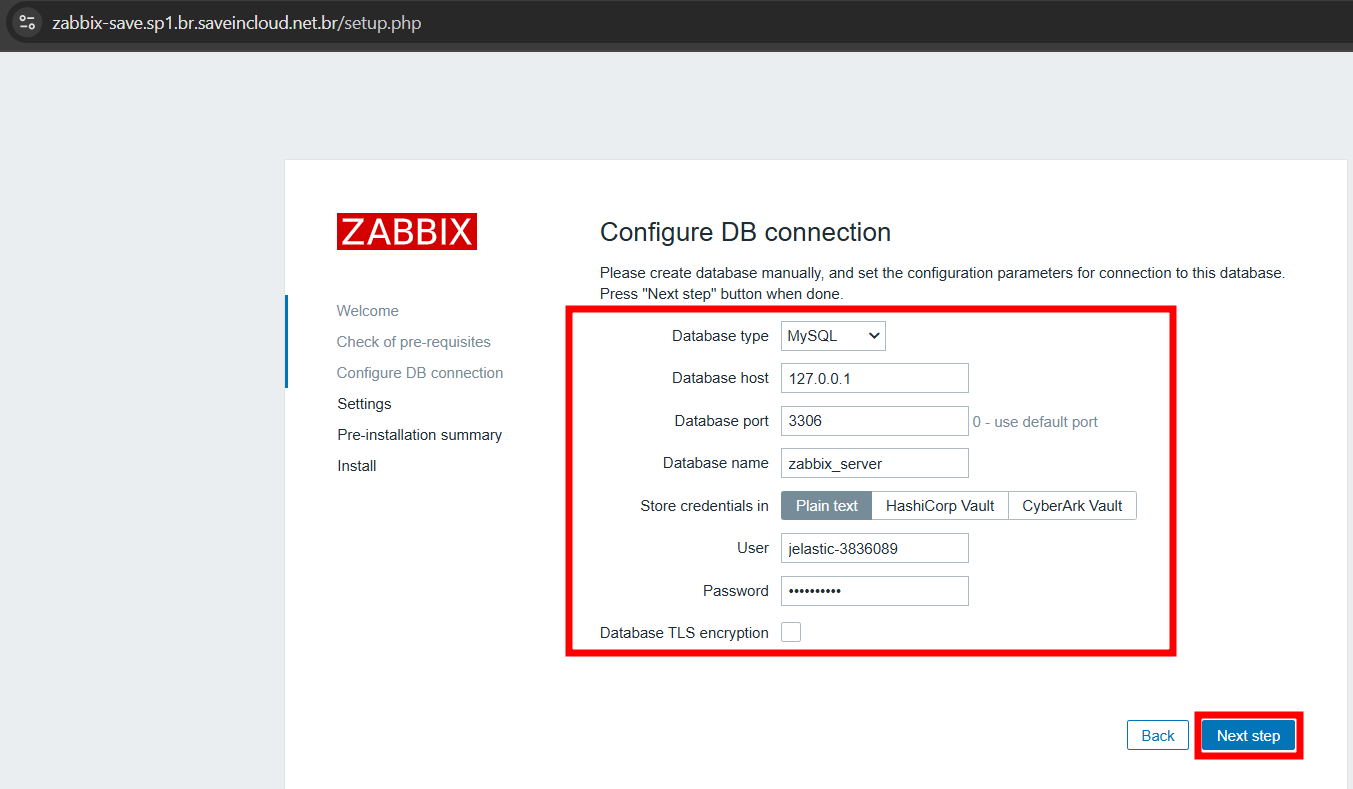
Use the data you received at the time of installation (Also available in your email).
The data in the image is for example only.
-
In Settings, set the Zabbix name, timezone, and theme.
-
Review and click Install.
Access to the Administration Console
After installation:
-
Access the main URL of the environment:
https://<SEU_DOMÍNIO> -
Log in with the default Zabbix credentials:
-
User:
Admin -
Password:
zabbix
For security, it is recommended to change the password immediately after the first login.
Adding a New Host for Monitoring
1. Navigate to Configuration > Hosts
Click Create Host to add a new server or application to be monitored.
2. Fill in the fields:
-
Host name: host name (e.g.,
web01) -
Groups: select or create a group (e.g.,
Linux Servers) -
Interfaces:
-
Type: Agent
-
IP: IP address (LAN) of the server to be monitored
-
Port: 10050
💡 Make sure the Zabbix Agent is installed and running on the target host.
3. Associate a Template
In the Templates tab, click Add and select an appropriate template such as:
-
Template OS Linux by Zabbix agent -
Template App MySQL by Zabbix agent -
Others, according to the service to be monitored
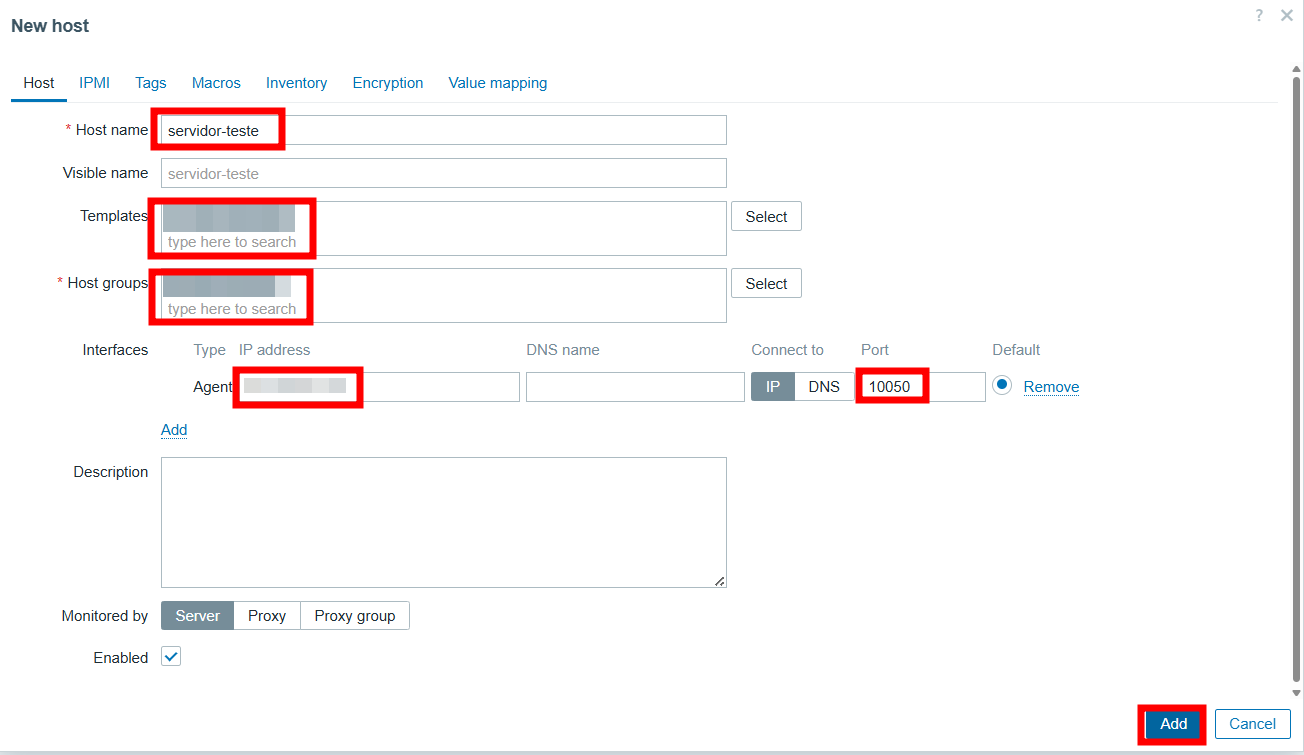
4. Save
Click Add to finish. The host will be added and monitored automatically if properly configured.
🔐 Remember: the port used by the Zabbix Agent (by default, 10050) must be open in the firewall of the monitored server, allowing the Zabbix Server to connect and collect data correctly.
Additional Resources
-
Access to the WebAdmin Console and phpMyAdmin are also sent in the initial environment provisioning email.
-
See the Official Zabbix Documentation for advanced details.