🐳 Docker Engine CE on the SaveinCloud platform
This guide aims to instruct the creation, configuration, and best practices for using the Docker Engine CE stack on the SaveinCloud PaaS platform.
🛠️ Installation via Marketplace
- Access the SaveinCloud panel and click on MARKETPLACE.
- Search for
Docker Engine CE.
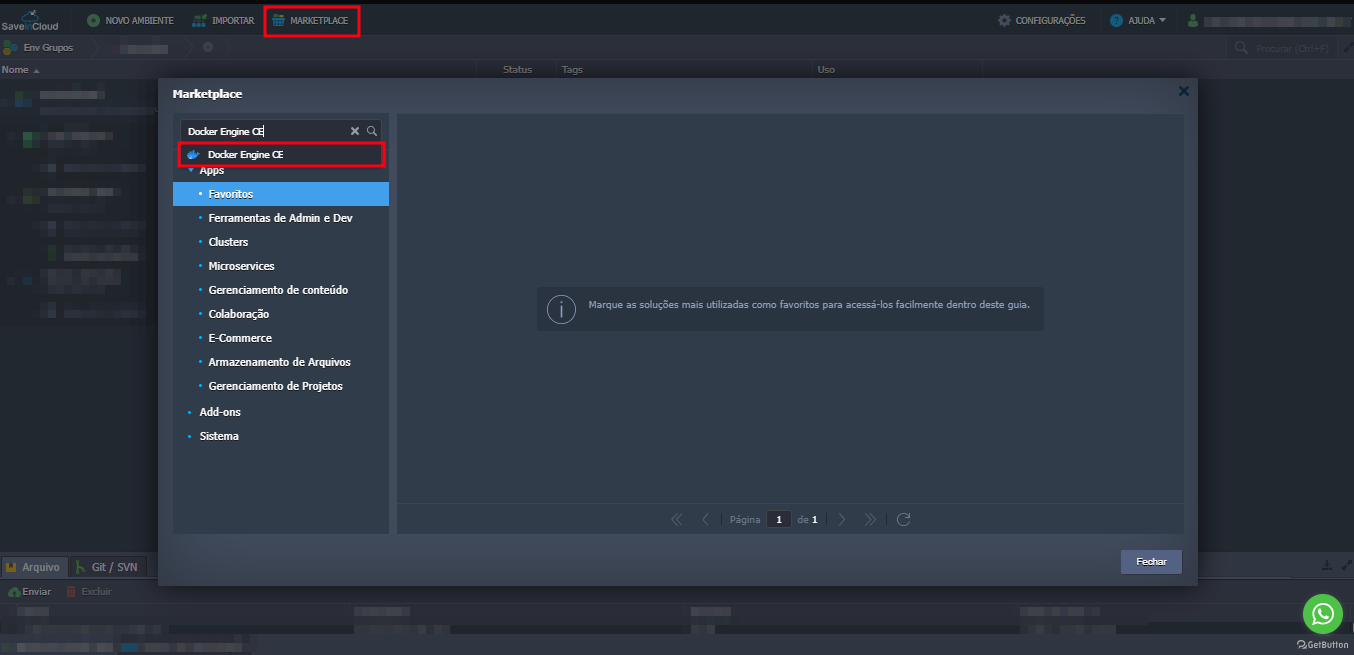
You will see a screen with the following options:
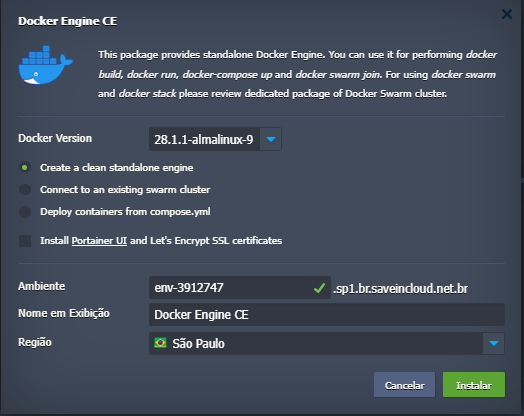 8
8
🔢 Docker Version
Select the desired Docker version. Example: 28.1.1-almalinux-9.
⚙️ Deployment Options
-
Create a clean standalone engine
Creates an isolated Docker instance. Ideal for running independent containers. -
Connect to an existing swarm cluster
Connects this instance to an existing Swarm cluster. (Advanced use) -
Deploy containers from compose.yml
Allows launching containers directly with adocker-compose.yml.
✅ Additional Checkboxes
- Install Portainer UI and Let’s Encrypt SSL certificates
Installs Portainer (graphical control panel) and applies SSL certificates with Let’s Encrypt.
💡 Use the Portainer UI to visually manage your containers, volumes, and networks. It facilitates managing more complex environments. To access it, use the address: https://nome-ambiente.sp1.br.saveincloud.net.br:4848/
📦 Practical Example with Docker Hub Image
We will use an official Docker Hub image: nginxdemos/hello.
docker run -d --name hello-docker -p 8080:80 nginxdemos/hello
Access: http://<ip_publico>:8080 to see the application running.
ℹ️ The image nginxdemos/hello is lightweight, perfect for quick web container tests.
⚙️ Access and Management
SSH
After creation, access the instance via terminal:
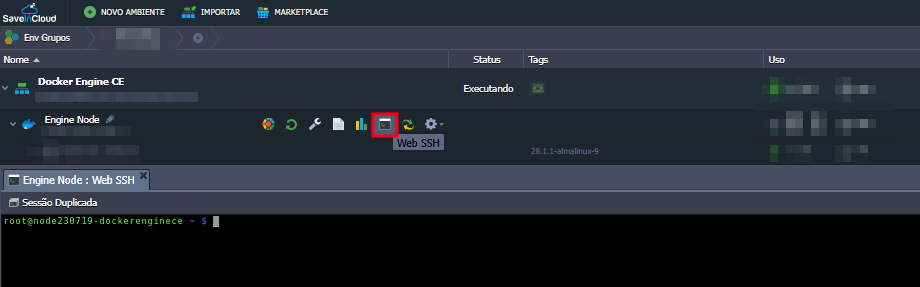
Docker Commands
docker ps        # Ver containers ativos
docker images    # Listar imagens
docker logs -f <nome>  # Ver logs em tempo real
🔐 Security and Best Practices
⚠️ Never expose the Docker socket (/var/run/docker.sock) publicly. It gives full control of the machine!
- Use official images whenever possible.
- Update your images frequently.
- Configure firewall to block unnecessary ports.
- Avoid running containers as root when possible.
💸 Resource Optimization
💡 Reserve cloudlets according to your average usage to save costs. Reserved cloudlets are cheaper than dynamic ones.
📁 Recommended Structure
/home/docker/
├── projetos/
│   └── app1/
│       └── Dockerfile
├── scripts/
├── backups/
📚 Related Resources
🧠 Questions?
Contact the technical support team with your question or issue.