Deploying your .NET application
⚠️ All configurations made in this manual are simple and hypothetical examples. Adaptations will be necessary according to your environment topology.
🖥️ Create the application server
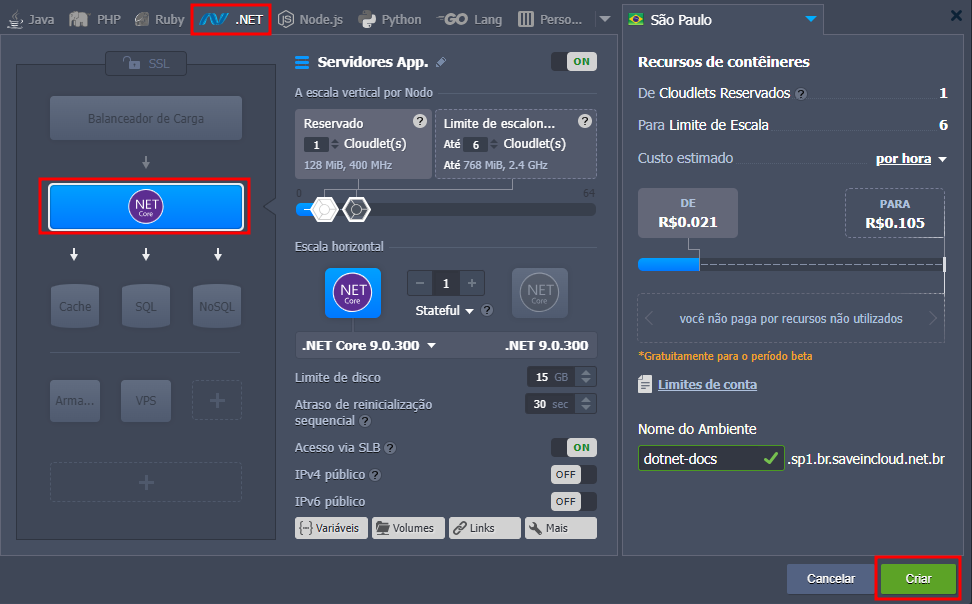
First, create your .NET application server as shown in the image below:
⚙️ Required Configurations
After creating the environment, some configurations are necessary before deploying your application.
🔧 Step 1 - Environment variables
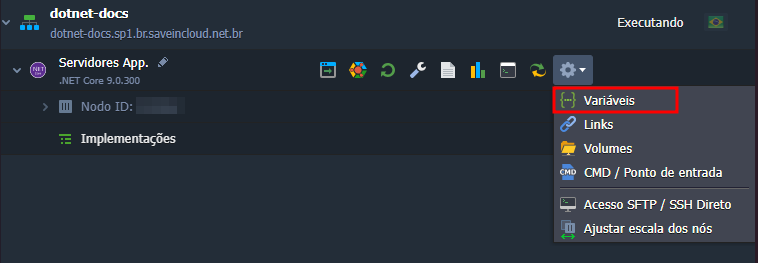
Access the environment variables of your .NET application server:
➕ Step 2 - Add the necessary variables
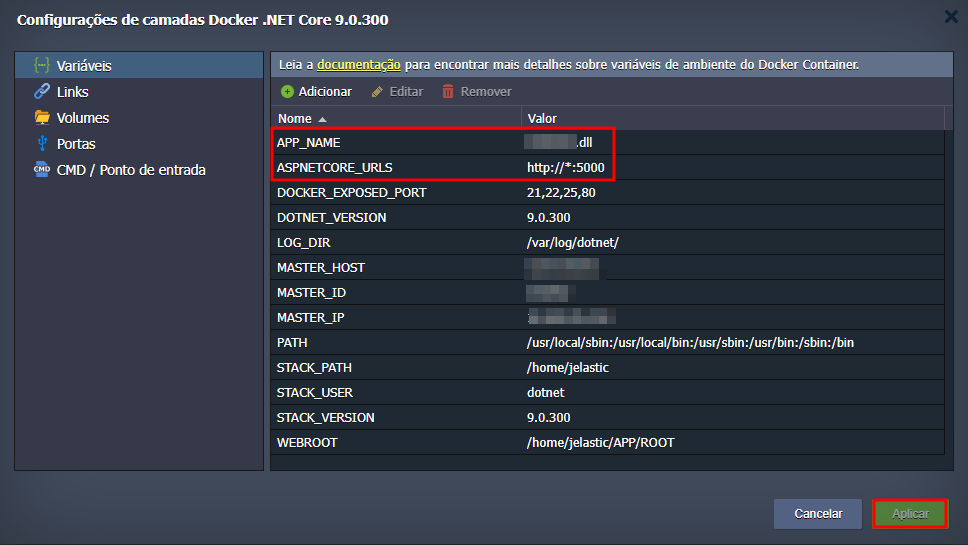
Add the following environment variables:
APP_NAME= specify the.dllof your application or the directory where it is located (example:aplicacao.dllor/diretorio/aplicacao/aplicacao.dll).ASPNETCORE_URLS= set the address and port of your application (example:http://*:5000).RUN_OPTION= if necessary, add parameters to thedotnet runcommand (e.g.,dotnet run --parametros). This command is executed automatically when restarting the server or deploying.
⚠️ There are two ways to define the application URL:
- Through the environment variable
ASPNETCORE_URLS; - Or via the
appsettings.jsonfile, using Kestrel.
📝 Example configuration in appsettings.json:
"Kestrel": {
  "Endpoints": {
    "Http": {
      "Url": "http://*:5000"
    }
  }
}
Below is an example of how it should be configured considering a simple application:
❌ Step 3 - Remove HTTPS redirection in Program.cs
Check if the line app.UseHttpsRedirection() exists in the Program.cs file. If it exists, comment out or remove it.
This is because HTTPS will be managed by the load balancer (NGINX), not directly by the application.
This line can only be changed before your application is published!
🚀 Step 4 - Deploy the application
After configuring everything, you can deploy your application in two ways via the Deployment Manager:
- Via Git.
- Or by uploading a .zip file containing your application.
🔗 To learn more about the Deployment Manager, click here!
If you are using SLB, the platform will automatically redirect port 80 to the port configured in the application, so when accessing your application via SLB it is not necessary to include the port number in the URL. However, if you are using a custom domain with an A record pointing to the public IP of your instance, you must specify the port number.
🔒 HTTPS
To handle HTTPS in your .NET application, you will need to add an NGINX Load Balancer and install Let's Encrypt as well as configure redirection.
- To learn about configuring NGINX for Reverse Proxy (HTTPS), click here!
🧰 Troubleshooting
If you are receiving the error connection refused (connection refused), check if the application port is open in the Firewall.
🔗 To learn about Firewall Management, click here!