🔐 Learn How to Manage the Firewall of Your Windows VM
All configurations made in this manual are simple and hypothetical examples. Adaptations will be necessary according to your needs.
Effective firewall management ensures the protection of the Windows server against unauthorized access to essential services and applications.
🧭 Access Windows Defender Firewall with Advanced Security
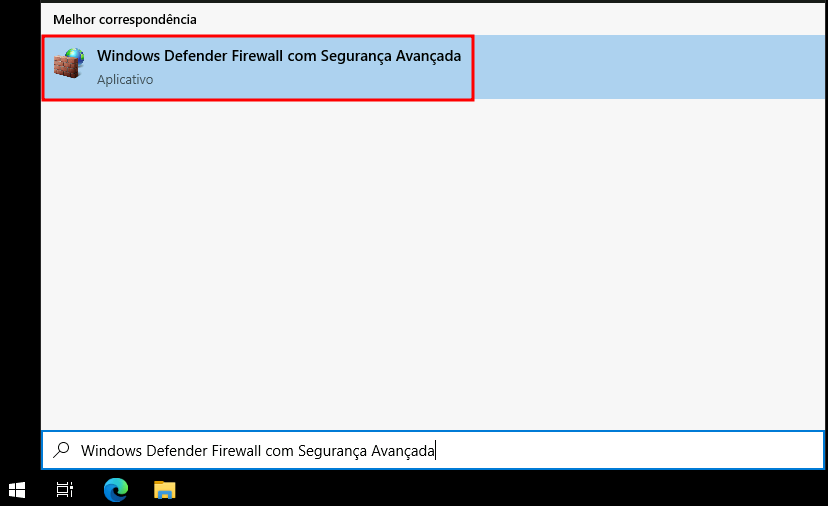
- Open the Start menu and search for Windows Defender Firewall with Advanced Security.
- The interface will display an overview of the firewall. Click on Inbound Rules to view the rules already configured.
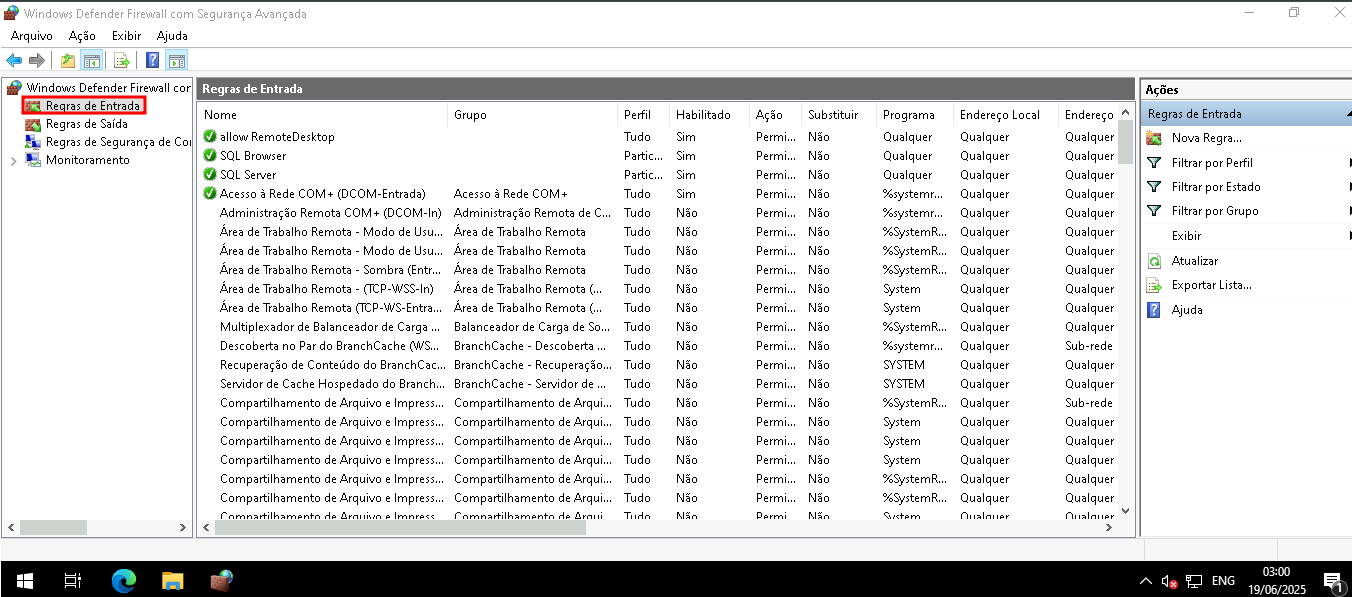
On this screen, you can check some features of the Inbound Rules, such as:
- Rule name;
- Rule profile;
- Action;
- Protocol;
- Port;
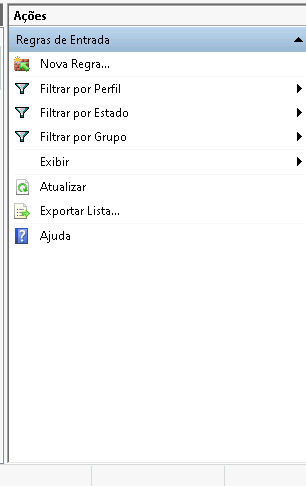
Additionally, you can filter the rules by Profile, State, or Group for better visualization, as well as export a list of your rules in .txt format.
➕ Creating a New Inbound Rule
Click on New Rule on the right side, in the Actions tab.
🧩 Rule Type
Choose the type of rule you want to create:
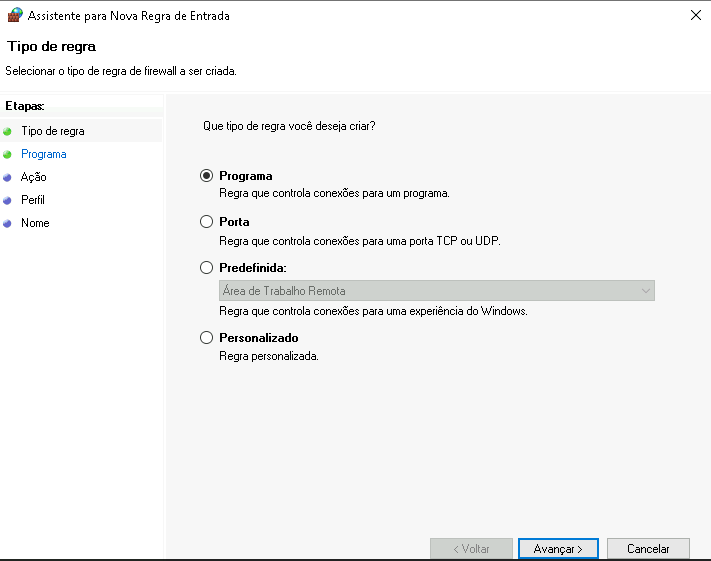
- Program: Allows creating a rule based on an executable program path (.exe).
Ex:C:\Program Files\MyApp\app.exe - Port: Allows controlling inbound or outbound traffic based on a TCP or UDP port.
Ex: Port 3389 (RDP) or 80 (HTTP) - Predefined: Uses pre-configured Windows rules for features like Remote Desktop.
- Custom: Allows advanced configuration based on multiple criteria (program, protocol, IP, etc.)
After selecting the desired rule type, click Next.
In this example, we will create an inbound rule for Ports and Protocols, but you can adapt it according to your needs.
📡 Protocol and Ports
Define the desired protocol and port number.
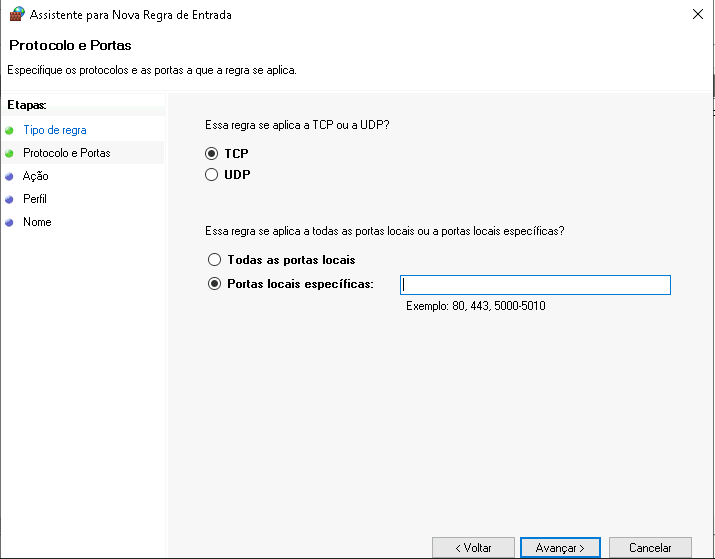
- Protocol:
- TCP: Reliable connection, used in HTTP, RDP, FTP.
- UDP: Connection without verification, used in DNS, VoIP, etc.
- Specific local ports:
- Enter the port number you want to allow or block.
Ex:80,443,3389,1433
- Enter the port number you want to allow or block.
Click Next to proceed.
🚦 Rule Action
Next, you need to define the action to be executed when a connection matches a specified condition.
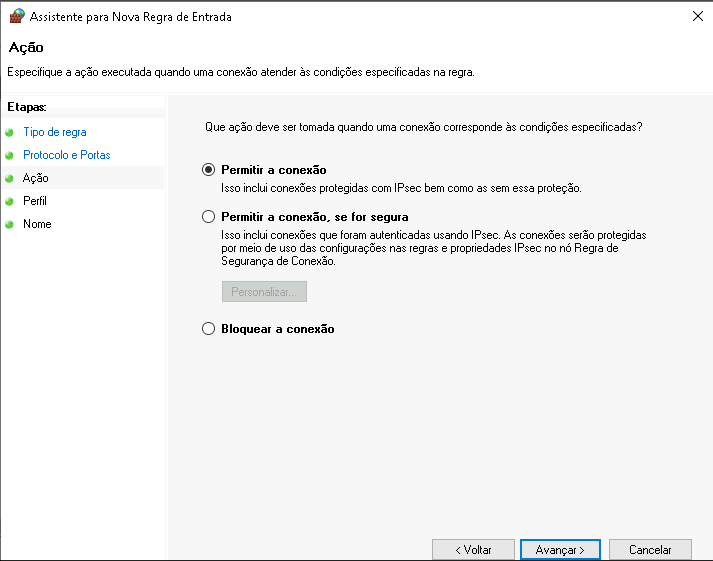
- ✅ Allow the connection: Authorizes any connection that meets the rule criteria.
- 🔒 Allow the connection if it is secure: Requires authentication via IPsec.
- ⛔ Block the connection: Blocks any connection that meets the rule criteria.
Then, click Next.
🌐 Profile Application
Determine which profiles the rule will apply to:
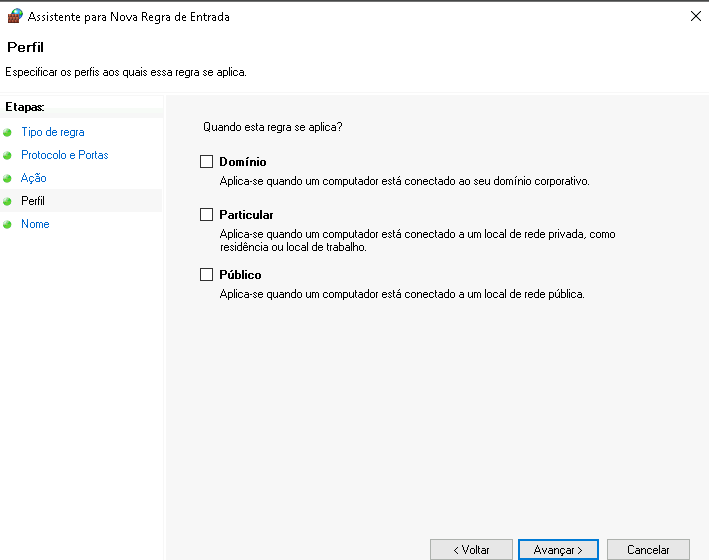
- 🖥️ Domain: When the computer is connected to a corporate domain.
- 🏠 Private: When connected to a home or trusted network.
- 🌍 Public: When connected to a public network, such as coffee shop or hotel Wi-Fi.
Afterwards, click Next to continue.
🏷️ Rule Name
Give a clear name to your new rule:
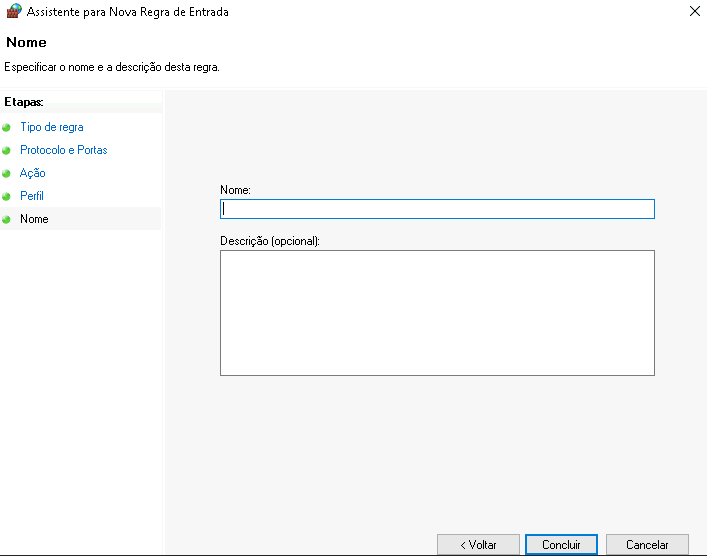
Example: Permitir HTTP - Porta 80 or Bloquear FTP - Porta 21
Click Finish to complete the rule creation.
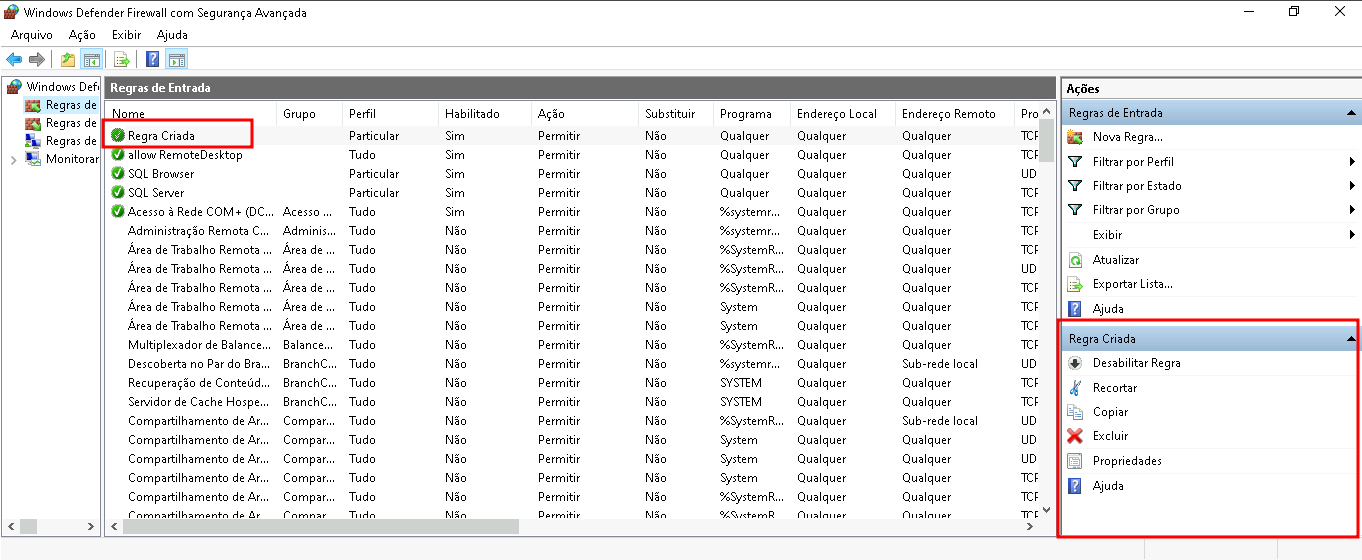
✅ Overview of the Created Rule
After completion, you will see the new rule listed. You can:
- Enable or disable the rule
- Copy to create a similar one
- Delete the rule if necessary
ℹ️ Useful Links
👉 Official Microsoft documentation on Windows Defender Firewall