How to Remove Recovery Partition on Windows (VM)
Overview
This document describes the process to remove the recovery partition present in Windows operating systems in virtualized environments, in order to allow the expansion of the main disk partition.
Prerequisites
-
Administrative access to the Windows VM
-
VM backup (recommended)
-
VM disk already expanded through the platform
Step by Step
1. Access the Windows VM
Connect to the virtual machine to be modified with an account that has administrative permissions.
2. Check existing partitions
Open Disk Management:
diskmgmt.msc
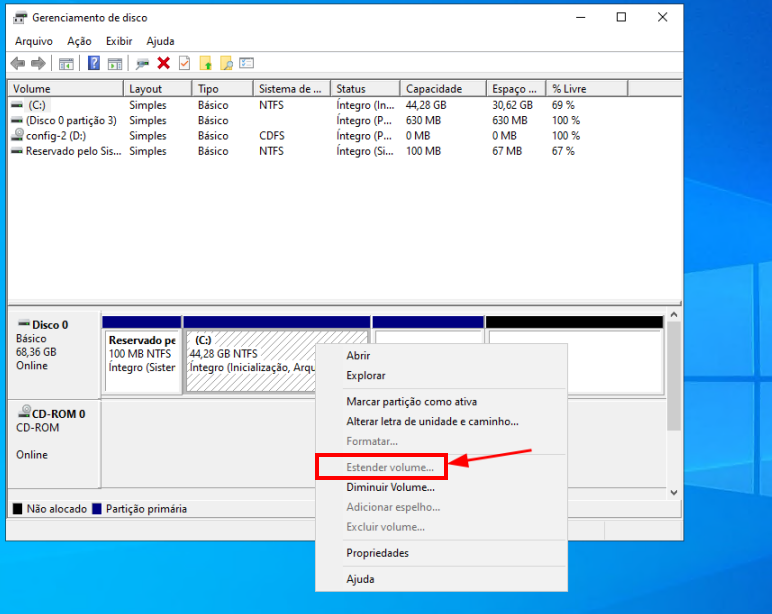
Check if the “Extend Volume” option is disabled. This usually happens when there is a recovery partition immediately after the main partition (e.g., C:).
3. Open Command Prompt as administrator
-
Search for
cmdin the Start menu -
Right-click and select Run as administrator
4. Use diskpart to remove the partition
Run the commands below very carefully:
diskpart

list  disk

select  disk X # Substitua X pelo número correto do disco

list  partition

select  partition Y # Substitua Y pela partição de recuperação

delete  partition  override

exit
⚠️ Warning: carefully select the correct partition. Deleting incorrect partitions can cause data loss or system failure.
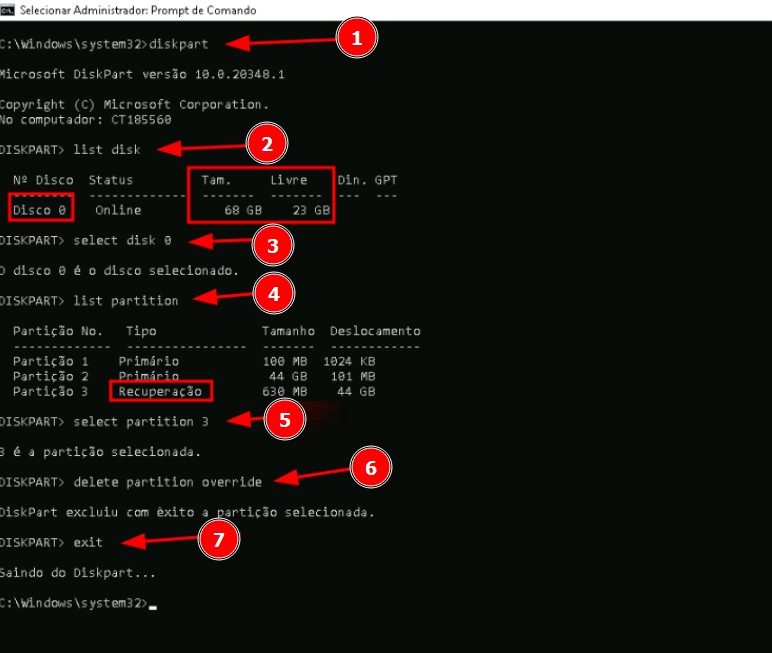
⚠️ Warning: The image above is illustrative and was performed in a test environment.
5. Extend the main partition
-
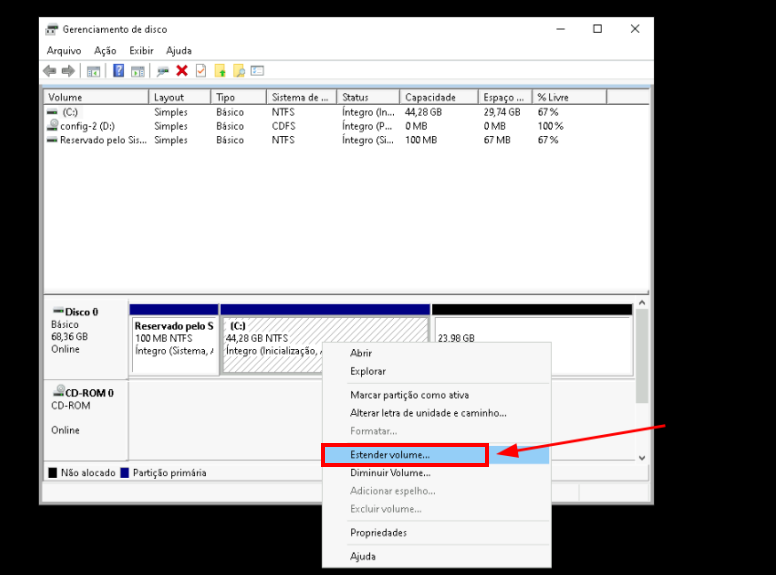
Return to Disk Management, as shown in the screenshot above.
-
Right-click on the main partition (usually
C:) -
Select "Extend Volume..."
-
Proceed and select all available space
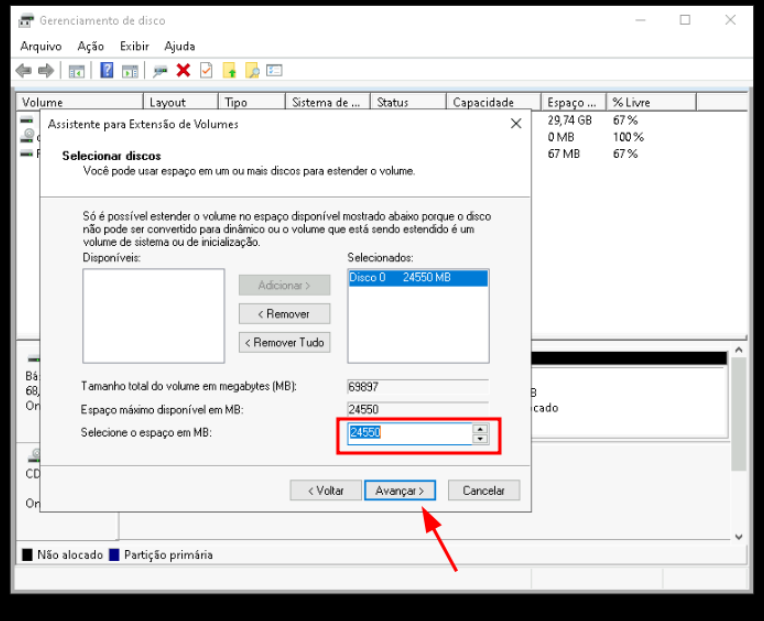
- Complete the wizard
Final considerations
-
After removing the recovery partition, the space becomes unallocated and can be used to expand the main partition.
-
In some cases, it may be necessary to restart the VM after the operation.
-
This procedure is commonly needed in virtualized environments when the disk is expanded by the platform, but Windows cannot reflect this expansion due to the recovery partition.
References
- Microsoft DiskPart documentation: https://docs.microsoft.com/en-us/windows-server/administration/windows-commands/diskpart