Free Let's Encrypt SSL Certificates
Overview
Let's Encrypt is a free and automated certificate authority that facilitates the issuance of trusted SSL certificates for your environments on SaveinCloud.
The integration is available as a ready-to-use add-on, supporting the most popular stacks such as:
-
Load balancers: NGINX, Apache LB, HAProxy, Varnish
-
Application servers: Tomcat, GlassFish, Apache PHP, NGINX PHP, among others
How It Works
-
The add-on installs a Let's Encrypt client (CMA).
-
Requests certificates via Let's Encrypt CA.
-
Automatically applies the certificate to the environment.
-
Configures a
cronfor periodic renewals.
⚠️ The environment must have a public IP for validation.
Installing the Let's Encrypt Add-on
Via Panel
-
Access the desired Environment in the SaveinCloud panel.
-
Go to the Add-ons tab and select Let's Encrypt Free SSL.
-
Click Install.
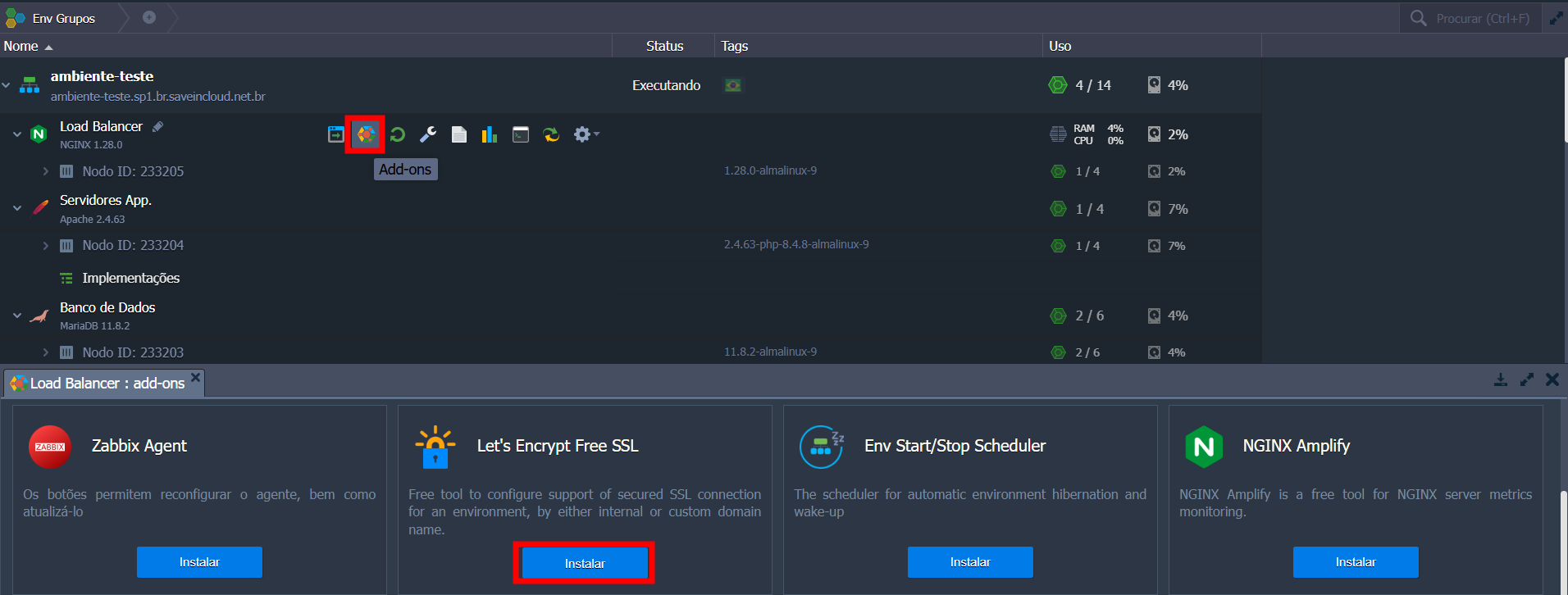
On the configuration screen:
-
Enter the external domain(s) linked to the environment.
-
If no domain is entered, a dummy certificate will be issued.
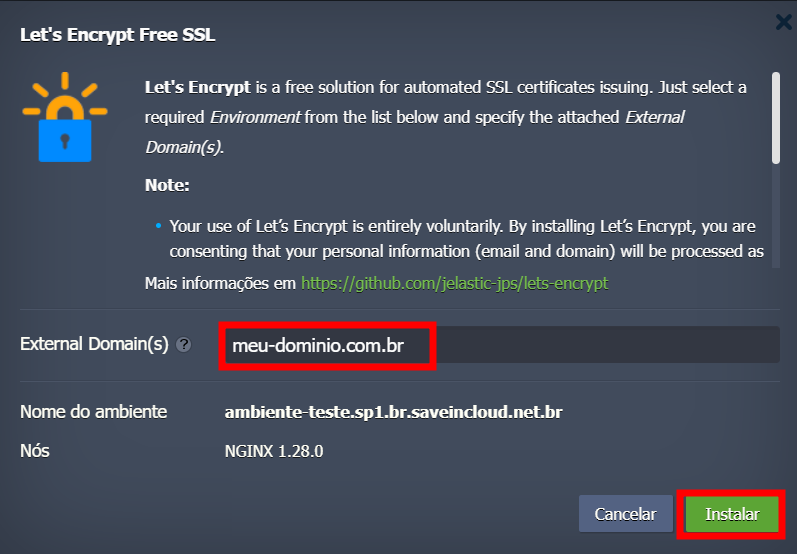
Installation may take a few minutes.
All domains and subdomains used in Let's Encrypt must point to the same IP associated with the environment where the add-on was installed.
Certificate Renewal
-
Let's Encrypt certificates are valid for 90 days.
-
Automatic renewal occurs 30 days before expiration.
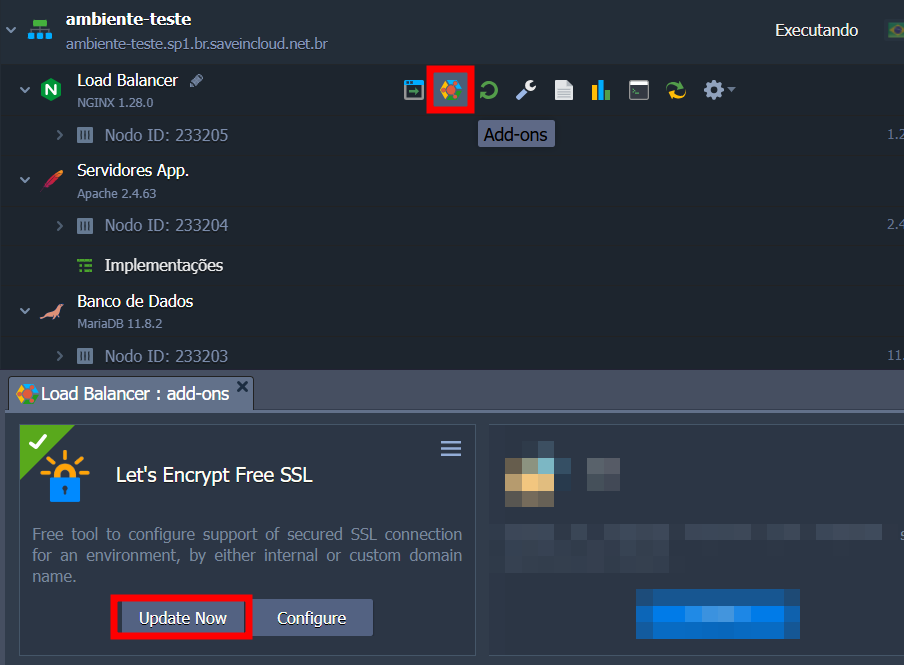
You can force a manual update:
Through the panel:
-
Go to Add-ons in the environment.
-
Click Update Now on the Let's Encrypt panel.
Reconfiguring the Add-on
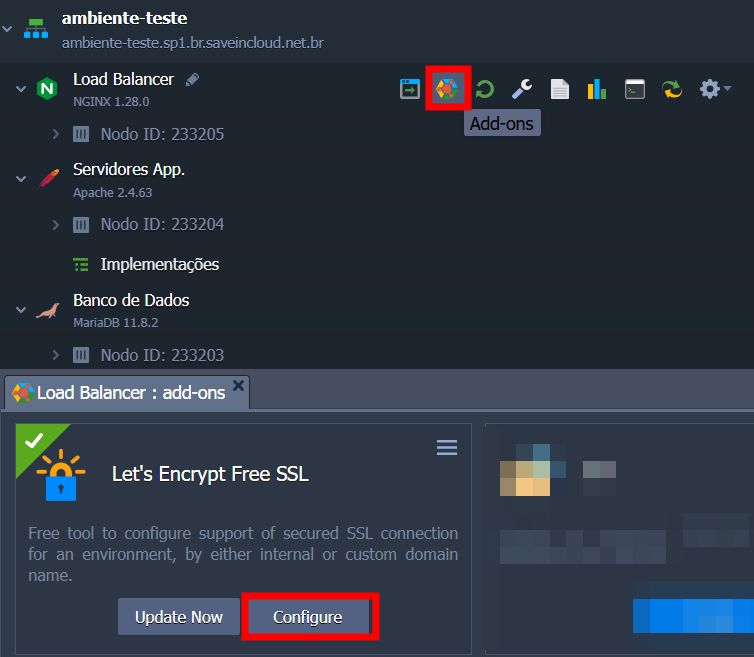
To change the certificate domains:
Through the panel:
-
Access Add-ons > Let's Encrypt > Configure.
-
Add or remove the desired domains.
All domains and subdomains used in Let's Encrypt must point to the same IP associated with the environment where the add-on was installed.
Removing the Add-on
-
Access the environment and go to Add-ons.
-
Click the Let's Encrypt menu and select Uninstall.
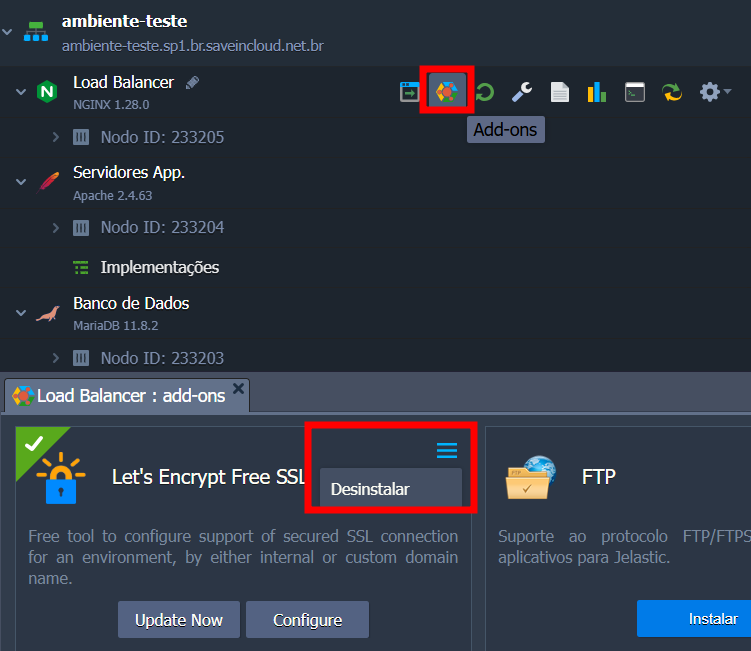
- Confirm the removal.
Final Considerations
The Let's Encrypt integration via SaveinCloud is ideal for automating HTTPS security for your application at no additional cost. Take advantage of protecting your environments simply, securely, and reliably.
Common Let's Encrypt Errors
Below are the most frequent issues faced by clients when installing the Let's Encrypt add-on on the platform:
⚠️ 1. Domain does not point to the correct IP
Problem: Certificate is not issued.
Cause: The domain or subdomain is not pointing to the public IP of the environment where the add-on was installed.
Solution: Confirm that the domain's DNS correctly resolves to the IP linked to the environment.
⚠️ 2. No public IP in the environment
Problem: Installation fails or domain cannot be validated.
Cause: Let's Encrypt requires a public IP for validation.
Solution: Add a public IP manually or allow the add-on to link it during installation.
⚠️ 3. Port 80 blocked
Problem: Domain validation fails.
Cause: Port 80 is used for HTTP validation and may be blocked by firewall or incorrect routing.
Solution: Ensure port 80 is open and accessible externally.
⚠️ 4. Domain not yet propagated
Problem: Certificate is not issued or returns non-existent domain error.
Cause: The entered domain has not yet propagated globally or was typed incorrectly.
Solution: Check propagation with tools like whatsmydns.net before installing.
⚠️ 5. Attempt to install on incompatible node
Problem: SSL certificate application fails.
Cause: The add-on was installed on a container without Custom SSL support.
Solution: Install on an HTTP server such as Apache, Tomcat, etc.
⚠️ 6. Manual changes in the container
Problem: SSL application fails.
Cause: Manual customizations prevent the CMA from functioning correctly.
Solution: Avoid overwriting the default structure.
⚠️ 7. Request limit exceeded (rate limit)
Problem: Let's Encrypt temporarily blocks new issuances.
Cause: Multiple issuance attempts in a short interval.
Solution: Wait up to 1 hour and try again.
⚠️ 8. Incorrect add-on reconfiguration
Problem: Invalid or removed certificates.
Cause: The user removed important domains or reconfigured with incorrect values.
Solution: Verify all domains during reconfiguration. A new certificate will be issued after changes.
💡 Important: All domains/subdomains used must resolve to the same public IP linked to the Let's Encrypt environment, ensuring successful validation and certificate issuance.