Learn how to configure horizontal scaling manually
Horizontal scaling allows you to increase and decrease the number of instances in your environment. With the SaveinCloud platform, it is possible to make the environment scalable quickly and easily.
To perform manual scaling, open the topology wizard and adjust the number of instances using the "+" and "-" buttons, entering the desired number of nodes or using the slider.
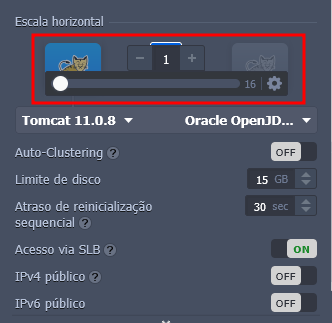
🧩 Scaling Modes
With the platform, it is possible to use two scaling modes: stateless and stateful.
- Stateless: new nodes are created based on the instance image/template.
- Stateful: a complete copy of the master instance's configurations and file system is made to the new nodes.
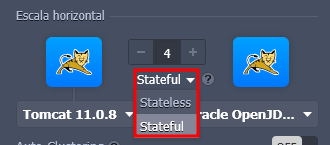
The following features will be missing on new nodes if you use the stateless mode:
- Deployments: deployed projects will not be copied;
- Add-on: add-ons installed on the master instance will not be installed on new nodes;
- Custom SSL: SSL certificates and configurations will not be copied;
- Mount point: mounts will be transferred only if the volume is properly configured.
🔍 Horizontal scaling specifications
- All newly added instances are created on different physical servers, providing high availability and reliability.
- The maximum number of instances in the same environment layer is, by default, 16, but you can check the exact amount by accessing Quotas and Pricing > Account Limits.
- When scaling more than one application server instance, an NGINX load balancer will be automatically added to the environment.
- Windows VM and Maven cannot be scaled horizontally.
⚙️ Node management
The platform allows synchronous management of multiple nodes per layer, where you can perform actions such as restart, redeploy, configure, among others, simultaneously on several instances.
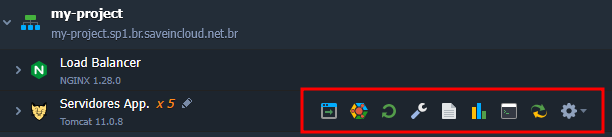
It is also possible to manage nodes individually by expanding the layer. Thus, you can:
- Identify the node ID
- Check which is the master node
- Rename the node by double-clicking the Node ID field
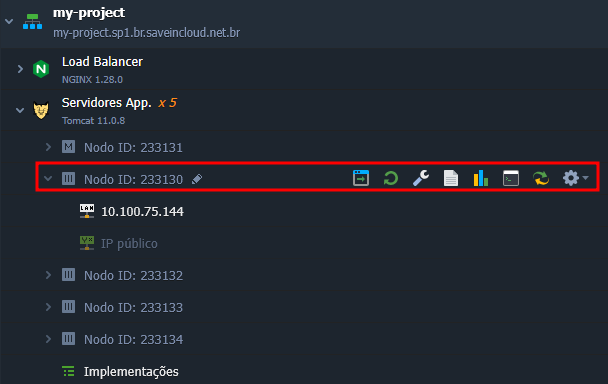
❌ Removing nodes
The most recent nodes will be removed first; if you need to remove a specific node, you can perform the deletion action directly on the instance:
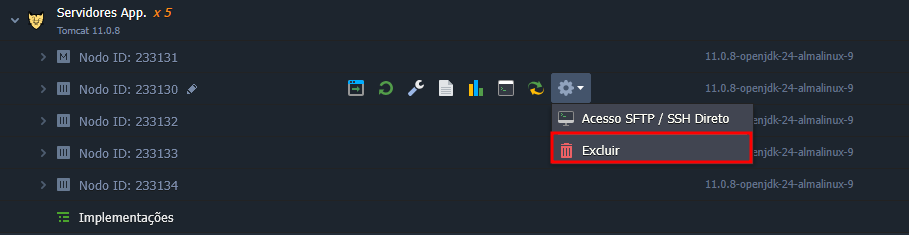
Or in the Horizontal Scaling section when changing your environment topology:
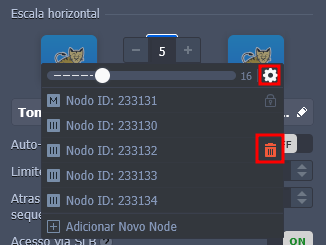
In this last example, you can undo a deletion that has not yet been applied; however, the instance will be permanently removed if you have applied the settings.
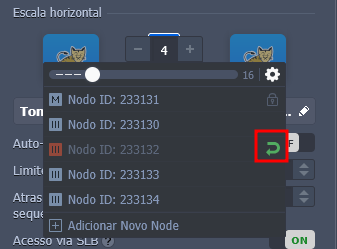
The master node of the layer can only be removed if the entire layer is removed together.
A notification will be displayed when applying changes, informing about harmful actions that will be performed in your environment, if any, such as: node restart warnings, reminders of node removal and addition, and alerts about removing a node belonging to an existing mount point.
Therefore, verify that such actions will not affect your application as well as essential data on the nodes to be deleted.
ℹ️ Useful links
🧠 Questions?
Contact technical support and send your question; we will be available to help you!