🗂️ Mount Points
Mount points are a data sharing feature between instances within the same account. They are initiated from the client and create a connection that allows accessing and operating the server data as if they were local files.
The platform offers a convenient graphical interface for this operation, directly in the embedded Configuration Manager. With just a few clicks, you define remote directories that are physically on other nodes but should be accessible in the current container.
💡 Tip: The same operation can be initiated from the server. In this case, it is called Data Export
🔗 Supported Protocols
When creating a mount point, the platform supports two client protocols:
- NFS: Available for all containers on the platform. It is faster.
- GlusterFS Native: Exclusive for GlusterFS clusters. Recommended for high concurrency, superior write performance, and fault tolerance (Available in the data export option)
🛠️ How to Create a Mount Point
1. Access the Container
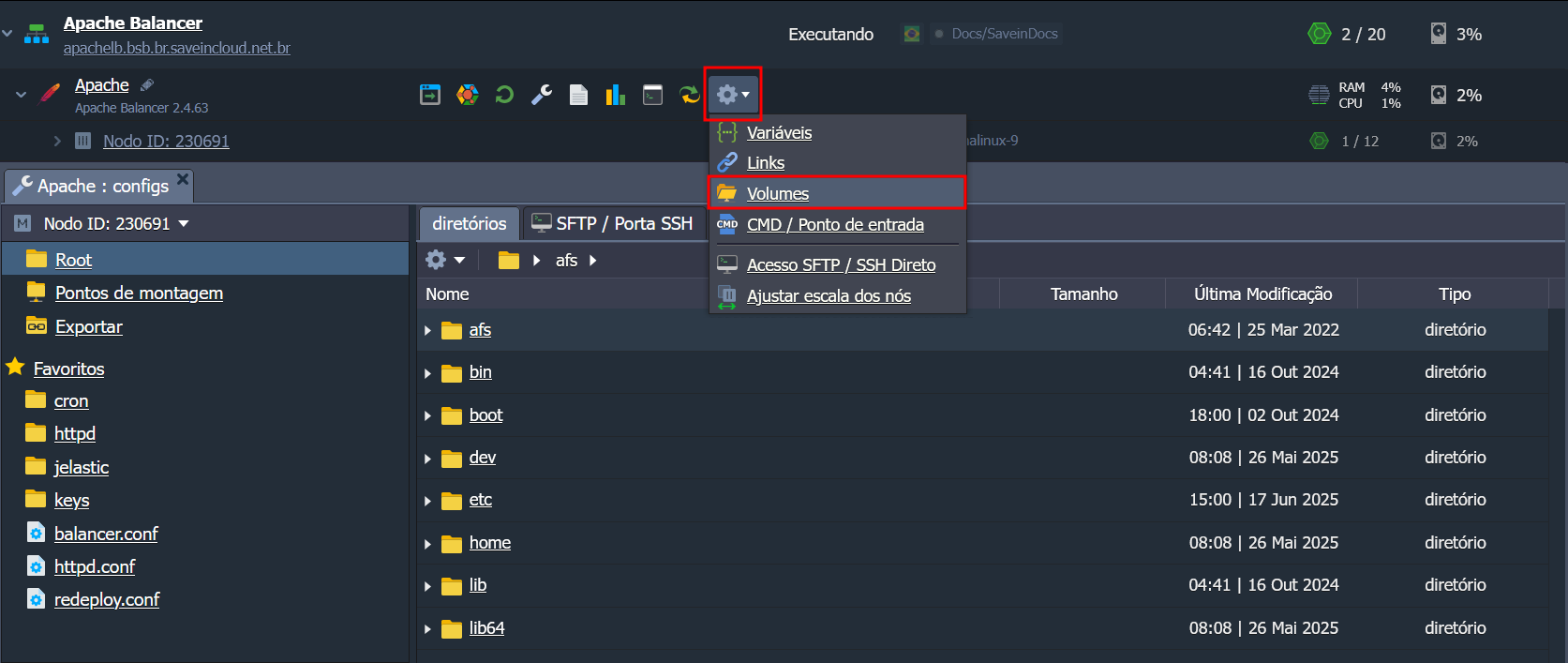
Click the Configure button next to the desired container or layer. In the right menu, go to the Volumes section and click add.
2. Select the Operation Type
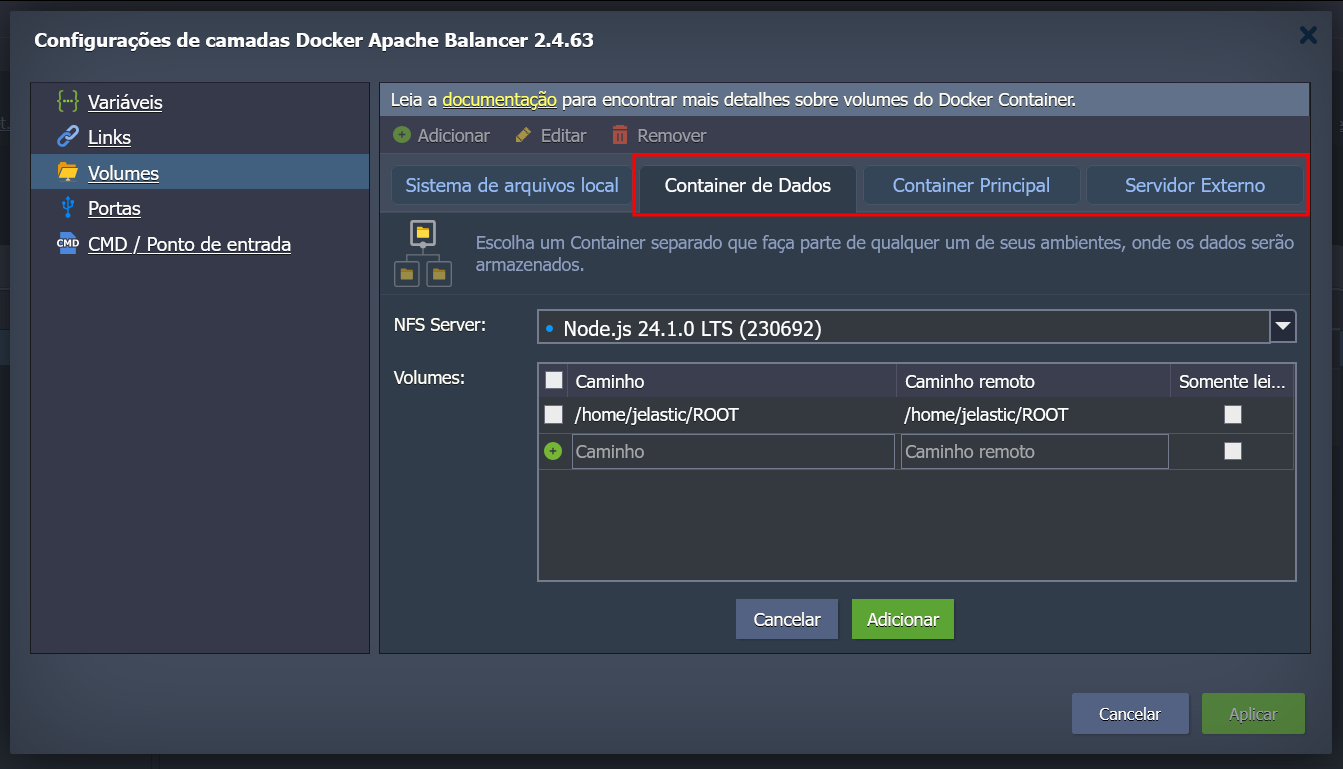
The interface offers the following operation types:
- Data Container: Access data from another node in the same account.
- Master Container: Share data between nodes of the same layer in the environment topology.
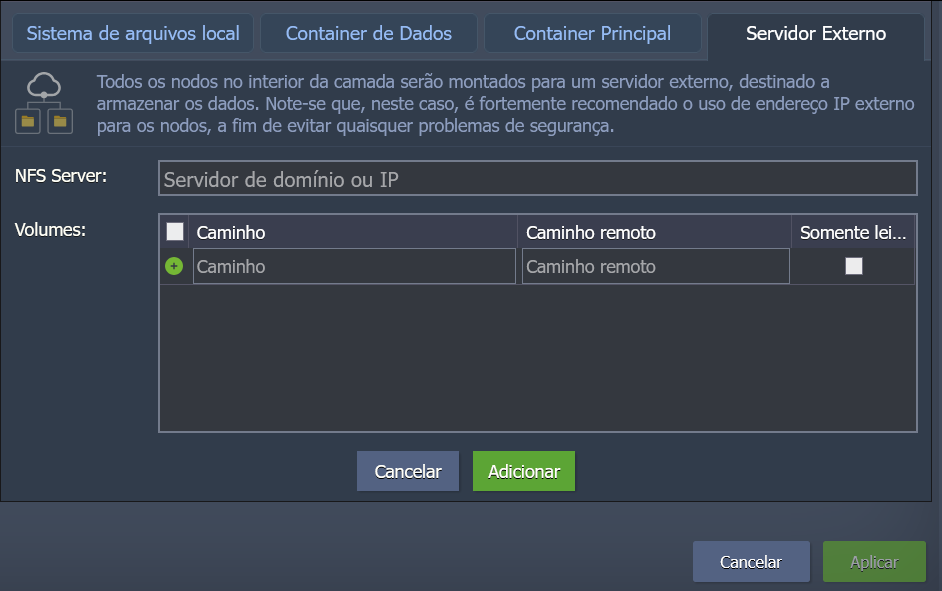
- External Server: Access data from an external server outside the PaaS account.
⚙️ Mount Point Settings
Main Fields:
- Mount Point: Local path where the mounted data will be displayed.
- If the directory does not exist, it will be created automatically.
- The path cannot start with
/proc,/dev,/sys,/runor be equal to directories like/,/bin,/usr,/lib,/lib64,/lib32, etc.
Options by Type:
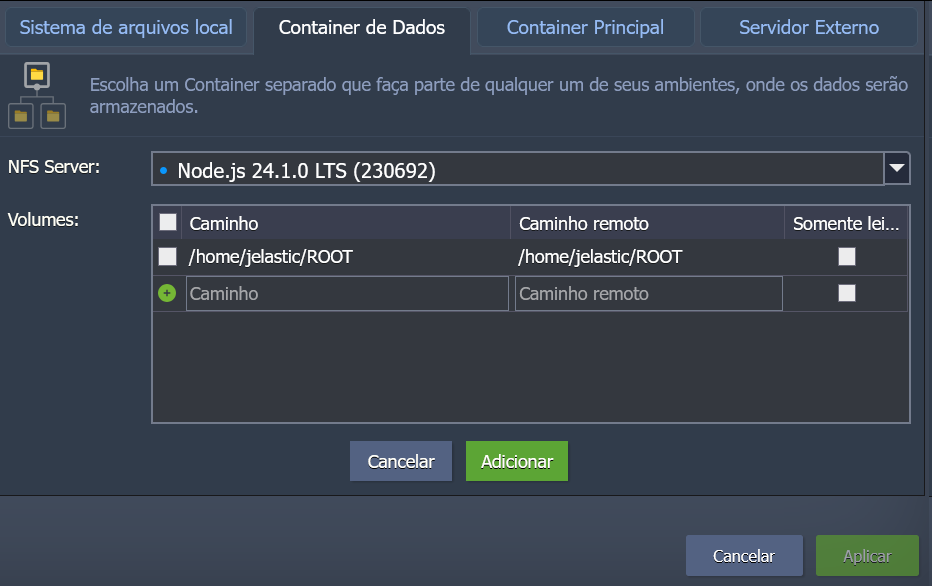
🔹 Data Container
- NFS Server: List of nodes available in the account.
- Remote Path: Remote directory in the container. Can be typed or selected from the auto list.
- Client Type: If it is a GlusterFS cluster, choose between NFS (faster) or Gluster Native (with data security and replication).
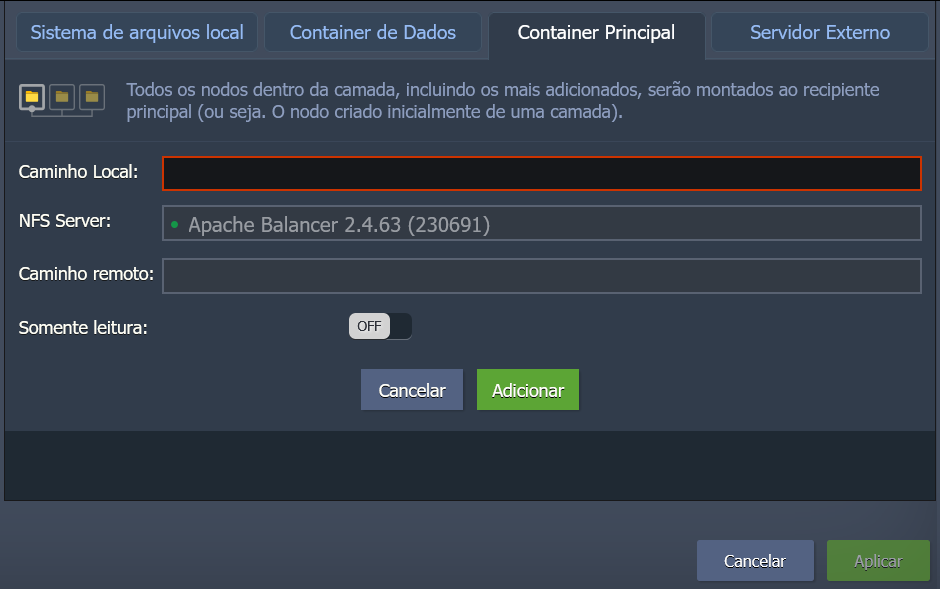
🔹 Master Container
- Local Path: Path to be mounted on all secondary nodes.
- NFS Server: Master node of the layer (selected automatically).
- Remote Path: Same directory specified in "Local Path".
🔹 External Server
- NFS Server: External IP or custom domain of the data server.
- Remote Path: Path of the files exported on the NFS server.
⚙️ Other Options
- Mount on all nodes: Applies the same mount point to all nodes in the layer (automatically enabled in Master Container mode).
- Read-only: Restricts editing of the mounted data on clients (by default, read and write are allowed).
Click Add to finish.
⚠️ Note: If you do not choose a dedicated Shared Storage Container, there may be a slight delay (a few minutes) due to NFS software installation.
📁 Manage Mount Points
After creation, the mount point will be listed. You can:
- Navigate to the directory: Double-click the corresponding item.
- Unmount: When the mount point is no longer needed.

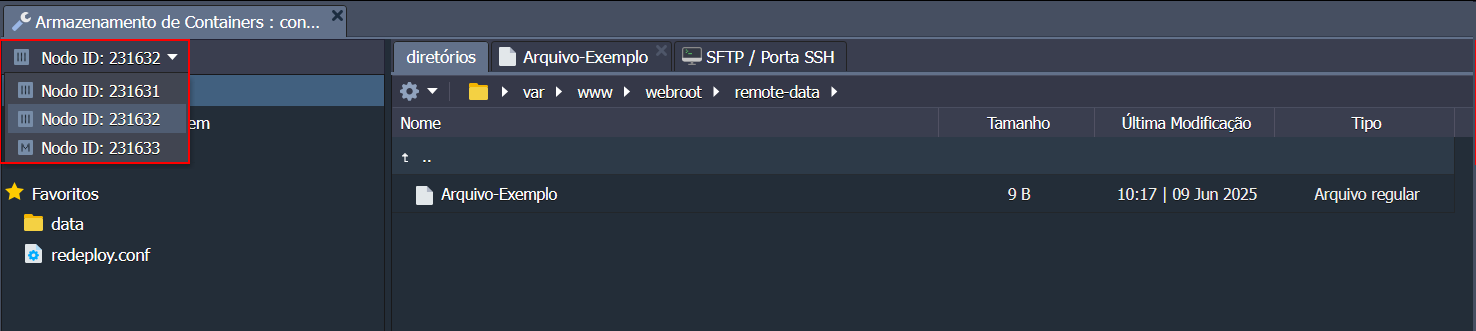
When accessing the directory, you will see the same content that is on the remote server.
🔄 Switch Between Nodes
Depending on the configuration, remote data can:
- Be editable or not.
- Be available to all nodes in the layer or only one.
Use the dropdown menu on the left to switch between nodes.
🔐 Access Permissions
For the remote content to be editable, the folder on the server must have appropriate permissions for the client user.
Connect via SSH to the storage server and run the following command to adjust permissions:
chown {uid}:{gid} {path}
{uid}: User ID (can be found in the/etc/passwdfile){gid}: Group ID (found in/etc/group){path}: Path to the directory or file you want to change
🧩 Flexibility and Control
The platform's mount points offer various possibilities to structure and control data in an advanced way in cloud environments.