⚙️ How to Configure Automatic Horizontal Scaling
The SaveinCloud platform offers automatic horizontal scaling, allowing your environment to grow or shrink according to demand. This is done through adjustable triggers that monitor resource usage to automatically add or remove nodes.
If you are using only a certified application server (and not a custom Docker container), an NGINX will be automatically added at the first scaling event if the environment does not have a load balancer.
If you prefer to use another load balancer, add it manually before the first scaling event.
✅ How to Configure the Scaling Trigger
1. Access the Environment Settings
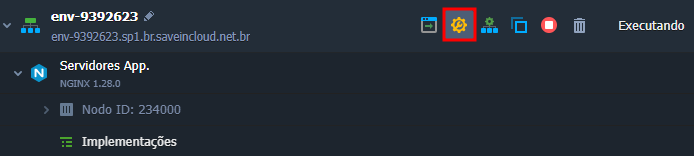
Click on Settings in the desired environment:
2. Go to the Automatic Horizontal Scaling Tab
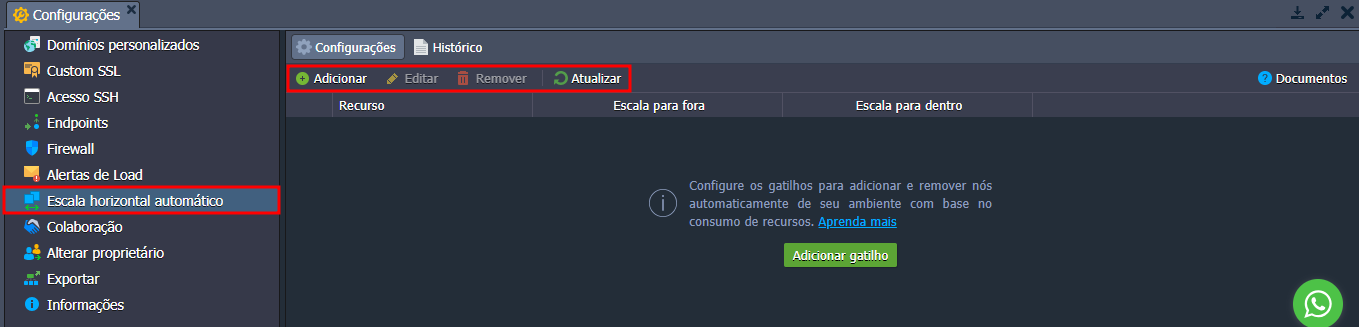
At the top of the tab, you will see the options:
- ➕ Add: creates a new trigger
- ✏️ Edit: modifies an existing trigger
- ❌ Remove: deletes a trigger
- 🔄 Refresh: reloads the list of triggers
Click Add to create a new trigger.
3. Configure the Trigger
In the window that opens:
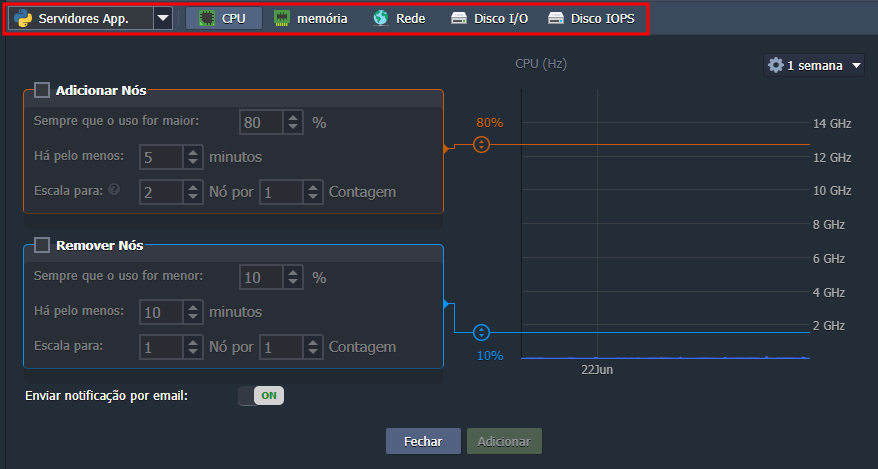
- Choose the instance (server) to be monitored
- Select the resource to monitor:
- CPU
- Memory
- Network (with option for Mbps instead of percentage)
- Disk I/O
- Disk IOPS
4. Analyze Resource Usage
You can choose the period displayed in the statistics graph:
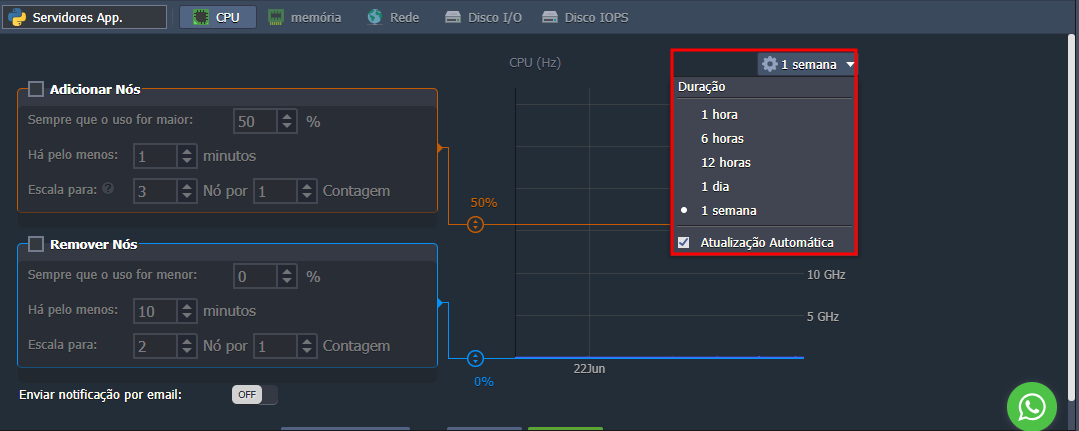
Hover over the graph to see the exact usage value at a given moment.
5. Define Scaling Conditions
Activate the Add Nodes and/or Remove Nodes checkboxes:
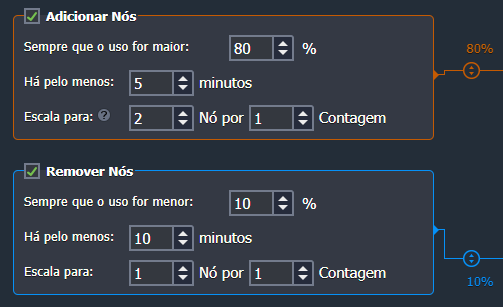
Fill in the following fields:
- Whenever usage is greater/less than: sets the usage limit (% or Mbps) that will trigger the scaling
- For at least: sets the time (in minutes) of sustained usage to activate the trigger
- Scale to < value > Nodes: sets the maximum or minimum number of nodes the system can have
- By < value > Count: how many nodes to add or remove at a time
- 100% disables the add nodes trigger
- 0% disables the remove nodes trigger
- Minimum of 20% difference between add and remove limits
- Recommended to set add trigger above 50% to avoid unnecessary usage
✅ New nodes will use the same cloudlet configurations as existing instances.
6. Enable Notifications (Optional)
Enable the Send email notification option to receive alerts about scaling activities:

📈 Monitoring History
In the History tab, you can view previous scaling events:
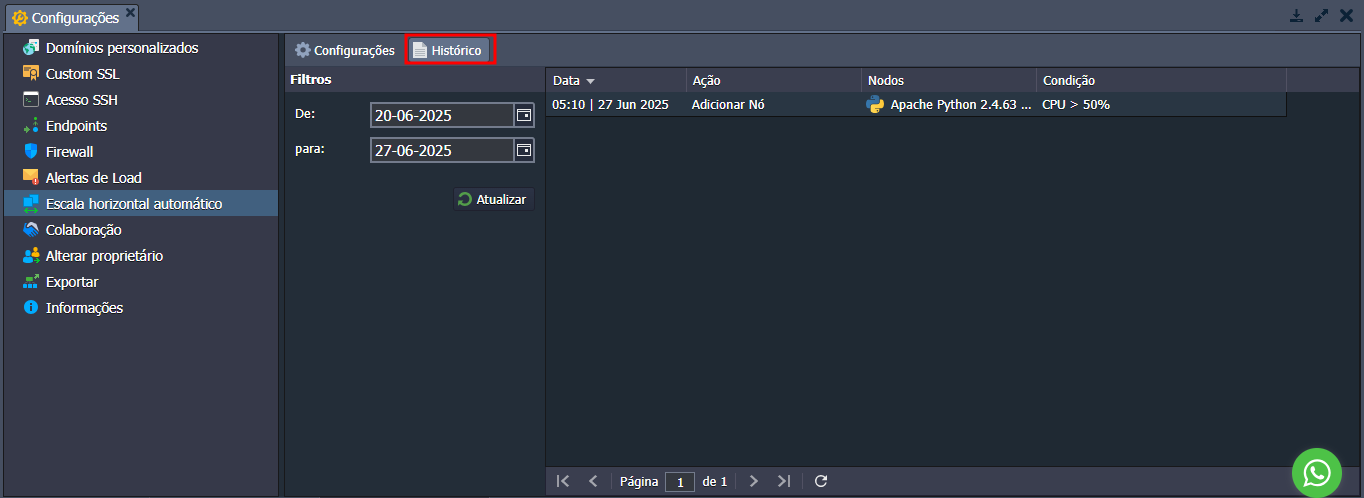
Available information:
- 📅 Date: when the trigger was executed
- 🔁 Action: add or remove nodes
- 🧱 Nodes: type of instance involved (e.g., apache, python)
- ✅ Condition: rule that was met
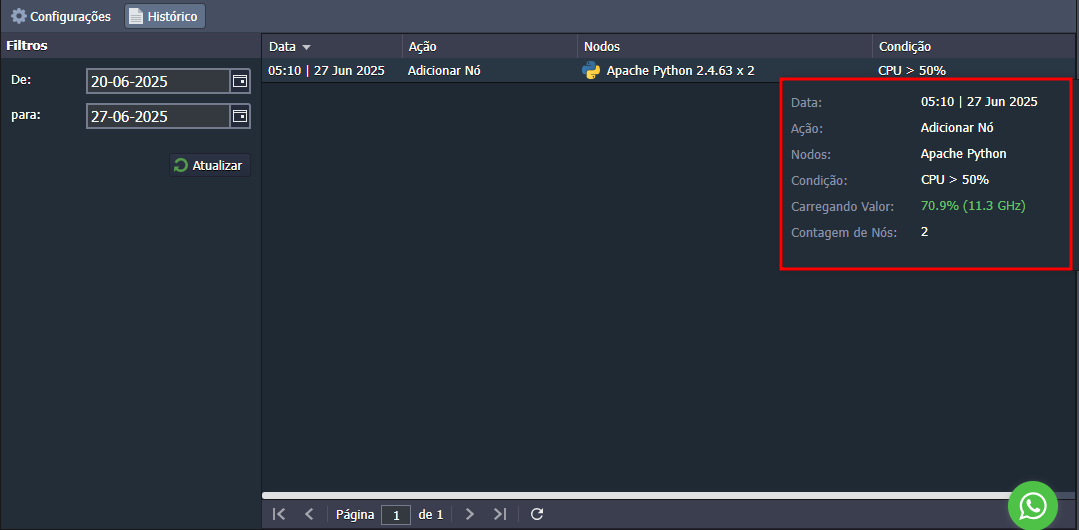
Hover to see:
- 📊 Load value: resource usage at the time of execution
- 🔢 Node count: total instances after the action
🎉 Done!
With these steps, you ensure an environment that automatically adapts to demand, optimizing performance and costs intelligently. 🚀
🧠 Questions?
Contact technical support and send your question—we are here to help!