📂 Samba Addon – SaveinCloud
⚠️ All configurations shown in this manual are simple and hypothetical examples. Adaptations may be necessary depending on the topology and structure of your environment.
Samba is free software that implements the SMB/CIFS protocol, allowing file and directory sharing between Linux and Windows systems.
On SaveinCloud, the Samba addon can be used to make directories from an environment available on the network, facilitating the integration of multiple application nodes or connection of external clients.
🚀 Samba Installation
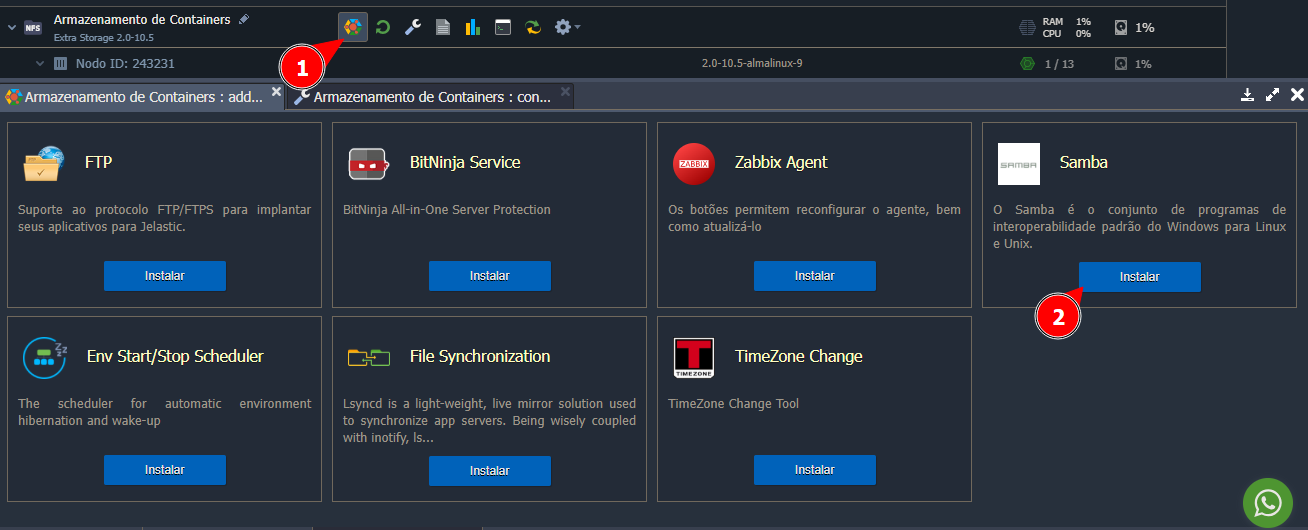
Choose the node where you want to install the addon, and access the addons tab, as shown in the screenshot below:
⚙️ Samba Configuration
After selecting "Install," a window will appear to enter the Sync Path (Path to be synchronized/shared):
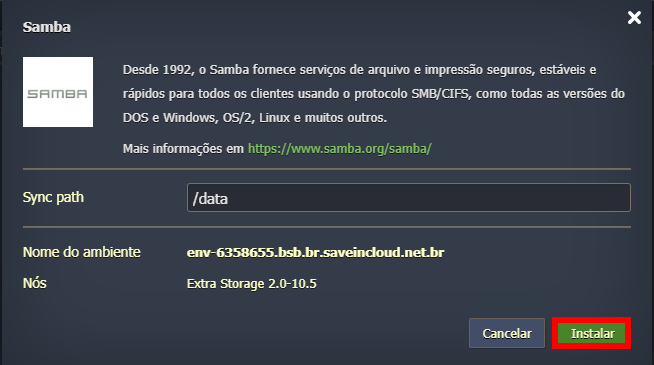
In the example above, we are using /data, which is the default path when creating storage.
Do not use the path / as this can break the permissions of the entire instance and render your virtual machine unusable.
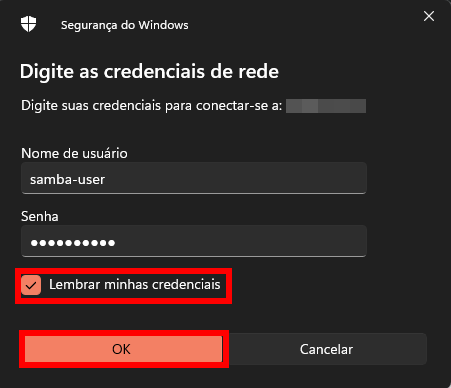
After installation, the credentials to connect to Samba will be provided:
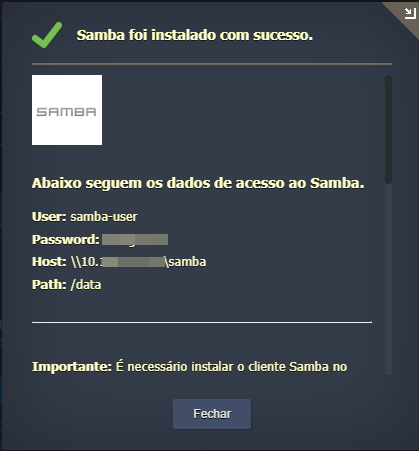
⚠️ For Samba to work correctly, a Public IPV4 must be added to the environment.

After installation and adding the Public IPV4, we must add the network drive to Windows
(In this example, we will share to an environment external to SaveinCloud)
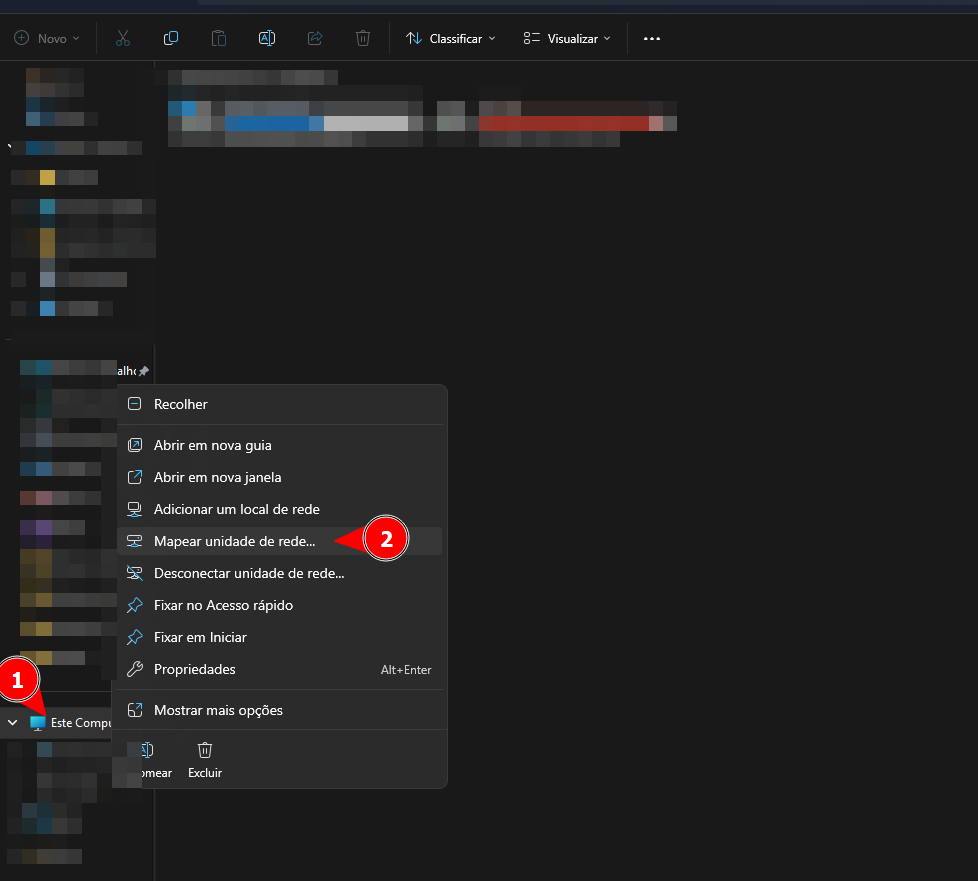
Some ISPs block the Samba port; consider checking this with your internet provider.
Now, we will add the information received upon completing the Samba installation on the platform:
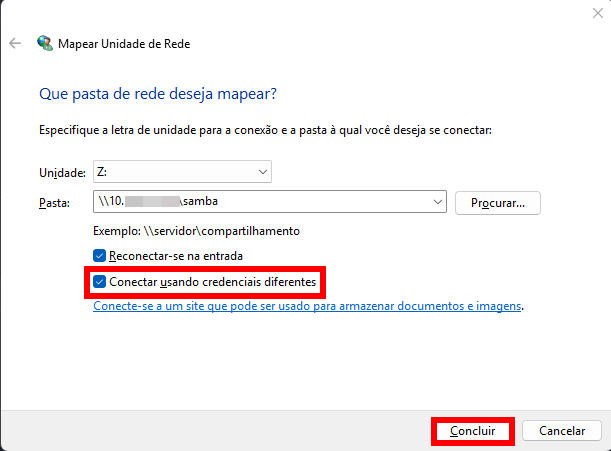
⚠️ Make sure to check the option "Connect using different credentials" to use the credentials provided by SaveinCloud instead of your Windows machine login.
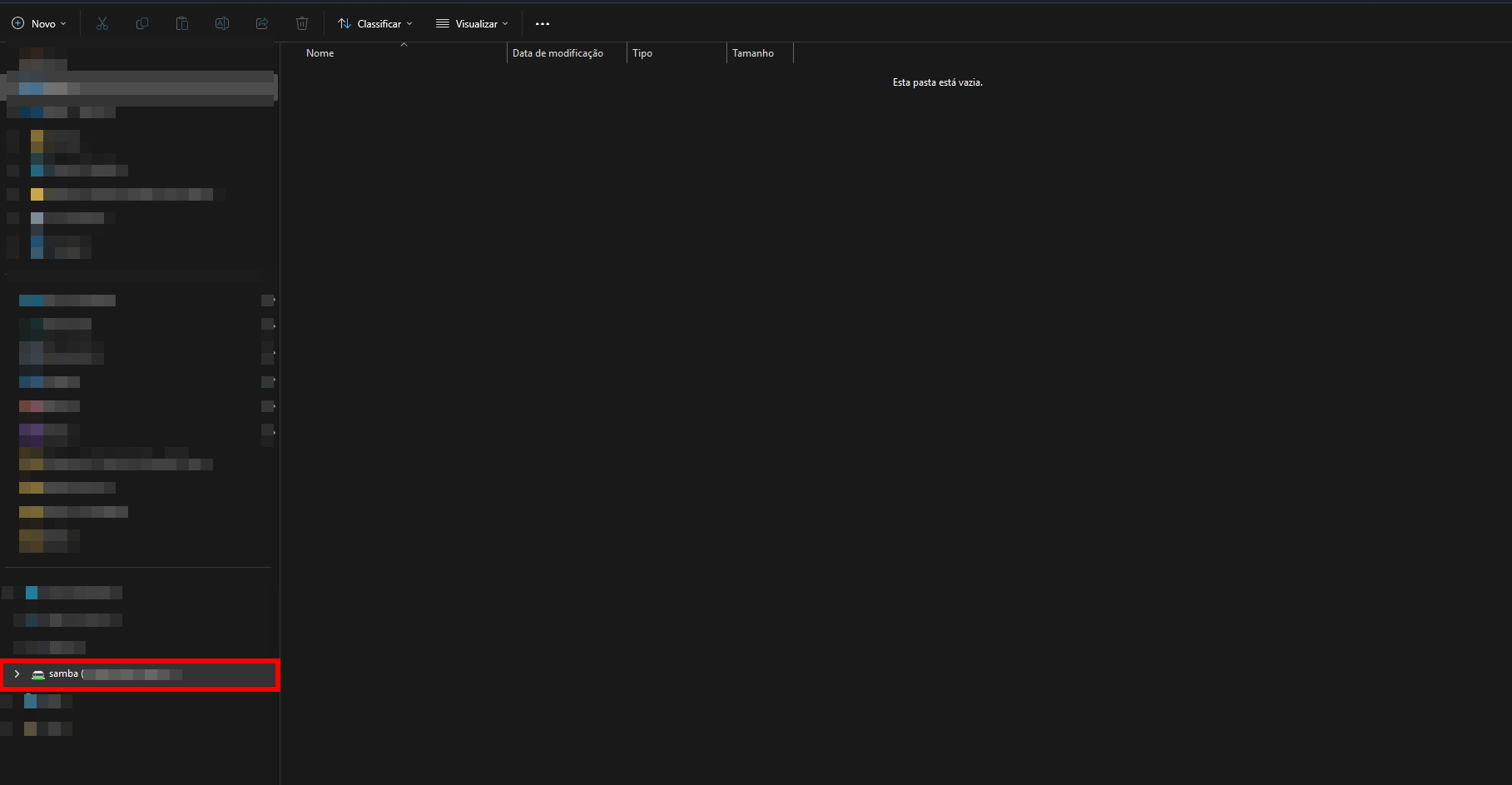
After logging in, the Samba Network Drive should already be visible in Windows:
If you have further questions regarding the configuration and use of the Samba addon, you can refer to the official tool documentation: