🌐 Floating IPs
📘 Introduction
A virtual machine connected to a virtual network can be accessed from public networks, such as the Internet, through a floating IP address.
This address is obtained from a physical network and mapped to the virtual machine's private IP address. Both addresses — floating and private — are used simultaneously on the virtual machine's network interface, each one with a distinct purpose:
- Private IP address — used for communication with other virtual machines within the virtual network.
- Floating IP address — used to access the virtual machine from public networks.
The virtual machine's guest operating system is unaware of the floating IP address assigned to it. When running commands such as ip addr or ipconfig inside the VM, only the private IP address will be displayed — the floating IP mapping is performed by the platform itself, at the network layer.
🚀 When to use a floating IP?
Use a floating IP when you need to:
- 🌍 Publish an application or service on the internet
- 🔐 Perform remote access to the VM (SSH, RDP)
- ⚙️ Expose a load balancer to public networks
- 🔄 Change the public address of a service without recreating the virtual machine
SNAT, configured on the virtual router, allows only outbound connections — VMs can access the internet, but cannot be reached from it. To allow inbound access, a floating IP (or a load balancer) is required. See the Virtual Routers documentation for more details.
➕ Step 1 — Creating a floating IP
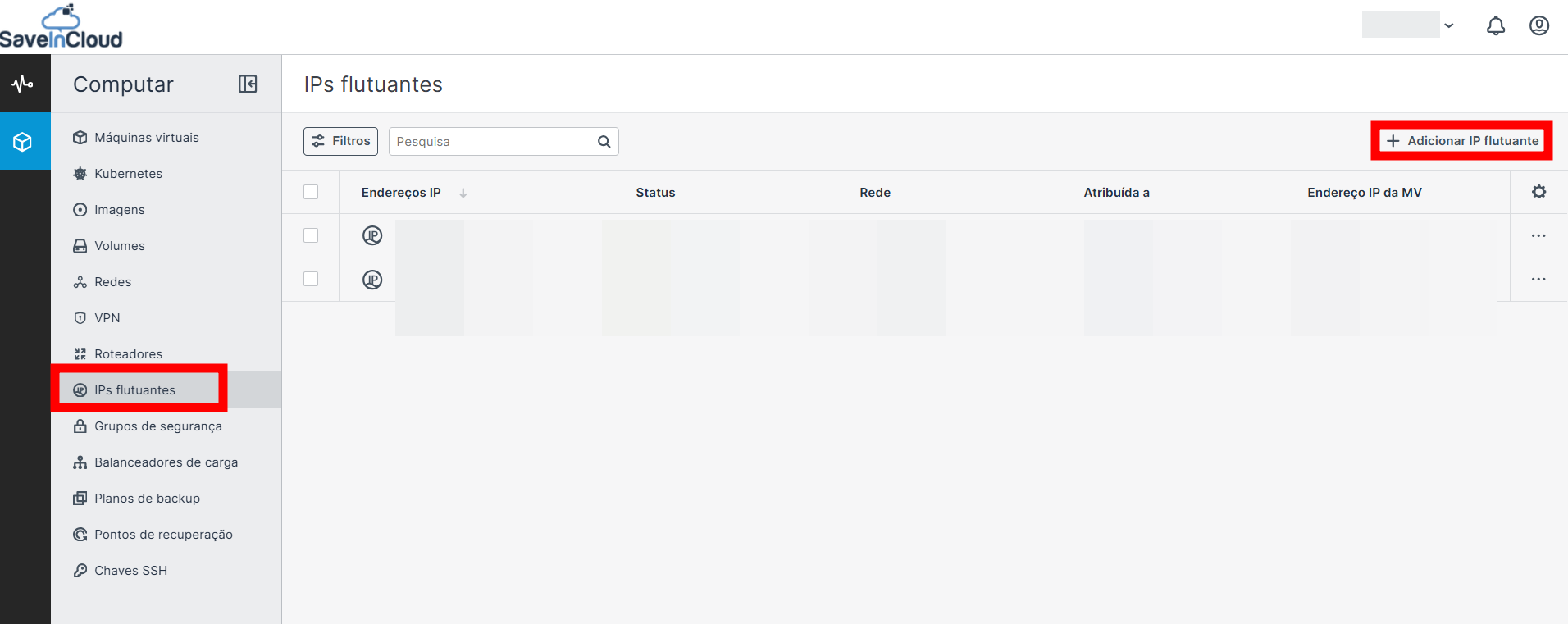
In the Networks section, go to the tab dedicated to floating IPs. Select the desired region and click the Add floating IP button.
🌍 Step 2 — Selecting the public network
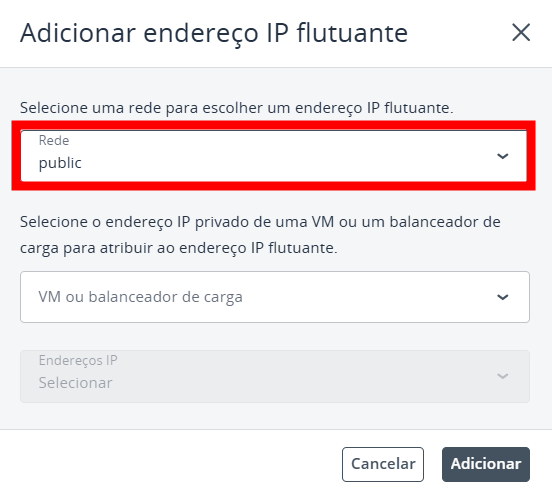
Select an available network from the list.
- Cross Service — used for communication between the Cloudlets and Nuvion platforms.
- Public — used for external communication with the VM/Load Balancer.
If you wish, you can directly specify the VM/Load Balancer and the private IP.
Click Add to proceed. The new floating IP address will appear in the list shortly.
⚙️ Step 3 — Managing floating IPs
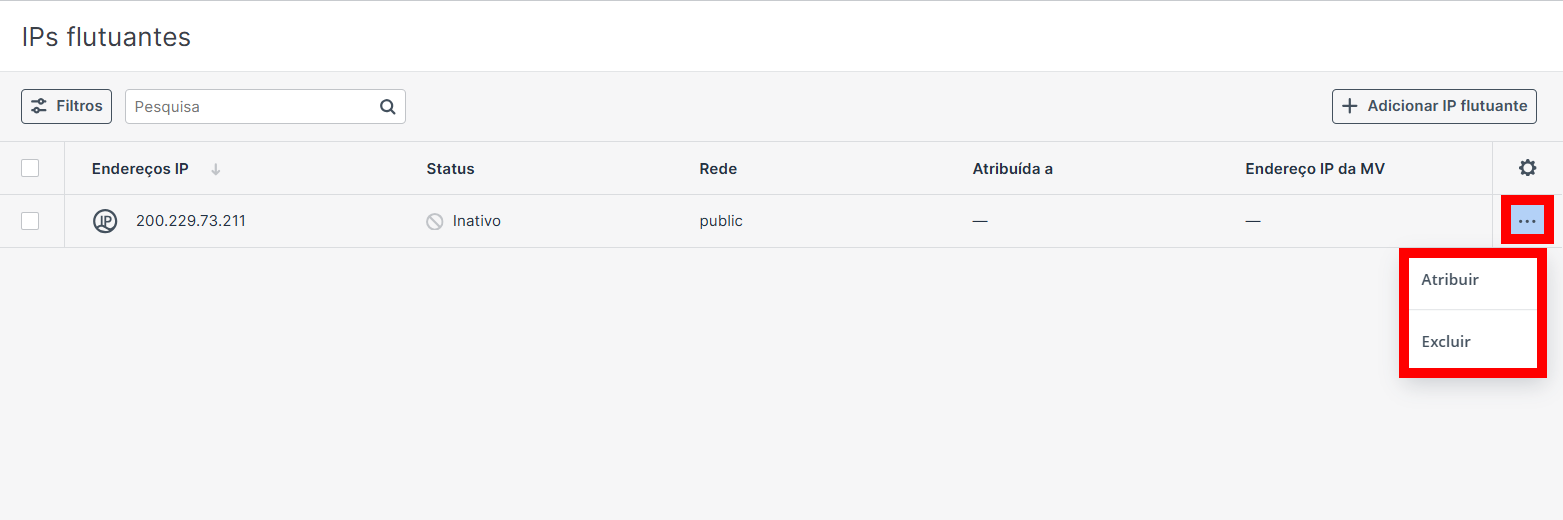
Floating IPs can be managed directly from the list, through the menu on the right of each address. The available actions are:
- Assign (or remove) the IP address to (or from) a virtual machine or load balancer.
- Delete the floating IP — only unassigned addresses can be removed.
🔗 Step 4 — Assigning a floating IP
For a floating IP to be assigned, the target virtual machine or load balancer must be connected to a network, and that network must be attached to a Public type router.
Without this attachment, there is no route to the external network and the resource will not appear as an available target in the assignment list. See the Virtual Routers documentation to configure the router and attach the internal interface.
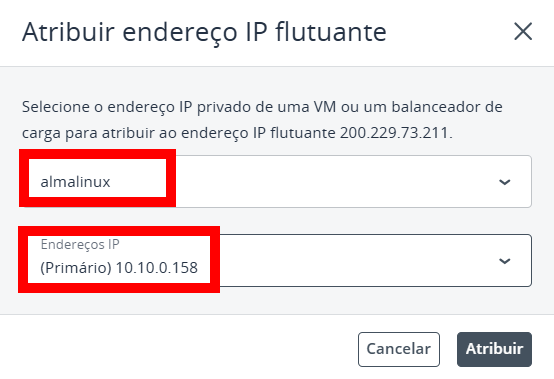
When assigning a floating IP, select from the corresponding lists:
- The target virtual machine or load balancer.
- The IP address (network interface) that will receive the mapping.
Click Assign to finish. From that moment on, your VM or load balancer gains access to the public network.
↩️ Unassigning an address
To unassign a floating IP address, simply select the action in the menu and confirm the operation.
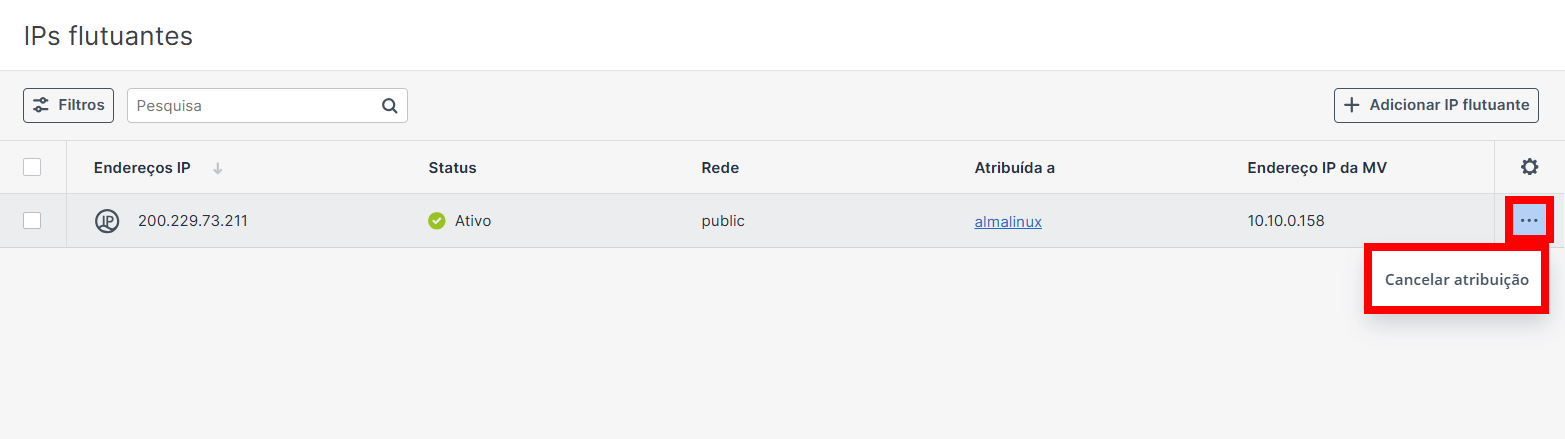
When you unassign the floating IP, the virtual machine immediately stops being reachable from public networks through that address. Ongoing connections are interrupted, and only communication over the private network remains active.
🗑️ Step 5 — Deleting floating IPs
Unassigned floating IP addresses (inactive status) can be removed. Deletion can be done in two ways:
- Individually — select the address and use the Delete option in the menu on the right.
- In bulk — select all the desired addresses at once and perform the deletion.
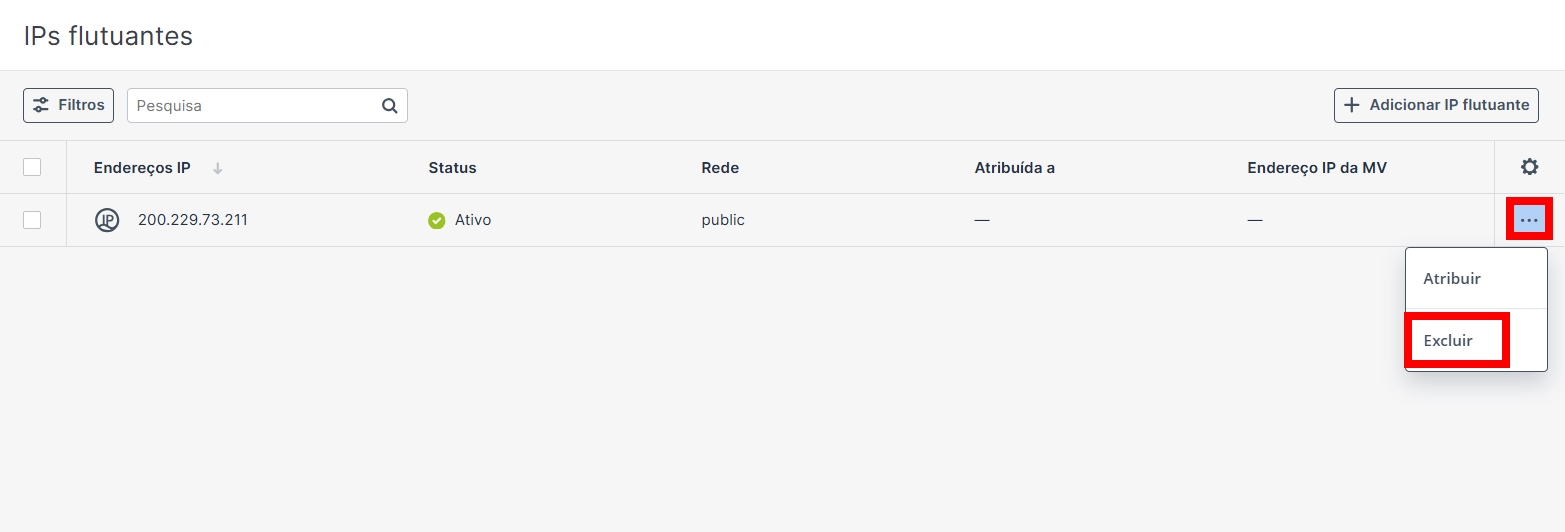
A deleted floating IP returns to the pool of the public network and may be assigned to another customer. There is no guarantee that the same address will be available if you need it again — therefore, delete only addresses that will no longer be used.
✅ Flow summary
Add floating IP (select region and public network)
        ↓
Floating IP created — inactive status
        ↓
Assign to a VM or load balancer
        ↓
Resource reachable from public networks
        ↓
Unassign → inactive status again
        ↓
Delete (unassigned addresses only)
🧠 Questions?
Contact our technical support and send us your question — we will be glad to help you!