How to Enable Two-Factor Authentication (2FA) in Nuvion
Description
Two-Factor Authentication (2FA) is an extra layer of security for your SaveinCloud account. When enabled, in addition to your password, you must enter a code generated by an authenticator app on your phone each time you sign in.
We recommend enabling 2FA to protect your account against unauthorized access.
Prerequisites
- Have an authenticator app installed on your phone, such as Microsoft Authenticator or Google Authenticator.
- Have access to your Nuvion panel account with a valid username and password.
Step by Step
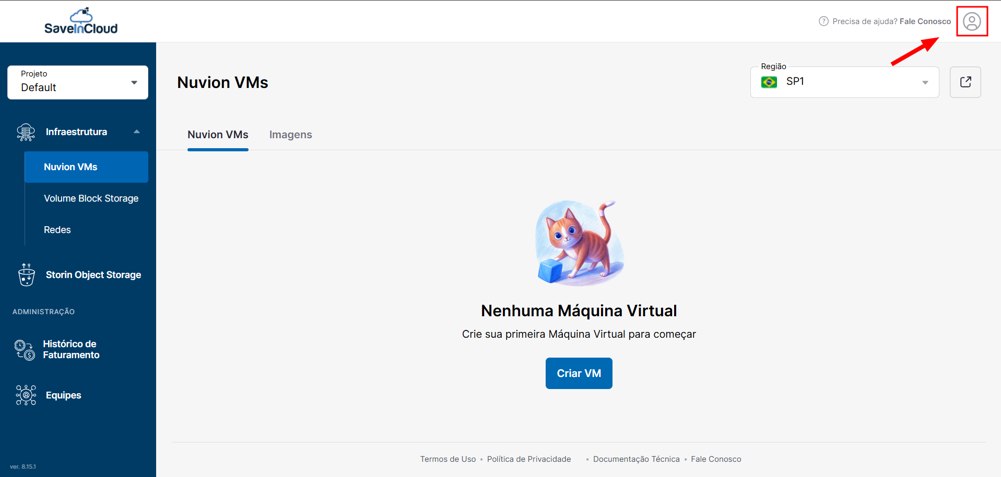
Step 1 — Access the account menu
In the Nuvion panel, click the user icon located in the upper right corner of the screen.
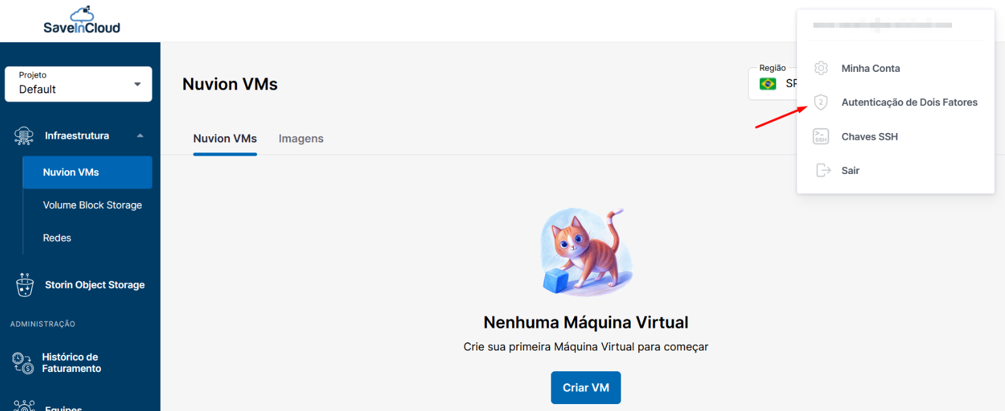
Step 2 — Open Two-Factor Authentication
In the menu that appears, click Two-Factor Authentication.
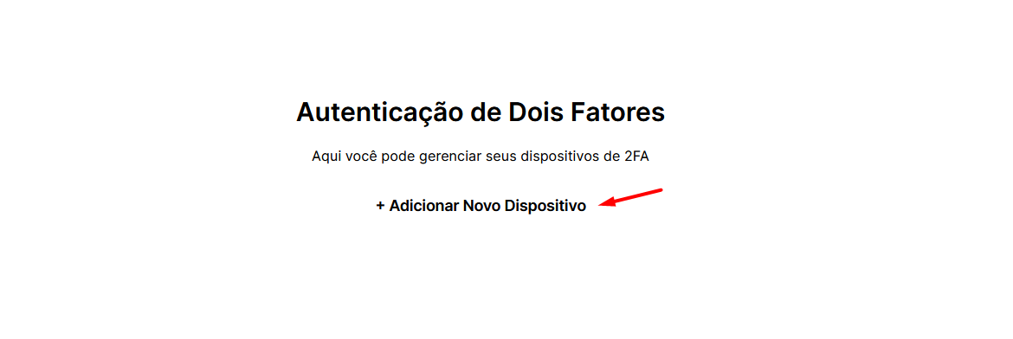
Step 3 — Add a new device
On the Two-Factor Authentication screen, click + Add New Device.
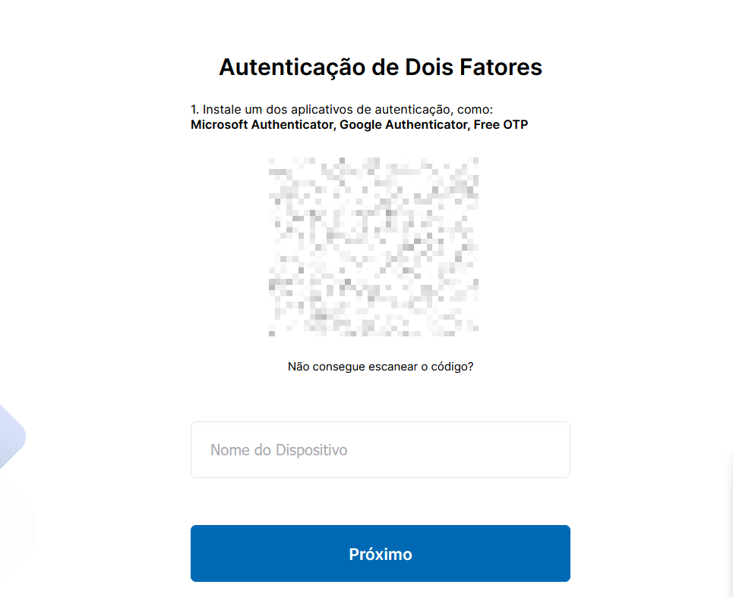
Step 4 — Scan the QR Code and name the device
Install one of the authentication apps — Microsoft Authenticator, Google Authenticator, or FreeOTP — and scan the QR Code displayed on the screen. Then enter a name for the device and click Next.
Step 5 — Enter the confirmation code
Enter the 6-digit code generated by the authenticator app and click Confirm.
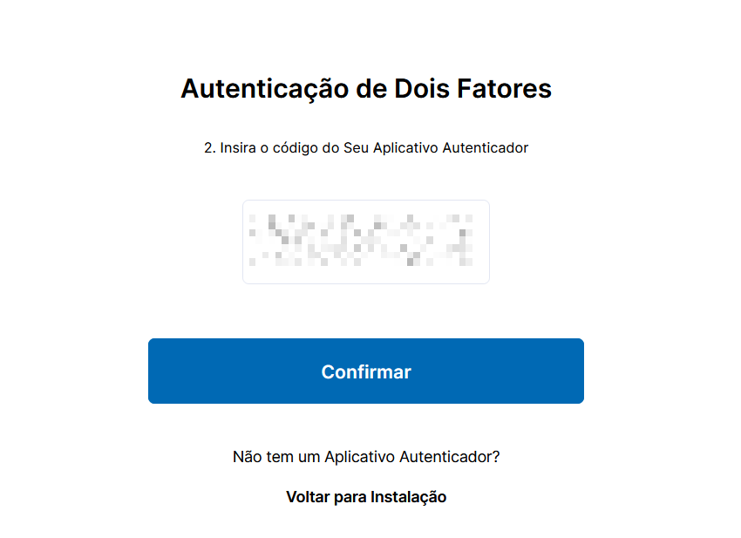
⚠️ Important: The code generated by the authenticator app is refreshed periodically. Keep access to the app in a safe place — if you lose the registered device, you may need to contact support to recover access to your account.
Conclusion
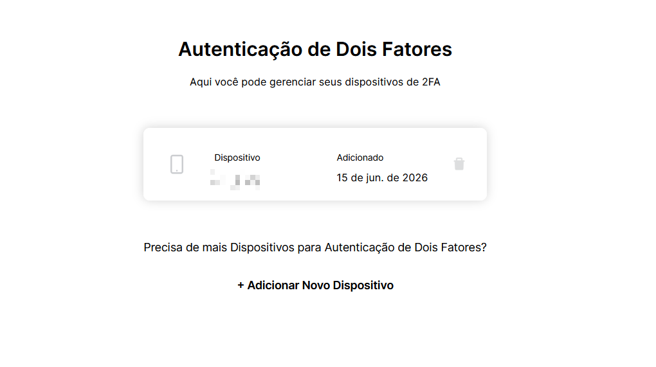
Done! The device has been successfully registered and Two-Factor Authentication is now active on your account. From now on, every time you sign in to Nuvion, you will be asked for the code generated by the authenticator app in addition to your password. You can manage the registered devices or add new ones at any time on the same screen.
Questions?
Contact technical support and send us your question — we will be glad to help!