🔐 External SFTP Access in SaveinCloud
⚠️ All configurations shown in this manual are simple and hypothetical examples. Adaptations may be necessary according to each user's needs.
This guide shows how to access via External SFTP using key pairs generated by PuttyGen and connecting with Filezilla.
💡 Key pair generation and SFTP access can be done with other tools of your choice.
✅ Requirements
🔑 Step 1 - Generate Key Pair with PuttyGen
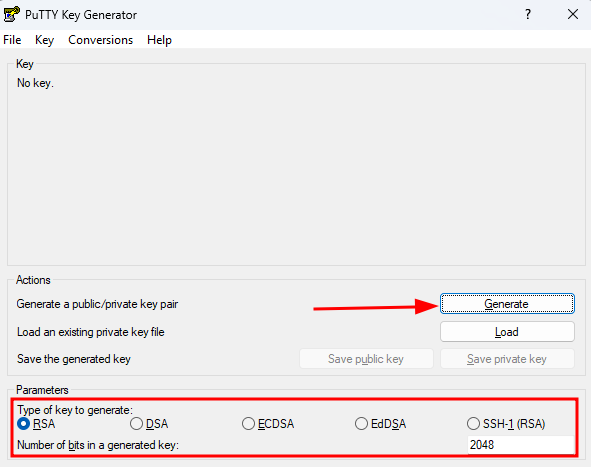
Open PuttyGen and click Generate:
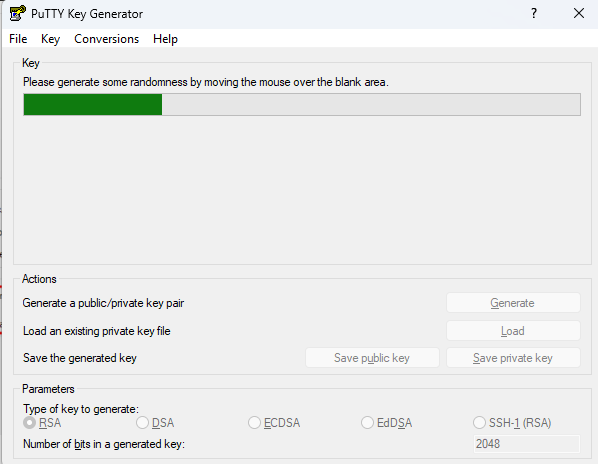
Move the mouse over the indicated area to generate randomness:
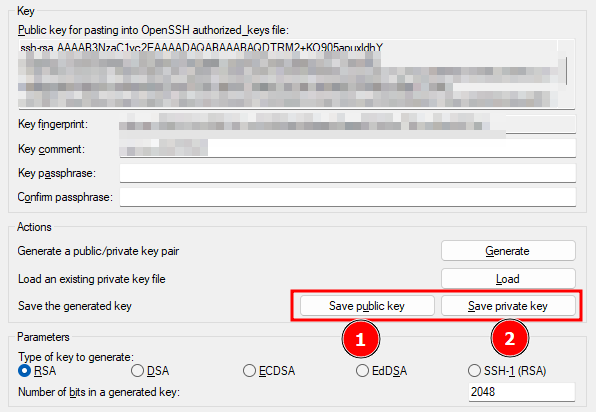
Save the public and private keys in an accessible location:
🌐 Step 2 - Add Public Key in the Gate
⚠️ This configuration allows external SFTP access for all environments in the account.
Access your account and open the Add Public Key screen:
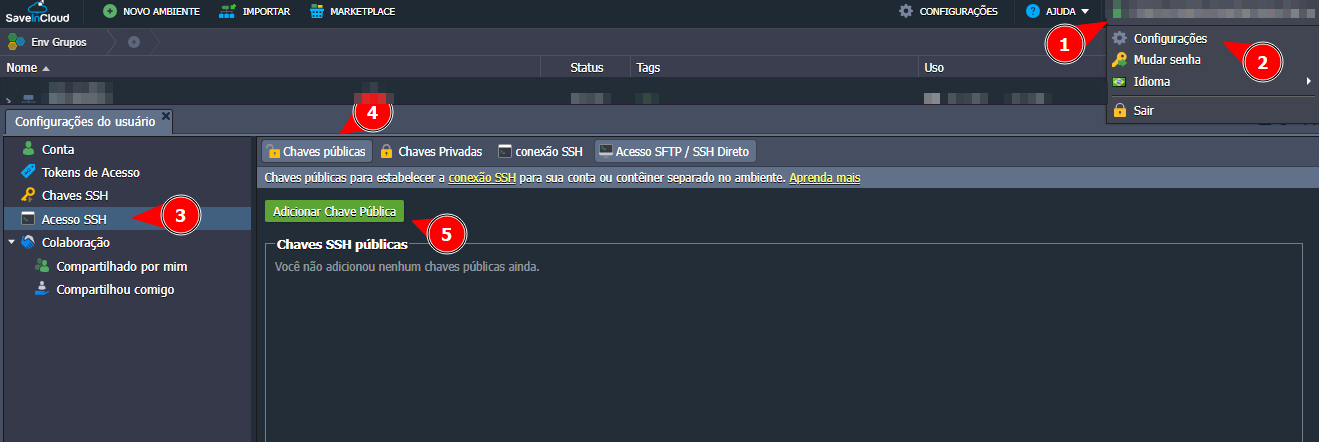
Copy the content of the generated public key and paste it into the indicated field:
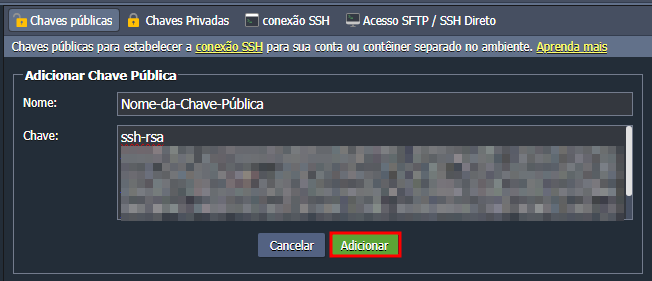
📡 Step 3 - Connect via FileZilla
In the SaveinCloud panel, copy:
- Host
- User
- Port
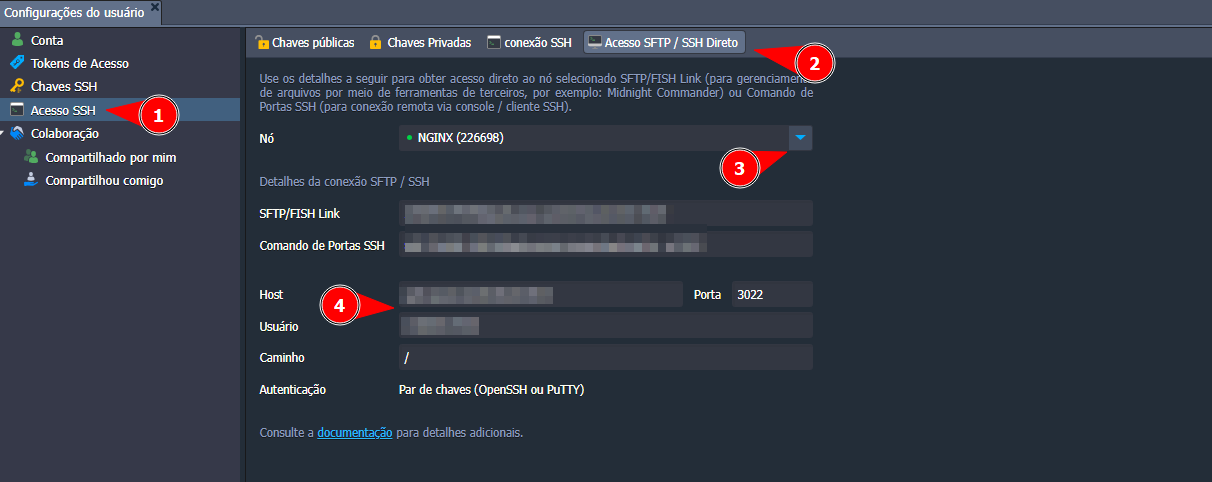
Open FileZilla and access the Site Manager:

Configure with the platform data and attach the private key (.ppk):
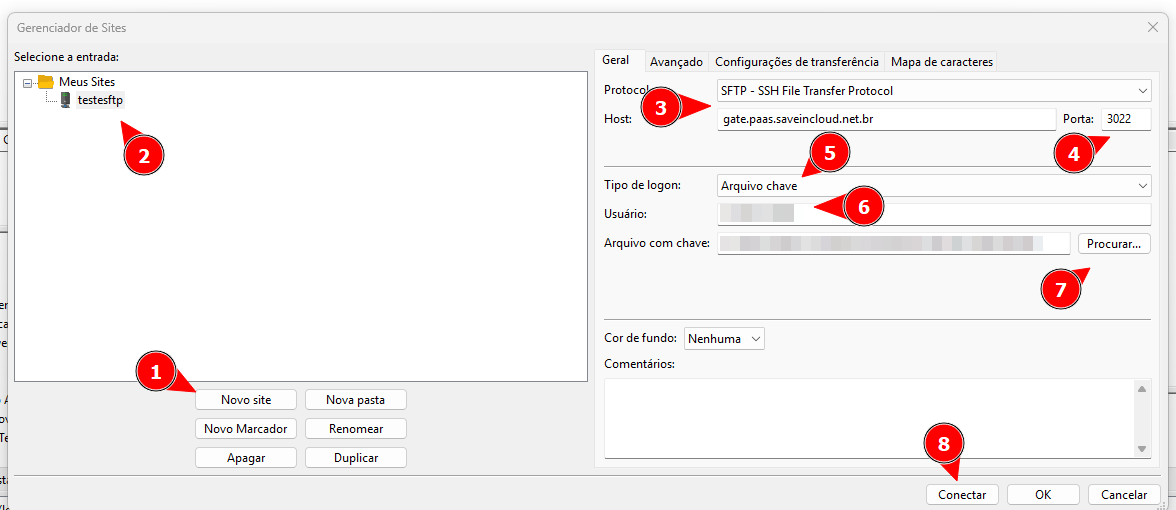
If everything is correct, the connection will be established:
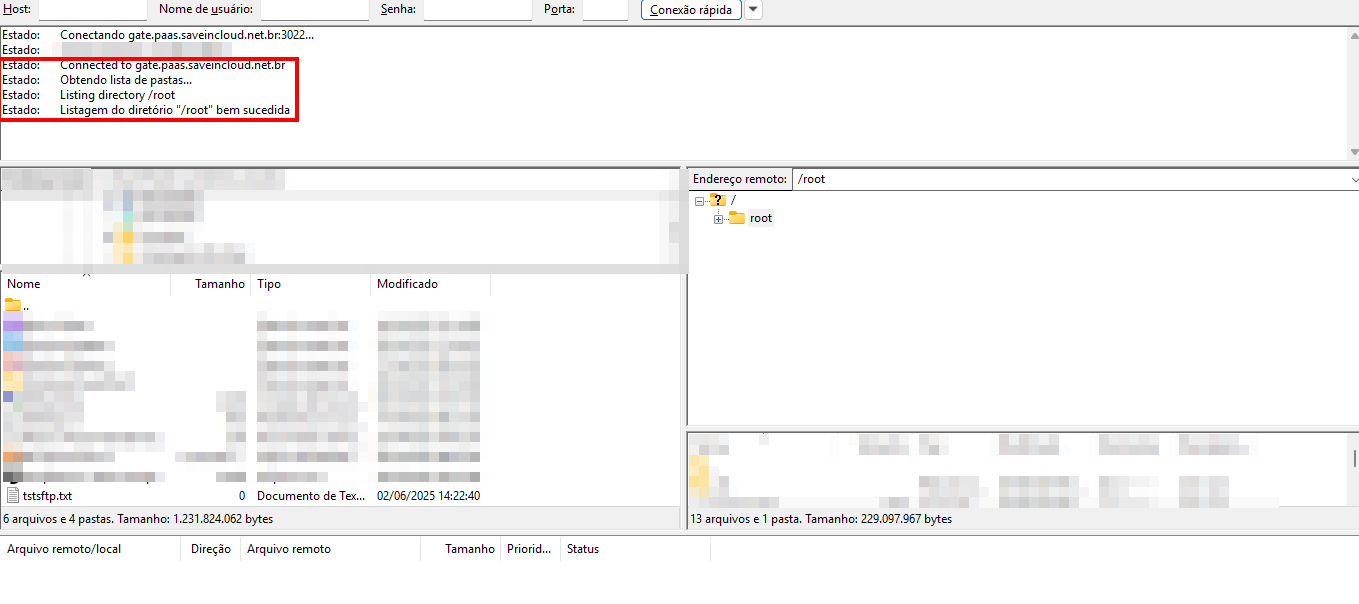
📁 Step 4 - File Transfer
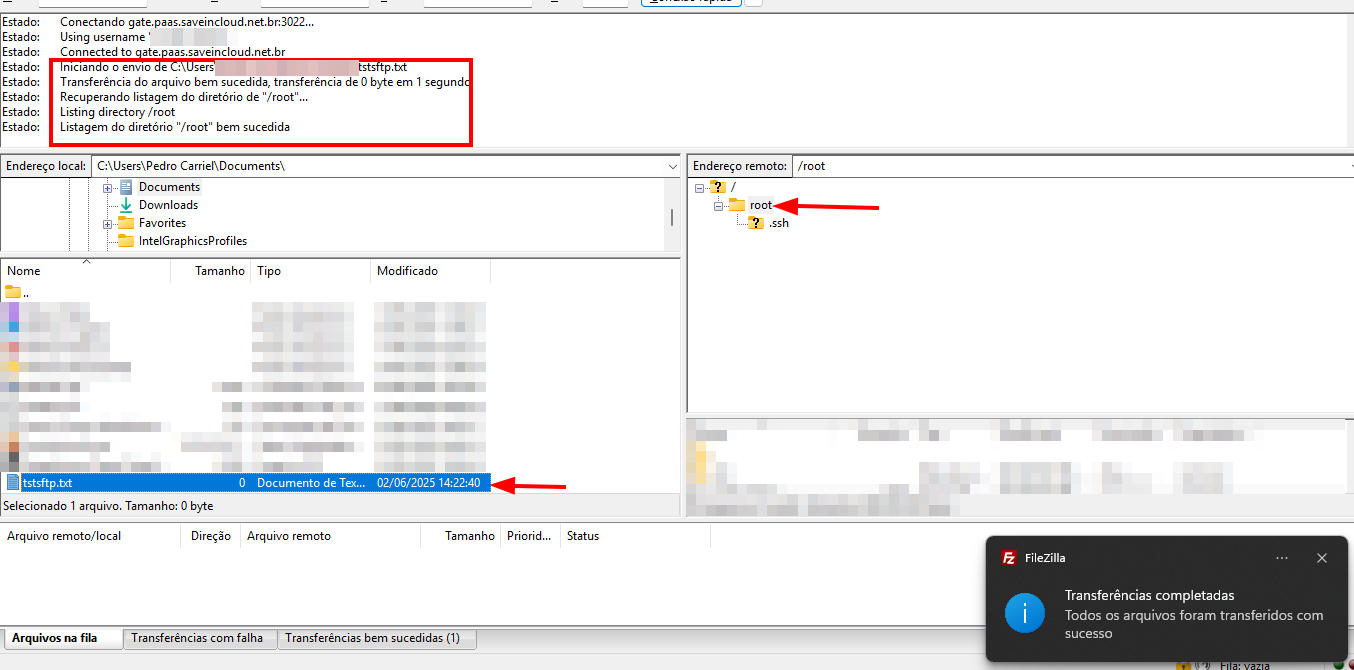
Select the file and send it to the desired directory (e.g., /root):
Check the transfer by accessing the environment via SSH:
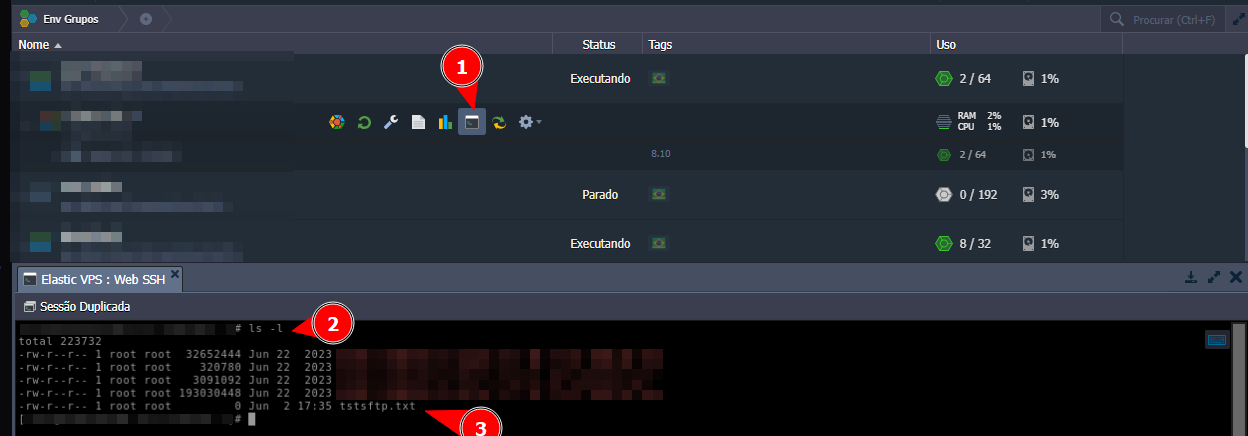
Transfer completed successfully ✅
🛠️ Troubleshooting
❌ Permission error when transferring file
Cause: protected destination directory
Solution: Send to directories like /tmp.
❌ Connection refused by FileZilla
Cause: invalid key or not added in the Gate
Solution:
- Verify if the public key was correctly pasted
- Check if you used the file
.ppkin the FileZilla configuration
❌ Files do not appear at the destination
Cause: sent to incorrect directory or lack of permission
Solution:
- Confirm the path in FileZilla
- Validate via WebSSH if the file was saved correctly
With these steps, your SFTP access in SaveinCloud will be functional and secure.