👥 Collaboration on the SaveinCloud Platform
The Collaboration feature allows you to share your environment with other users, assigning different levels of access and control. This is essential for development, operations, and support teams working together in managing cloud environments.
Collaboration facilitates teamwork by allowing different members to have access according to their responsibilities, without the need to share credentials.
🚀 How to create a collaboration
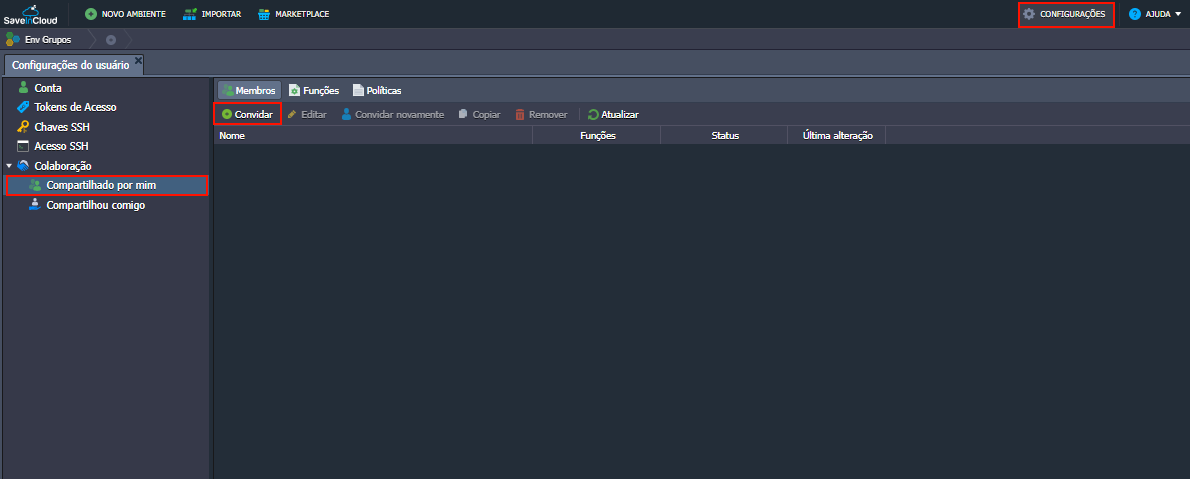
- Access the SaveinCloud dashboard.
- Click Settings in the upper right corner.
- Select Shared by me from the menu.
- Click Invite.
- Fill in the invited user's details (email).
- Define the environments to be shared.
- Choose or create the role to be assigned to the user.
- Click Invite.
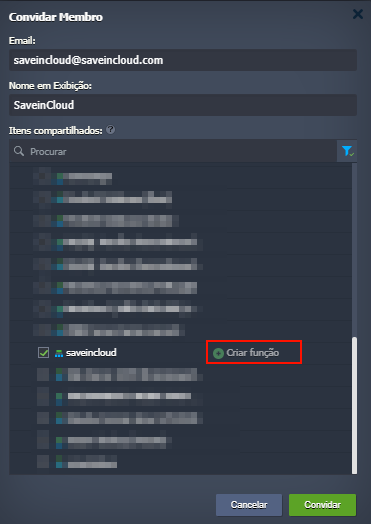
The invited user will receive an email with the invitation and, after accepting, will be able to access the environments according to the assigned permissions.
🔐 Available Permissions and Roles
📦 Environment Group
- Manage environment groups
- Enable/Disable network isolation
- Manage environment association to groups
🌐 Environments
- Manage environment topology
- Create environments
- Edit environments (scaling, IPs, nodes)
- Clone environments
- Migrate environments
- Delete environments
🔄 State
- Start/Stop environments
- Restart environment nodes
⚙️ Settings
- Change alias
- Change environment groups
- Manage external domains
- Configure custom SSL
- Upload alert rules
🚀 Scaling and Export
- Configure automatic horizontal scaling
- Export environments and generate manifests
🐳 Container
- Manage environment containers
📂 File System
- Access files
- Create, edit, and delete files
📝 Logs
- View logs
- Clear or delete logs
📊 Statistics
- View resource usage of environments
🔑 Access and Management
- Reset password
- Redeploy containers
- Manage Add-ons
- Execute custom commands (CMD)
🌐 Network
- Manage endpoints
- Manage firewall rules
⚙️ Deployments
- Manage projects and hooks
🔐 Remote Access
- SSH and RDP access to environments
💰 Costs and Billing
- Check cost estimates and billing history
🛍️ Marketplace and Scripts
- Install marketplace applications
- Execute JPS manifests
👥 Collaboration
- Manage access to shared environments and groups for other users
🔄 How to manage collaborators
- In the Collaboration menu, view all invited users.
- Click on a collaborator to:
- Change the role.
- Add or remove access to environments.
- Remove the collaborator, ending access.
📜 Best practices
- 🔐 Never share credentials: Always use the collaboration feature.
- ✅ Assign roles based on the actual responsibilities of each team member.
- 🚫 Immediately revoke access of collaborators who are no longer part of the project.
- 🔄 Review permissions periodically.
- 🏢 Use the principle of least privilege to enhance security.
🛠️ Troubleshooting – Common issues
❌ Invitation not received
- Verify if the email is correct.
- Check the spam or junk folder.
- If necessary, cancel and resend the invitation.
❌ Insufficient permission
- Confirm if the assigned role allows the desired action.
- Change to a role with broader permissions if needed.
📚 Official documentation
⚠️ All configurations made in this manual are simple and hypothetical examples. Adaptations will be necessary according to your company's topology and access policy.
🧠 Questions?
Contact the SaveinCloud technical support team. We are ready to help!