Access, Access Key and Secret Key – Overview and Object Access
Introduction
Saveincloud's object storage is compatible with the S3 protocol, allowing external applications and tools to access buckets and objects using access credentials.
These credentials consist of:
- Access Key
- Secret Key
They work similarly to a username and password, allowing authentication of requests made to the S3 API.
This documentation will present:
- What Access Key and Secret Key are
- How to create the access keys
- Difference between public and private objects
- How to access a public object
- How to access a private object using Postman
Access Key and Secret Key
To access private buckets or use the S3 API, it is necessary to have a pair of access credentials.
These credentials are used to authenticate and sign requests sent to the S3 service.
Access Key
The Access Key acts as a public identifier of the credential.
It informs the service which user or application is making the request.
Example:
Access Key: 8e151ff0288c122cXXXX
Secret Key
The Secret Key is used to cryptographically sign requests sent to the S3 API.
It functions as a password, ensuring that only those who possess this key can access private resources.
Example:
Secret Key: xxxxxxxxxxxxxxxxxxxxxxxxxxxxx
The Secret Key must be kept secure and should not be shared or exposed publicly.
Creating Access Key and Secret Key
To access Object Storage via API or external tools, it is necessary to create a pair of keys.
1 – Access the Object Storage panel
In the Saveincloud platform panel, access the Object Storage service.
2 – Access the credentials area
Within the panel, click on Access.
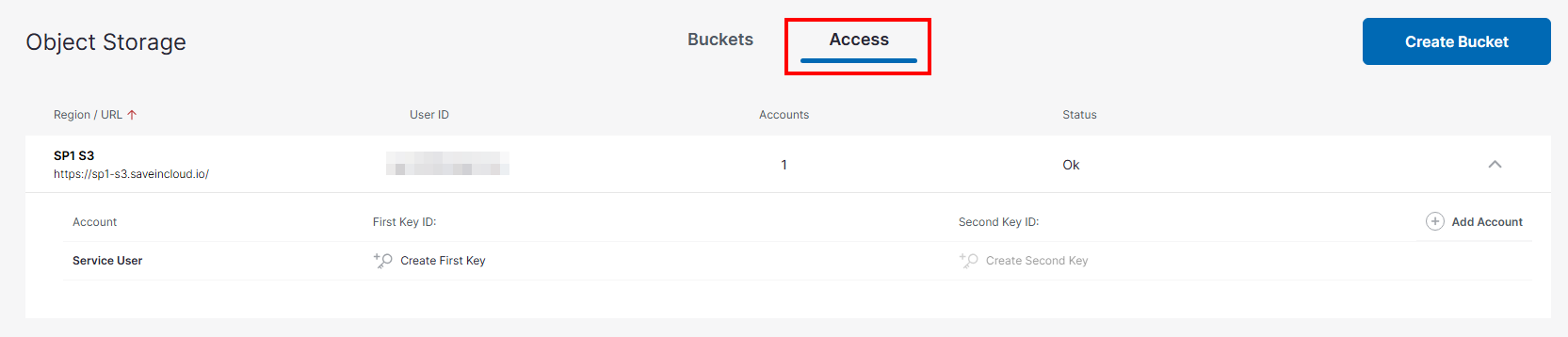
3 – Create a new key
Click the option:
Create First Key or Add Account
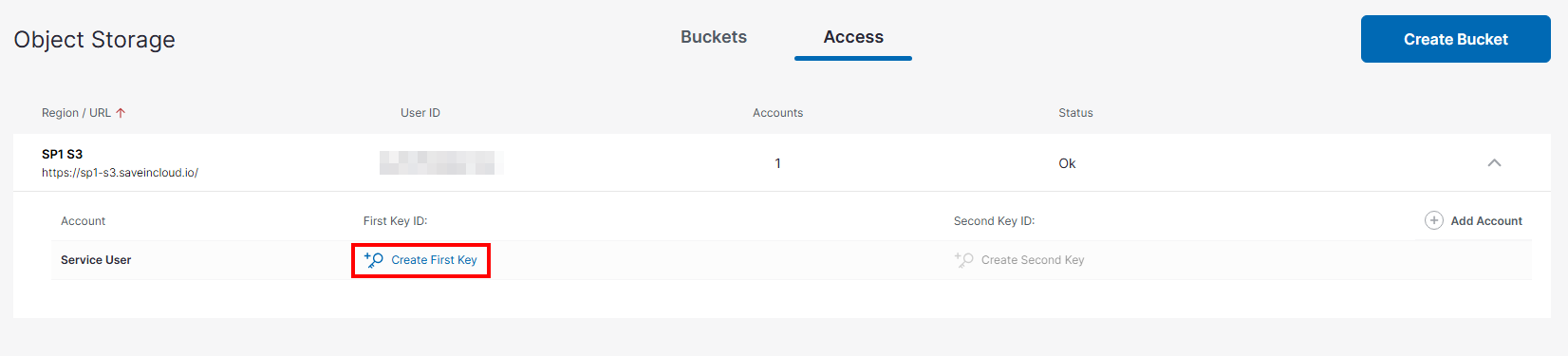
The system will automatically generate a pair of credentials. After creation, the keys will be displayed.
Example:
Access Key: 8e151ff0288c122cXXXX
Secret Key: xxxxxxxxxxxxxxxxxxxxxxxxxxxxx
The Secret Key is displayed only once at the time of creation.
After refreshing or leaving the page, it cannot be viewed again.
Make sure to copy and store the key in a safe place before continuing.
Public Objects vs Private Objects
In Object Storage there are two main types of access to objects.
| Access Type | Description |
|---|---|
| Public | Anyone with the URL can access the object |
| Private | Only authenticated users can access |
Making and Accessing a Public Object
To make a Bucket or Object public, it must be enabled in Public Access.
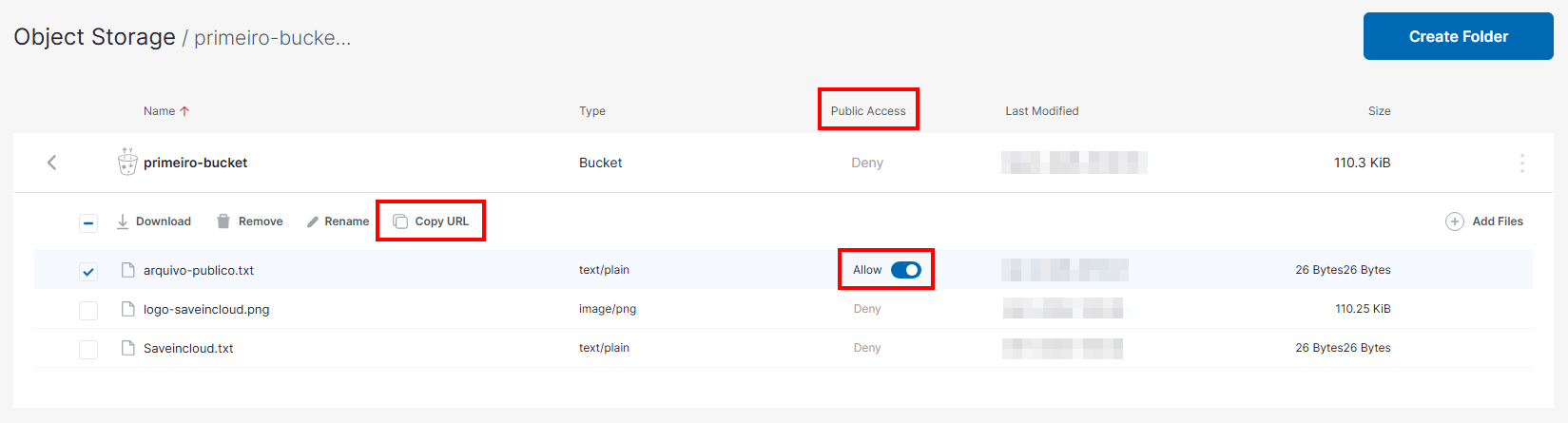
When an object has public permission, it can be accessed directly through the URL. The URL can be obtained by selecting the Object and clicking Copy URL.
URL Structure
https://REGIAO-s3.saveincloud.io/BUCKET/OBJETO
Example
https://sp1-s3.saveincloud.io/primeiro-bucket/arquivo-publico.txt
By accessing this URL in the browser, the file will be displayed or downloaded directly.

This type of access does not require authentication.
Accessing a Private Object with Postman
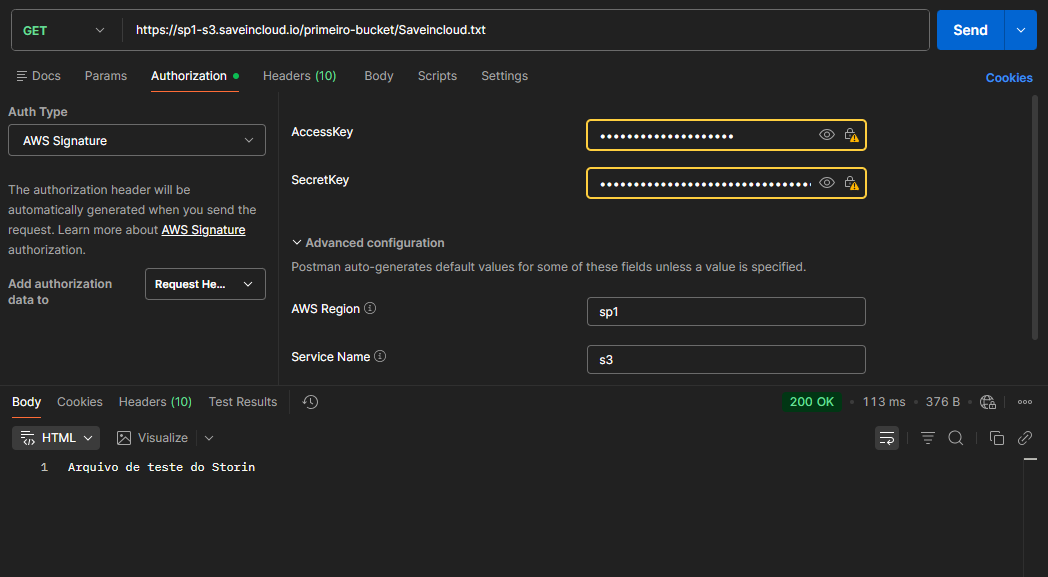
When the object is not public, access must be done through an authenticated request using AWS Signature.
Postman can generate this signature automatically.
1 – Create a new request
Method:
GET
URL:
https://sp1-s3.saveincloud.io/primeiro-bucket/Saveincloud.txt
2 – Configure authentication
In Postman, go to the tab:
Authorization
Select the type:
AWS Signature
3 – Fill in the fields
Fill in with the credentials created earlier.
| Field | Value |
|---|---|
| AccessKey | your Access Key |
| SecretKey | your Secret Key |
| AWS Region | Region (in this case, sp1) |
| Service Name | s3 |
4 – Send the request
Click on:
Send
If the credentials are correct and the object exists, the content of the object will be returned in the response.
Possible Errors
AuthorizationHeaderMalformed
This error occurs when the request signature is incorrect.
Example:
<Error>
    <Code>AuthorizationHeaderMalformed</Code>
    <Message>The authorization header you provided is invalid.</Message>
</Error>
Check if:
- The region is correct (e.g., sp1)
- The Service Name is set to s3
- The credentials are correct
📚 Documentation and Resources
🧠 Support
If you have questions or need help with the configuration, contact Saveincloud support through the channels available on the platform.