📦 Creating volume from existing image, attaching and mounting
📌 Introduction
This guide describes the process of:
- Creating a volume from an image
- Attaching the volume to a Nuvion VM
- Validating and mounting the volume in the operating system
This process is useful for:
- Cloning systems
- Environment recovery
- Distribution of pre-configured data
⚠️ Points of attention
- The volume may already contain partitions (e.g.,
/dev/vdb1) - Do not format (
mkfs) if data needs to be preserved - The device name may vary (
vdb, vdc, etc.) - Always validate with
lsblk
🔧 Steps
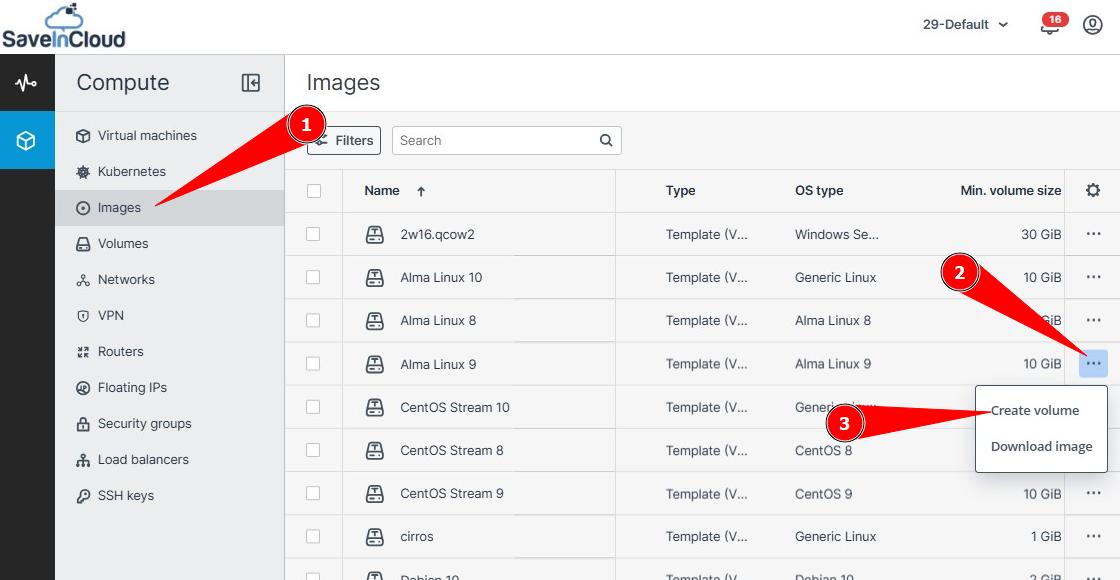
1️⃣ Create volume from an existing image
- Access the panel and click on Images
- Click the three dots (...) of the desired image
- Then, click Create volume
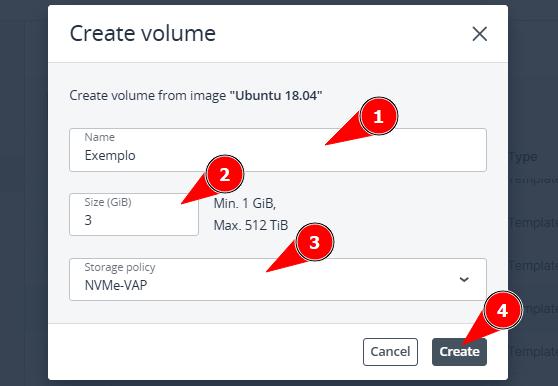
⚙️ Configure volume
- Set a name for the volume
- Choose the size (GiB)
- Select the Storage Policy (disk type)
- Click Create
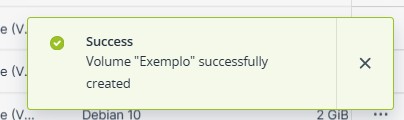
✅ Confirm creation
- Wait for the success message
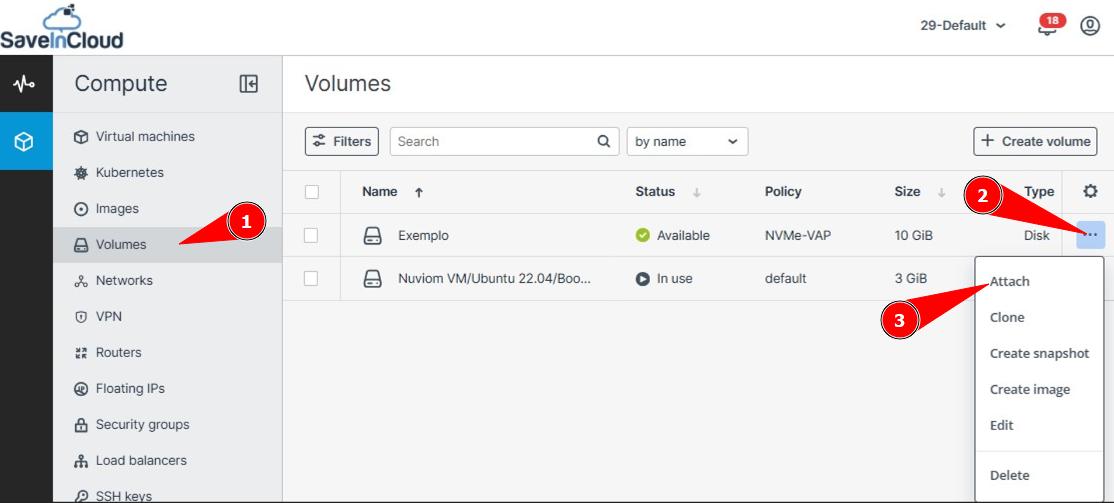
2️⃣ Attach volume to Nuvion VM
- Access the Volumes menu
- Locate the created volume (Example)
- Click the three dots (...)
- Select Attach
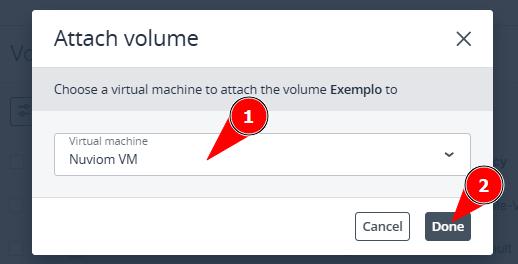
👉 Select Nuvion VM
- Choose the desired Nuvion machine
- Click Done
3️⃣ Access the Nuvion VM
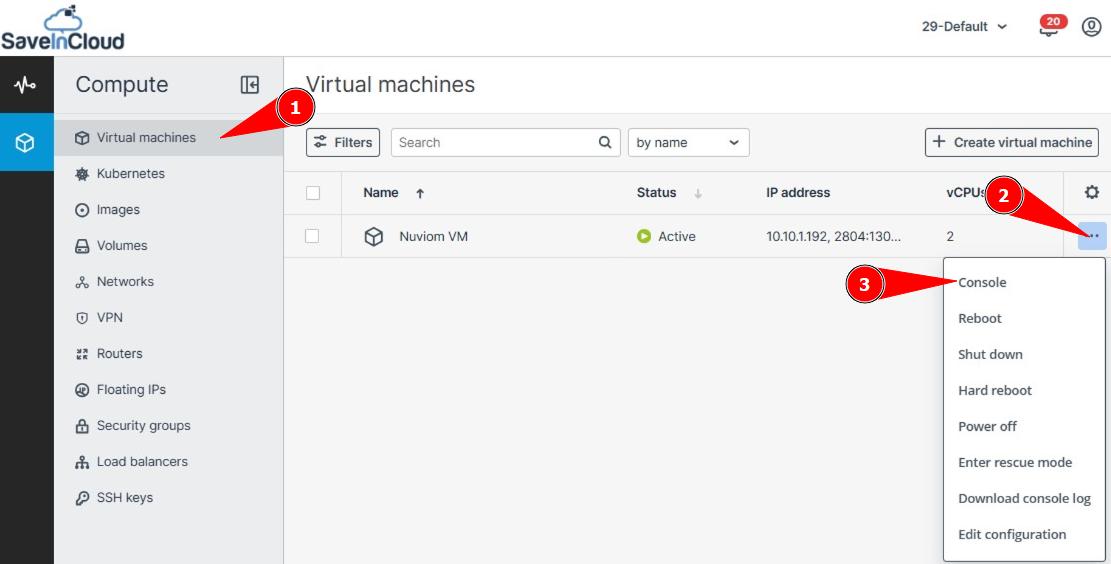
- Access Virtual Machines
- Click the three dots (...)
- Select Console
ℹ️ A new window will open in your browser with the console screen of your Nuvion VM.
4️⃣ Validate disk in the system
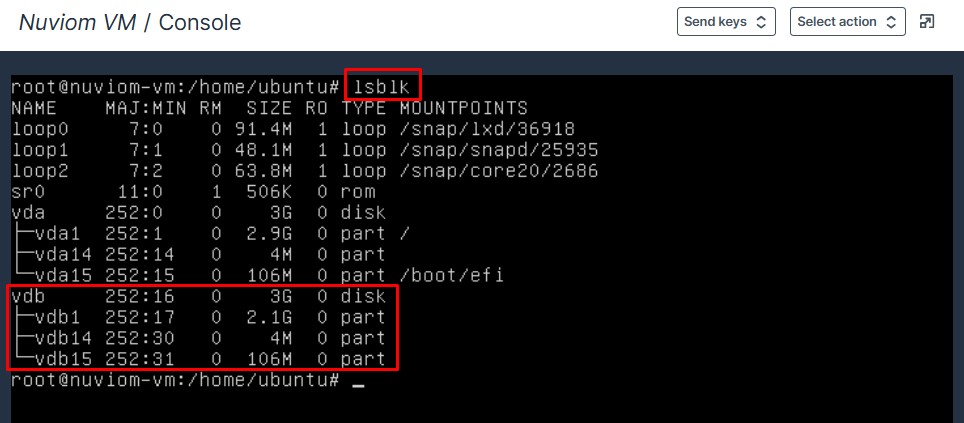
Run:
lsblk
👉 The new disk will appear as /dev/vdb (or similar)
5️⃣ Create mount point
➜ Create a directory where you want to mount this volume
mkdir -p /meusistema

6️⃣ Identify filesystem (optional)
blkid /dev/vdb1
info
Useful to check:
Type (ext4, xfs)
UUID
➜ Do not format (mkfs) if data needs to be preserved

7️⃣ Mount the volume
mount /dev/vdb1 /meusistema

8️⃣ Validate mounting
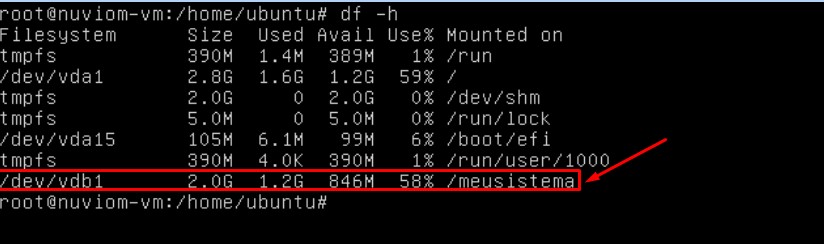
df -h
info
The volume should appear mounted in the configured directory
💡 Best practices
- Use UUID in /etc/fstab for persistence
- Validate permissions after mounting
- Monitor usage with df -h
- Avoid overwriting volumes with data
🎯 Summary
In this process, we create a volume from an existing image, attach it to a Nuvion, and perform its mounting in the operating system, allowing secure and controlled access to the data.
🆘 Support
If you have questions or need help, contact technical support through the platform panel.