🌐 Application Deployment on the Kubernetes Cluster
This guide simply shows how to Deploy your applications on the Kubernetes Cluster in Nuvion by SaveinCloud.
🚀 1. Application Deployment
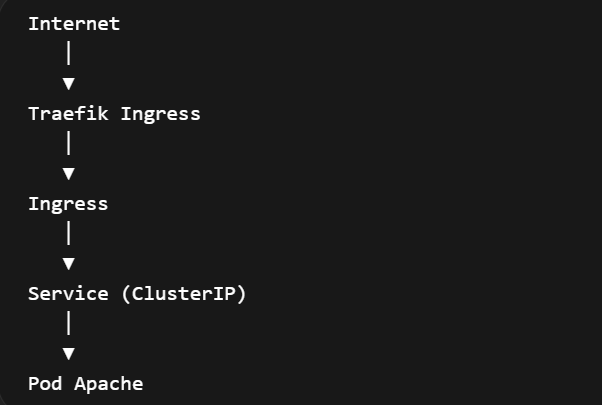
We will simply and functionally publish an Apache Pod on the internet through port 80 using Ingress with Traefik in Kubernetes. The structure will be:
-
- Apache Pod + Service
-
- Ingress using Traefik
-
- External Access Test
- Create the Apache Pod with the file apache-pod.yaml
apiVersion: apps/v1
kind: Deployment
metadata:
  name: apache
spec:
  replicas: 3
  selector:
    matchLabels:
      app: apache
  template:
    metadata:
      labels:
        app: apache
    spec:
      terminationGracePeriodSeconds: 0
      tolerations:
      - effect: NoExecute
        key: node.kubernetes.io/unreachable
        operator: Exists
        tolerationSeconds: 2
      - effect: NoExecute
        key: node.kubernetes.io/not-ready
        operator: Exists
        tolerationSeconds: 2
      containers:
      - image: httpd
        imagePullPolicy: IfNotPresent
        name: apache
        ports:
        - containerPort: 80
          protocol: TCP
-Apply:
kubectl apply -f apache-pod.yaml
-Check:
kubectl get pods
kubectl get pods -o wide
- Create the Service to expose the Pod with the file apache-service.yaml
- The Ingress does not point directly to the Pod, it points to the Service.
apiVersion: v1
kind: Service
metadata:
  name: apache-service
spec:
  selector:
    app: apache
  ports:
    - protocol: TCP
      port: 80
      targetPort: 80
  type: ClusterIP
-Apply:
kubectl apply -f apache-service.yaml
-Check:
kubectl get svc
- Create Ingress using Traefik with the file apache-ingress.yaml
apiVersion: networking.k8s.io/v1
kind: Ingress
metadata:
  name: apache-ingress
  annotations:
    kubernetes.io/ingress.class: traefik
spec:
  rules:
  - host: treinamento.seudominio.com
    http:
      paths:
      - path: /
        pathType: Prefix
        backend:
          service:
            name: apache-service
            port:
              number: 80
-Apply:
kubectl apply -f apache-ingress.yaml
-Check:
kubectl get ingress
-Example output:

- Check if Traefik is running:
kubectl get pods -A | grep traefik
kubectl get svc -A | grep traefik
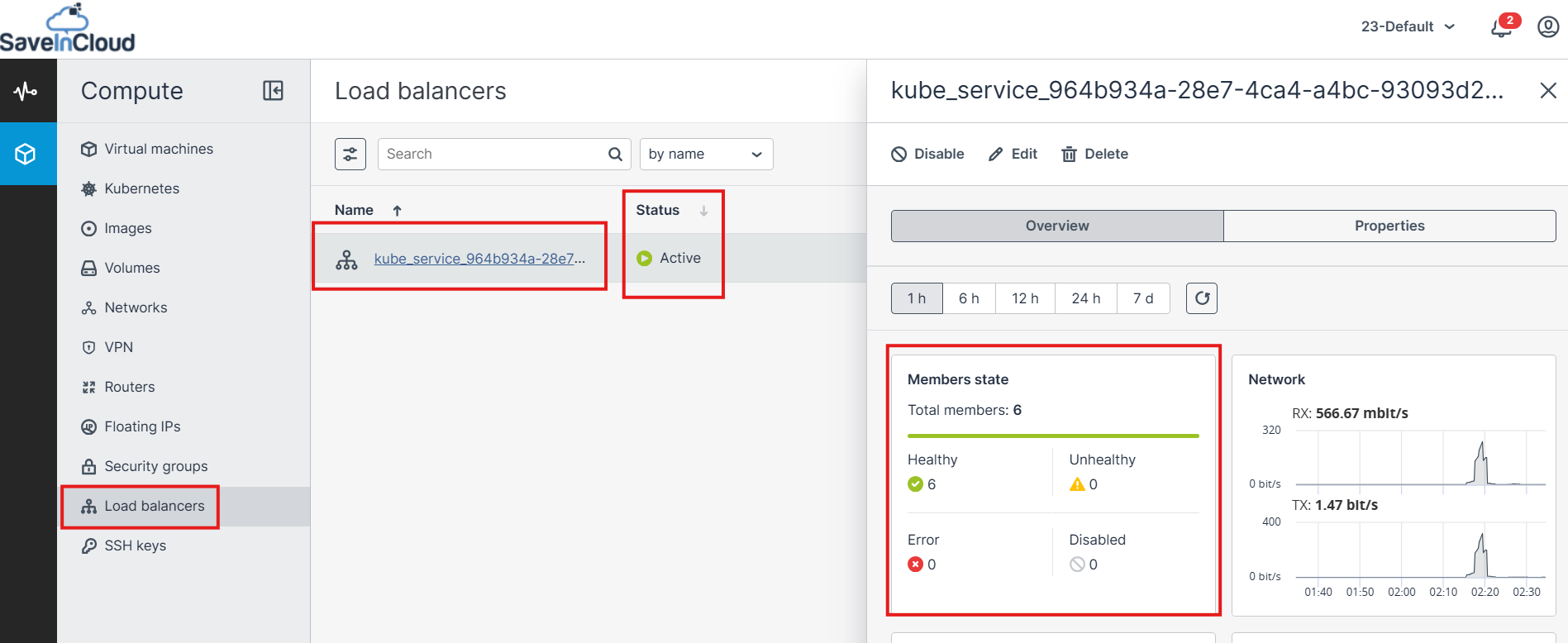
- In the Nuvion Panel, we can navigate to the Load Balancers screen and note that a Traefik Load Balancer was created, for TCP/80 and TCP/443 ports with Active status and 3 members each. We can also validate that it has a private IP and in the next step we will create and associate a Floating IP (Public IP) so that with this public IP we can create an A record in our DNS Zone and point to our subdomain. With the subdomain responding, users will already be able to access the web application.
-
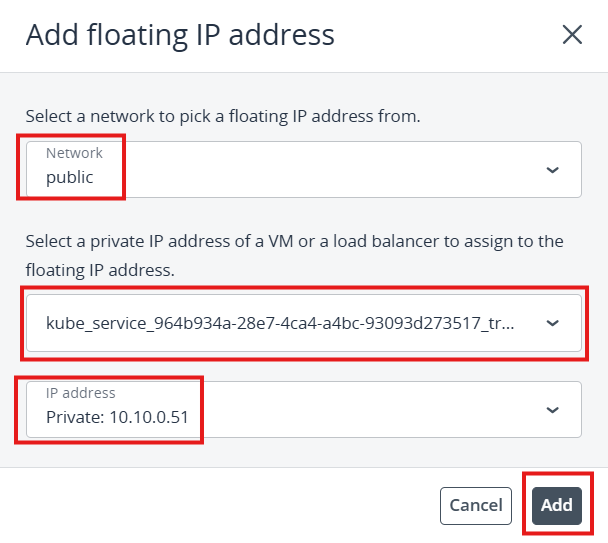
In the Nuvion Panel, navigate to the Floating IPs screen and add a new Floating IP for our Traefik Load Balancer by clicking the + Add Floating IP button:
-
Select the public network
-
We will associate this new IP to our Load Balancer
-
In IP address select the Private network
-
Click the ADD button to create
- Configure DNS - Create an A record pointing to the Cluster IP:
apache.seudominio.com -> IP_DO_NODE_TRAEFIK
- Or Test via /etc/hosts:
IP_PUBLICO treinamento.seudominio.com
- Test Access:
curl http://treinamento.seudominio.com
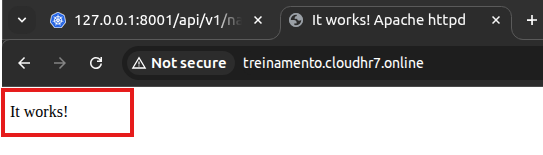
- Or open in the browser (The default Apache It Works! page should appear)
http://treinamento.seudominio.com
- Screenshot with the Final Architecture of this simple project:
🚀 1. Troubleshooting in Kubernetes
These are the most used commands for troubleshooting in a cluster. They help investigate pod, node, network, storage, events, and log issues.
- Check the overall Cluster status:
kubectl cluster-info
kubectl cluster-info dump
kubectl get componentstatuses
kubectl get nodes
kubectl get namespaces
- Full Summary:
kubectl get all -A
- Advanced debug with temporary container:
kubectl debug pod/pod-name -it --image=busybox
- Most used command for quick Troubleshooting:
kubectl describe pod pod-name && kubectl logs pod-name
- Restart Pods / Deployments
kubectl rollout restart deployment deployment-name
- Check rollout status:
kubectl rollout status deployment deployment-name
-
Pod Troubleshooting
-
View full pod details:
kubectl describe pod pod-name
- View container logs:
kubectl logs pod-name
- Real-time logs:
kubectl logs -f pod-name
- Previous container logs (when restarting):
kubectl logs pod-name --previous
🧠 Questions?
Contact our SaveinCloud technical support team!